

Story, characters and performance
Organize chapters and scenes, manage characters and variables, and visually edit dialogue, choices and staging in GalCraft Studio. Check the story through stage previews and playtests.
GalCraft Studio 0.2.0. Return to the Studio guide.
Start from one author goal
Existing scripts, characters and media are valid starting points. Changing only an avatar, voice, page or instruction edits the corresponding fields and necessary associations while retaining other work. Supplied dialogue, narration and plot are preserved by default; formatting, scene splitting and necessary direction do not imply permission to rewrite prose. Agreed character facts belong in character documents; world, style and chapter notes belong in the project outline. Undecided discussion stays in conversation or production drafts.
Structure, variables and reusable scenes
Create, rename, reorder, move, copy and reference-aware remove chapters/scenes, and explicitly set the project start. Directory order organizes files; jumps organize story flow. Renaming/moving keeps identities; copies rebuild internal identities/jumps while retaining external character/asset references. Move scenes or specify their destination before removing a nonempty chapter. Resolve actual consumers before removing referenced objects. Empty chapters/scenes and optional unconfigured routes are valid; configured references must identify real objects.
Variables support numbers, booleans, text and initial values. Progress follows saves; advanced longTerm variables survive new runs and loading older saves, separately from read/ending/gallery unlock sets. Changing a referenced variable's type/scope uses a new variable and explicit replacement.
Reusable scenes support simple call/return, parameters, per-call local variables and typed return values. A parameter must be supplied or have a legal default when omitted; turning off required without a default still cannot permit omission. Declaration changes leave located diagnostics on unmatched calls so editing can continue; tools do not silently rewrite every caller. Unfinished DSL/CSS can retain diagnostics, while structured application passes the owning transaction's full validation first.
In Structure and variables, expand Subscene parameters, locals and return to edit declarations. Adding a local moves keyboard focus to the new variable’s name. Apply the declarations, then use workbench save to write them to the project.
Find the authoring controls
Open Workfaces → Writing and stage to see the current scene alongside Plot outline, Stage and Object properties. Choose a scene in the outline and a command in the central document, then edit the command in Object properties. Open Problems in the bottom dock to return to the source of a check or a failed action.
Press Ctrl+P to search project objects or Ctrl+Shift+P to search commands. For script references, open Layout → Show semantic search. Drag the separators to resize regions or choose Apply balanced layout under Workbench preferences → Layout. The same preferences control font and wrapping.
Add events inside dialogue
In Writing, put the caret at the desired point in a line. Open its … menu, then choose Dialogue text → Insert inline wait, Insert inline sound effect, or Insert inline expression. The expression picker lists shared image variants and Live2D expressions from characters already on stage before this line. It can target a character other than the speaker.
Give a wait a positive duration in milliseconds for a timed pause, or leave the duration blank for a click wait. Leave Wait in auto mode (ms) blank to use the player's preference. Select the event marker and use Edit inline event in Object properties to make changes. Choose From this line to play the result.
Set up scene decor and rule-image transitions
Open a scene's menu in Plot outline and choose Scene decor → Add decor layer. Choose the image and variant, adjust its Camera follow factor, then use Apply changes or Apply and preview. Use a Transform command on the Stage to check how the layers move relative to each other.
For a grayscale transition, choose Rule image transition → Choose rule image on a Background or Change scene command. Under Rule image timing, set the duration, edge softness and reveal direction. A background transition blends the old and new main backgrounds. A scene change blends both stages while the reading UI stays separate.
Global characters and routes
Open Character directory from Plot outline → More places or choose Show character directory from Layout. Search the Character directory on the left and select a character to open its own named tab in the centre. Each character tab keeps its unapplied draft and active section when you switch tabs. Character identity connects dialogue, profiles, AI context and optional afterstories throughout the project.
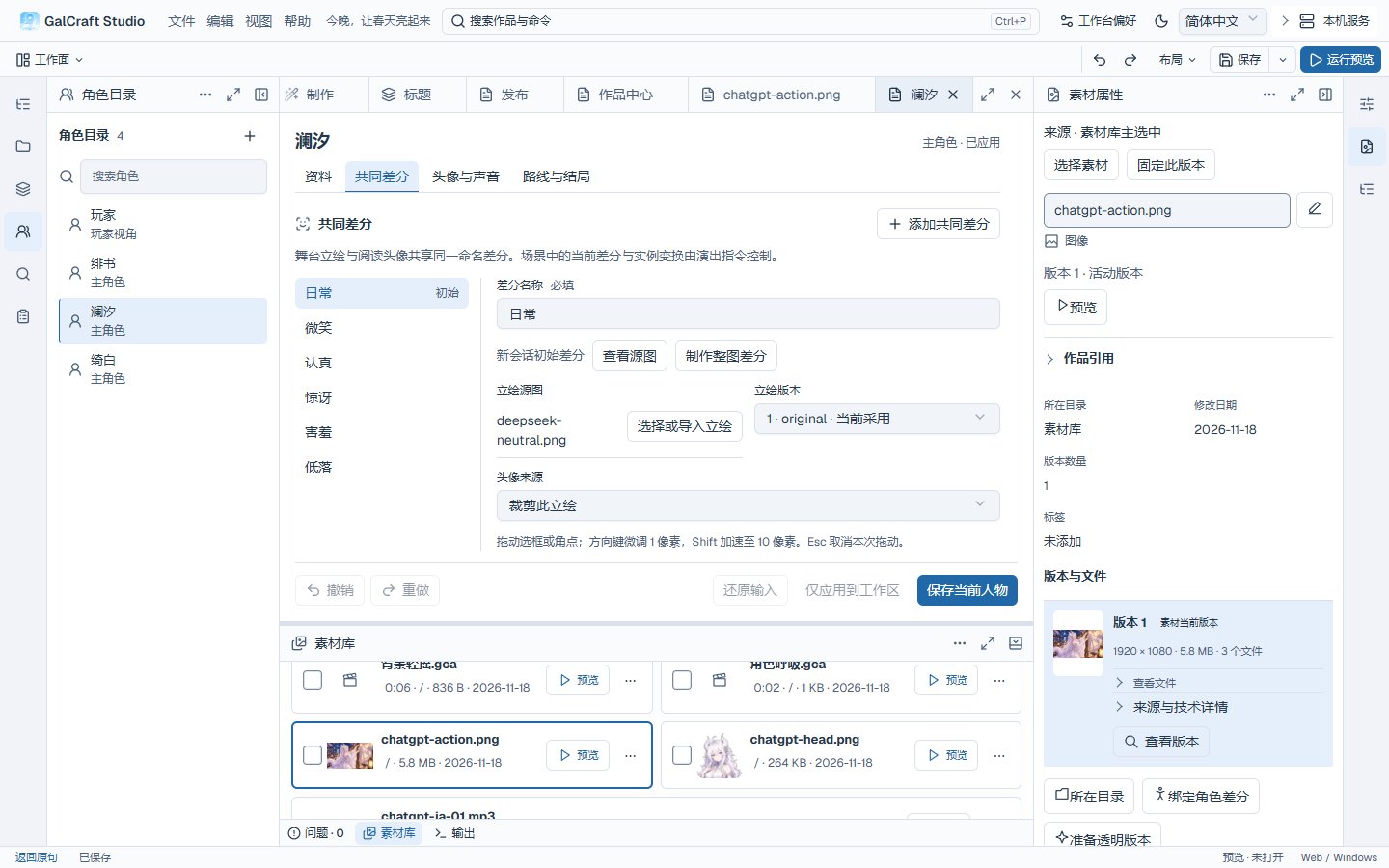
Switch between Profile, Shared differences, Avatar & voice and Route & endings in the character tab. Profile holds the character notes and reference images. Shared differences organize figures and reading portraits. Avatar & voice holds the default reading portrait and voice presets by language. Main characters can configure personal routes and ordinary afterstories in Route & endings.
| Identity | Configuration |
|---|---|
| Player viewpoint | Name and description; optionally connect player naming |
| Main character | Name, description, route scenes and personal endings |
| Supporting character | Name and description, without a personal route |
| Unclassified | Existing character awaiting an explicit classification |
Choose Add character in the directory, then set the name, description and identity in Profile. For a main character, select route scenes and ending IDs in Route & endings. Ending choices come from End story instructions. Incomplete routes can remain drafts.
Choose Apply changes in the character tab to apply that character's edits to the workspace, then save the project. When you close a character tab with a draft, you can continue editing, discard the draft or apply it before closing. Handle unapplied drafts before undoing applied edits. Remove character references from dialogue, figures and other content before deleting a used character.
Character records hold description, unified appearance notes, reference images, named asset groups, shared differences and avatars. Group names organize costume/pose assets; shared differences synchronize stage and reading avatars. Default, difference, stage-cropped and per-line avatars serve different uses. Default effects apply when a figure newly appears; that appearance overrides specified fields. Original canvas and transparent crop offsets belong to assets, with bottom-centre positioning.
Default voice participation affects batch selection: ordinary characters start included and viewpoint characters excluded, and authors may change this. Manual selection and adopted audio stay valid; release does not require voice. Presets use the project's voice-language identities. Target language, reference-recording language, reference transcript and spoken text remain distinct, with only parameters supported by the actual service/model. See Production.
Studio forms submit only changed fields. An external voice edit and an author's description edit both survive; same-field conflicts retain unapplied input and its original basis for a choice. Handle drafts endangered by structural changes without automatic submission or discard. Explicitly handing the current object to a client fixes that target even after Studio selects another object.
Main-character routes support ordinary afterstory configuration; follow Shared character differences and ordinary afterstories below. The official AI afterstory plugin separately uses author permission, available endings and asset allowlists configured from Extensions. Configure an entry and unlock conditions for each ordinary afterstory; viewpoint and supporting characters participate according to their own identities.
Player name
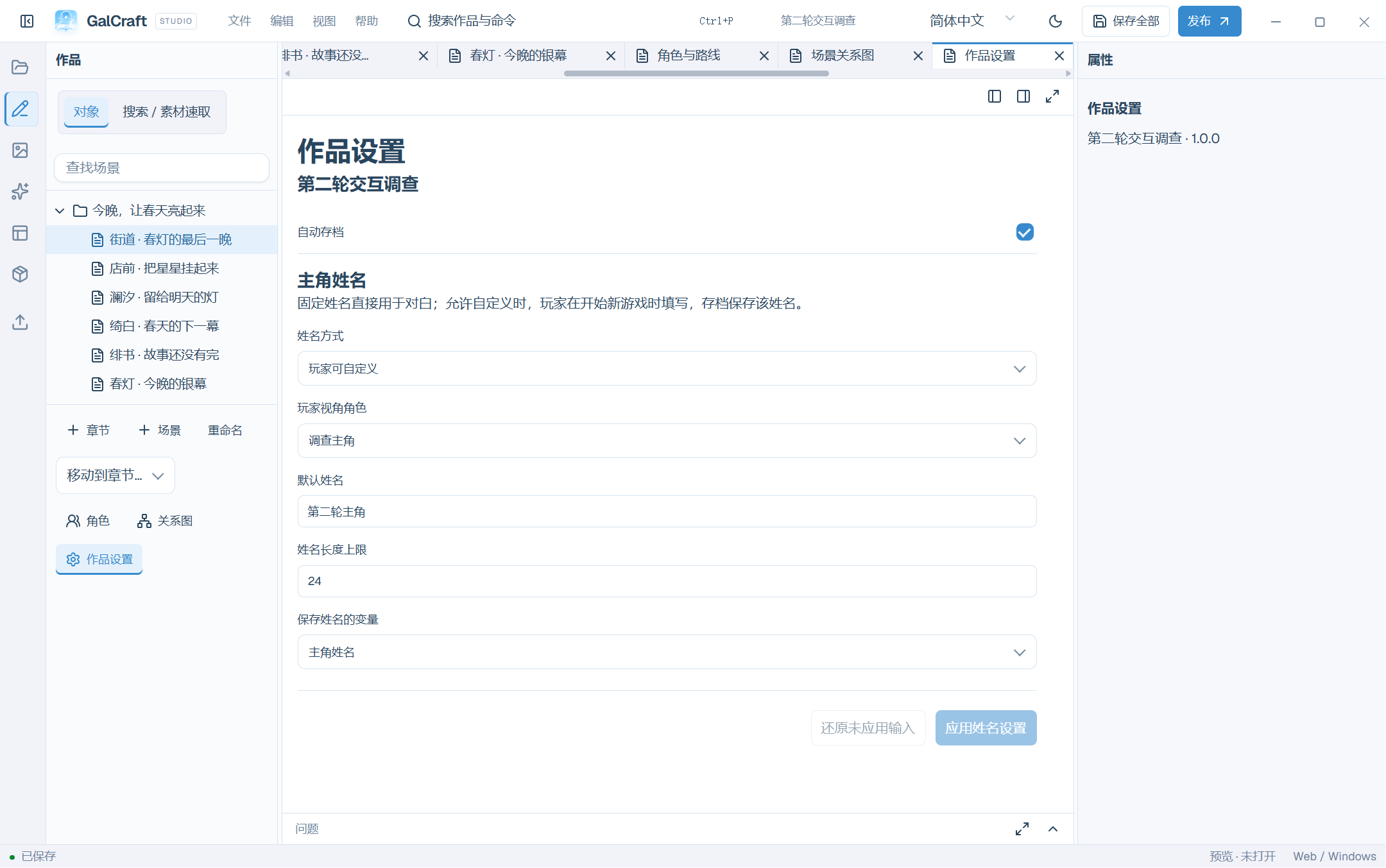
Open the character from the directory, set its identity to Player viewpoint in Profile and apply the changes. Open Project settings and choose the original name, a fixed protagonist name, or a name entered by the player before a new game.
| Field | Meaning |
|---|---|
| Viewpoint character | A character explicitly classified as player viewpoint |
| Default name | Used when the player leaves the initial name unchanged |
| Maximum length | Enforced by the form, for example 24 |
| Name variable | Create or reuse the name variable, or select a progress string variable |
Apply, save all and play from the beginning. A save restores its recorded player name. Cancel keeps the previous configuration. A general story text-input instruction is separate from initial player naming.
Scenes and editing views
The scene toolbar groups Direction, Writing, Source, Undo, Redo and Save document. Playtest starts from the selected line; its adjacent arrow also offers the current scene and the beginning. More authoring tools contains AI writing, Add direction, Paste dialogue, Scene graph and Authoring status. The bottom bar keeps insertion and selection actions visible. Hover beside a line to insert before it.
Search project and commands (Ctrl + P) opens below its header entry. Escape restores the original focus; clicking outside continues work in the editor. Writing input shows Unsaved before leaving the field. The current-instruction stage identifies the scene and line it actually displays, and labels a retained last-valid frame when it cannot update.
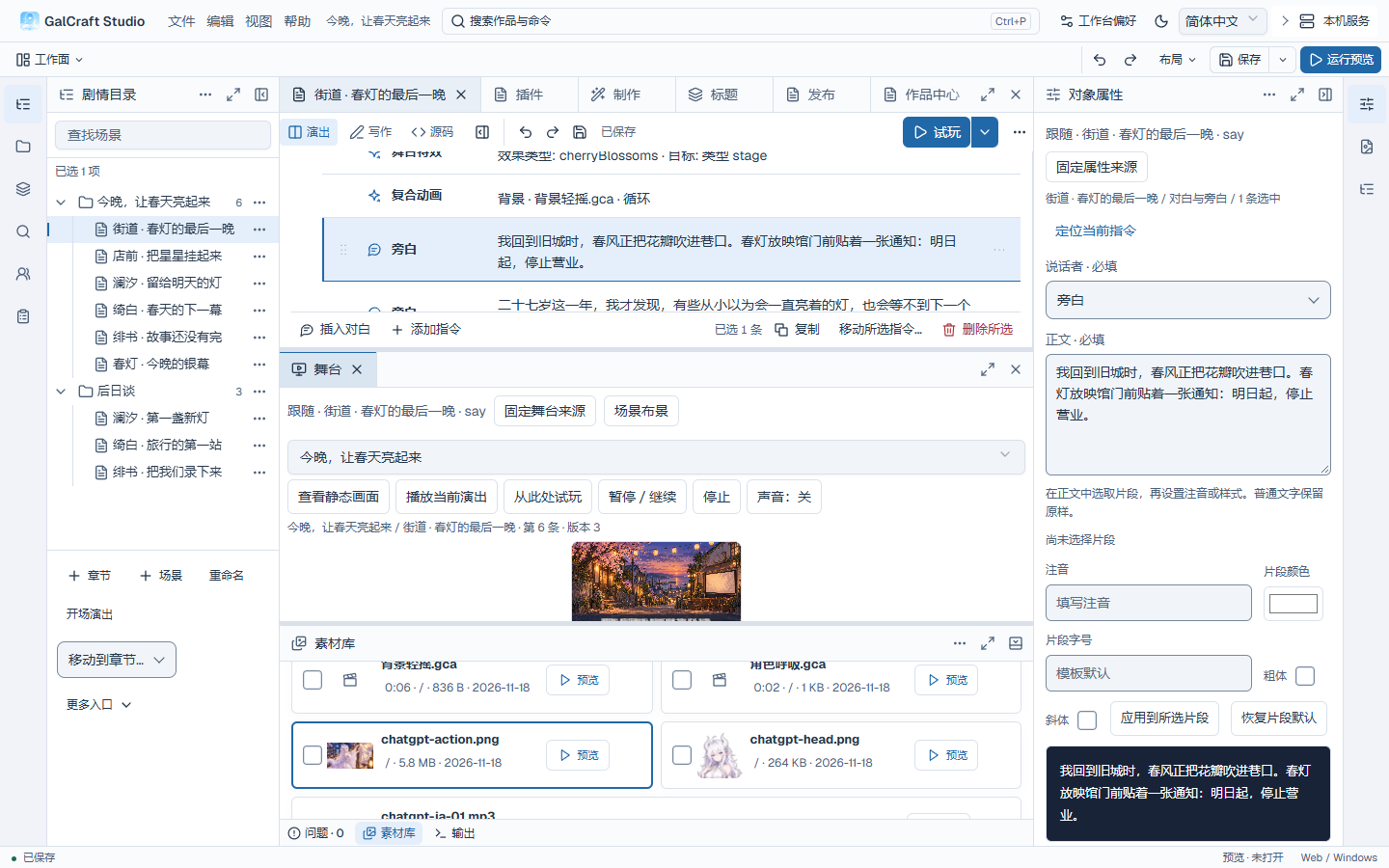
New scene adds an inline name field in the tree. Enter confirms; Escape cancels. Chapters work the same way. Scene and instruction identities are generated for you; renaming does not require editing IDs. Connect branches and jumps with target pickers.
| View | Use | Check |
|---|---|---|
| Performance | Arrange background, figure, audio, dialogue and branch cards | Card order and Inspector stage agree |
| Writing | Edit consecutive dialogue and speakers; Ctrl+Enter adds a line | The new row and speaker are correct |
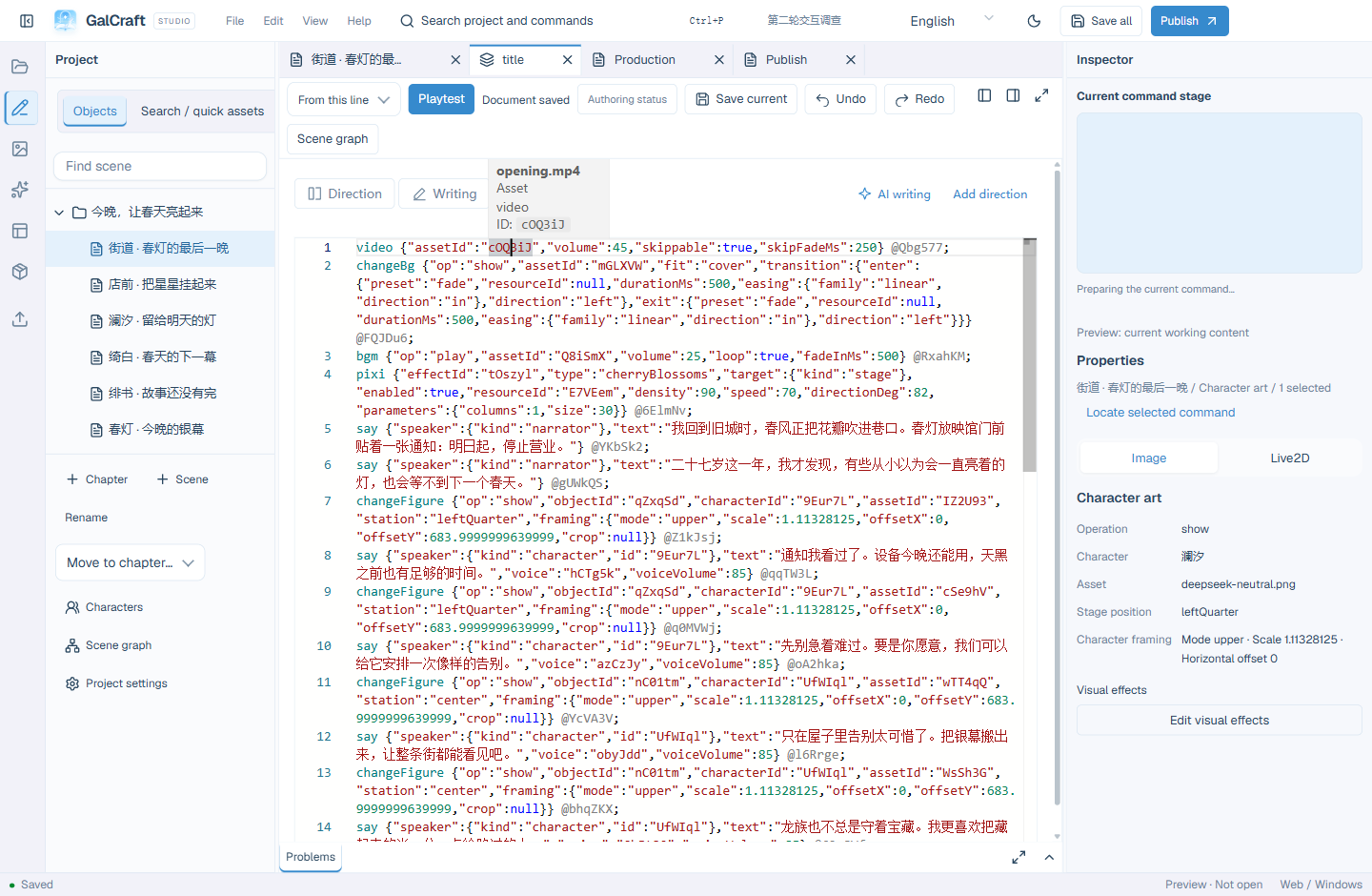
| Source | Edit .gal arguments and bulk text precisely | Problems are clear and cards parse again |
Source references use short IDs. Hover over a reference for its actual name, kind and available directory information; unresolved references are marked unavailable. Hover over field names for documentation. Generated performance values use practical precision: positions up to two decimal places, scales and crop ratios up to four. Authored source, expressions and dialogue retain their text.
Insert dialogue adds text and a speaker at the current insertion point; Ctrl+Enter submits. Add instruction opens the command catalogue; complete required Inspector fields and apply. Field help explains units, ranges and defaults. Fix missing text or assets in the same form and retry. Cancel adds no partial instruction.
Drag a card's handle, text or thumbnail to reorder. With its handle focused use Alt+Up/Down; touch users can hold the handle. Ctrl-click toggles selection; Shift-click selects a range from the anchor. Opening a context menu within a selection retains the group; opening one outside selects that object. More actions and the keyboard menu use the same scope. Confirm the count before batch deletion.
Move selected instructions… shows the source and count, searches destination scenes and chooses beginning or end. Before a specific instruction… adds precise positioning. Confirm the named destination. Studio selects the moved batch in the destination; one undo restores the entire move. Cancel retains the original selection. Save afterwards.
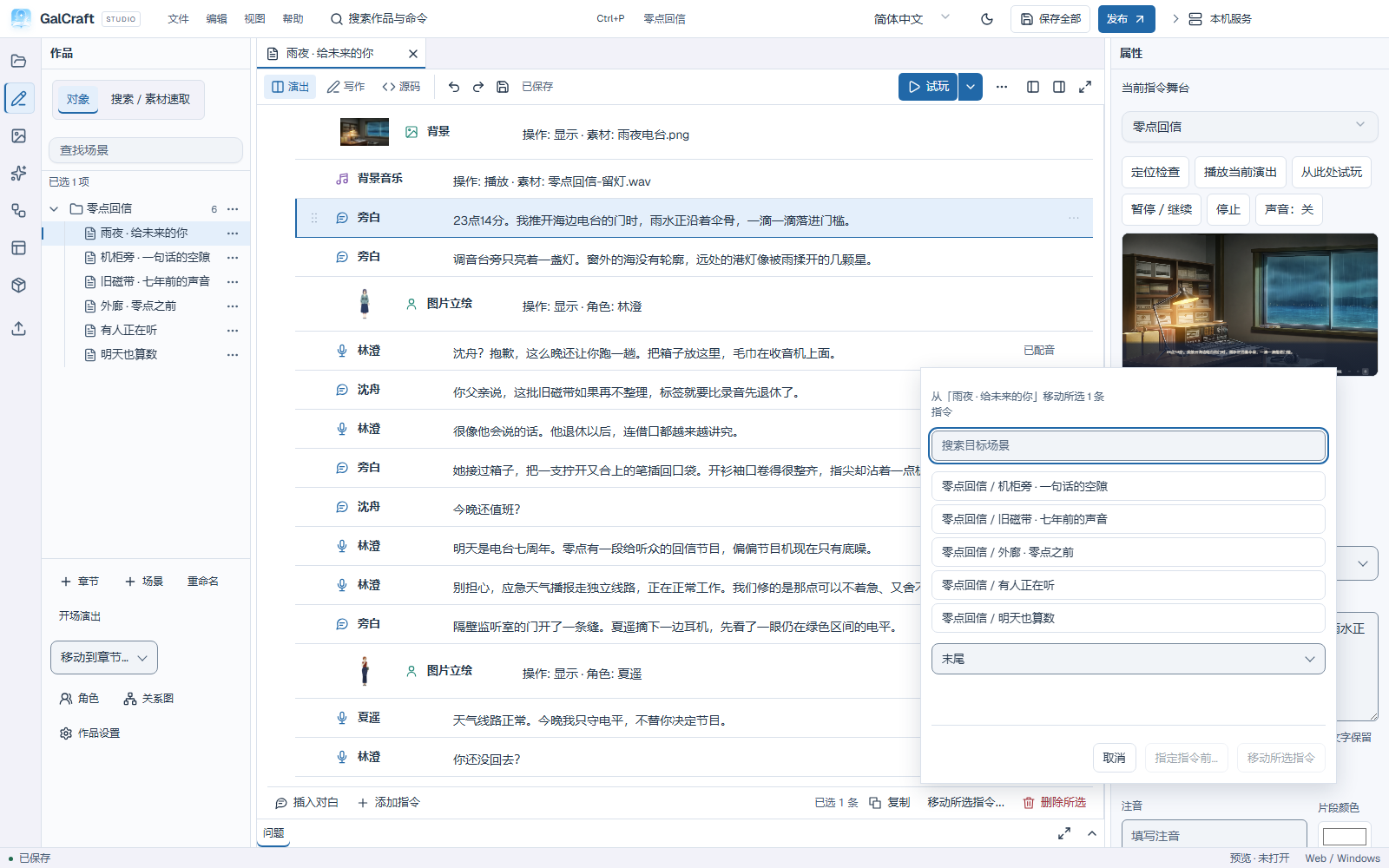
Open Scene graph from Plot outline → More places or through command search. The graph shows explicit jumps, choices and calls. Dashed edges identify calls. Select a node to open its scene or an edge to locate its instruction. Use Locate current scene or Fit whole graph on the toolbar. Use the canvas controls to zoom. A Return to title marker indicates an ending instruction inside a scene; the title itself is outside the scene graph. Conditions decide the actual route.
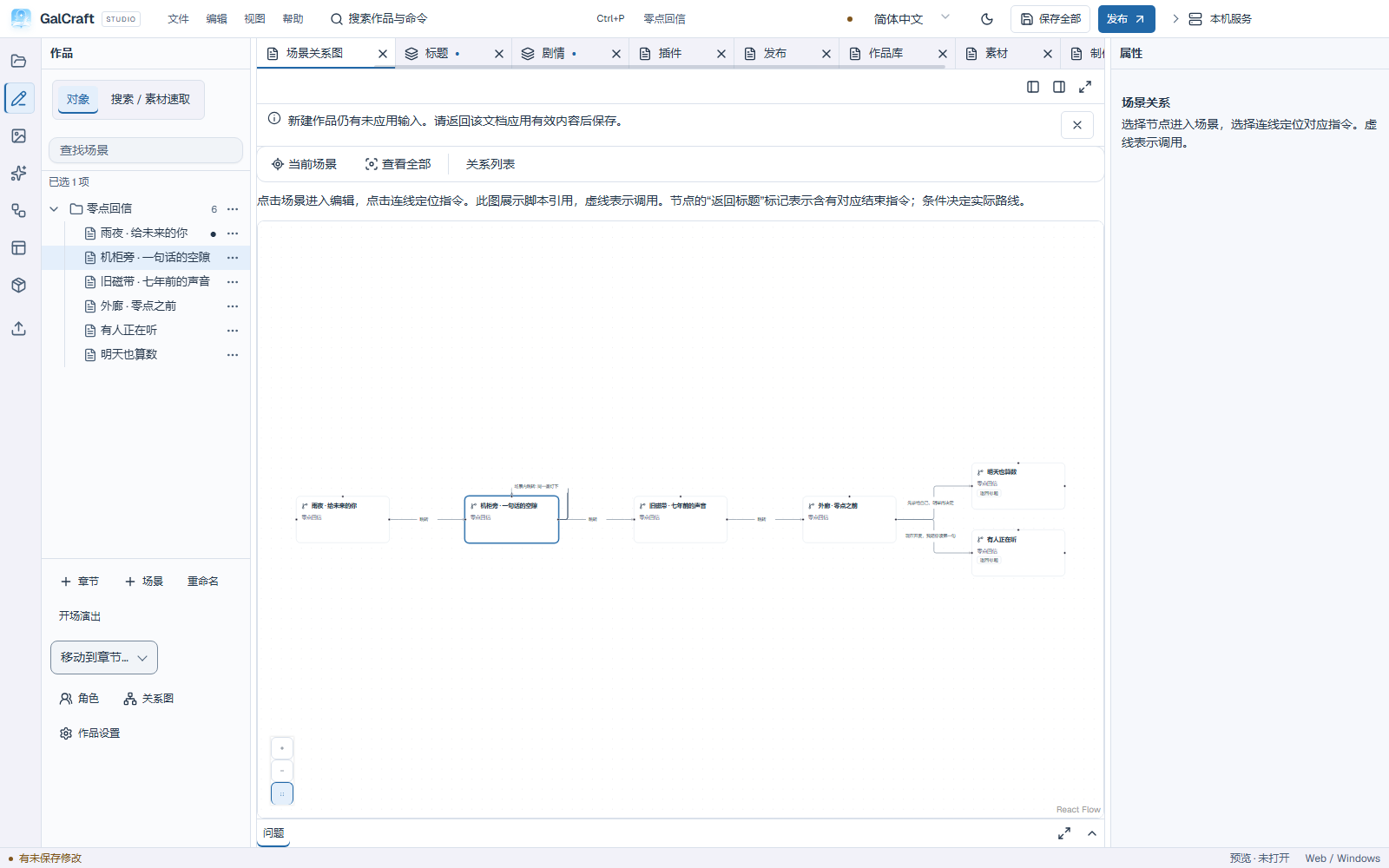
Paste dialogue in bulk keeps source text, speaker mapping, split review and merged lines in one persistent document. Map names to existing or new characters, review the count and apply once. Characters and dialogue undo together. Narration has no speaker. Character names in pasted text are not internal IDs.
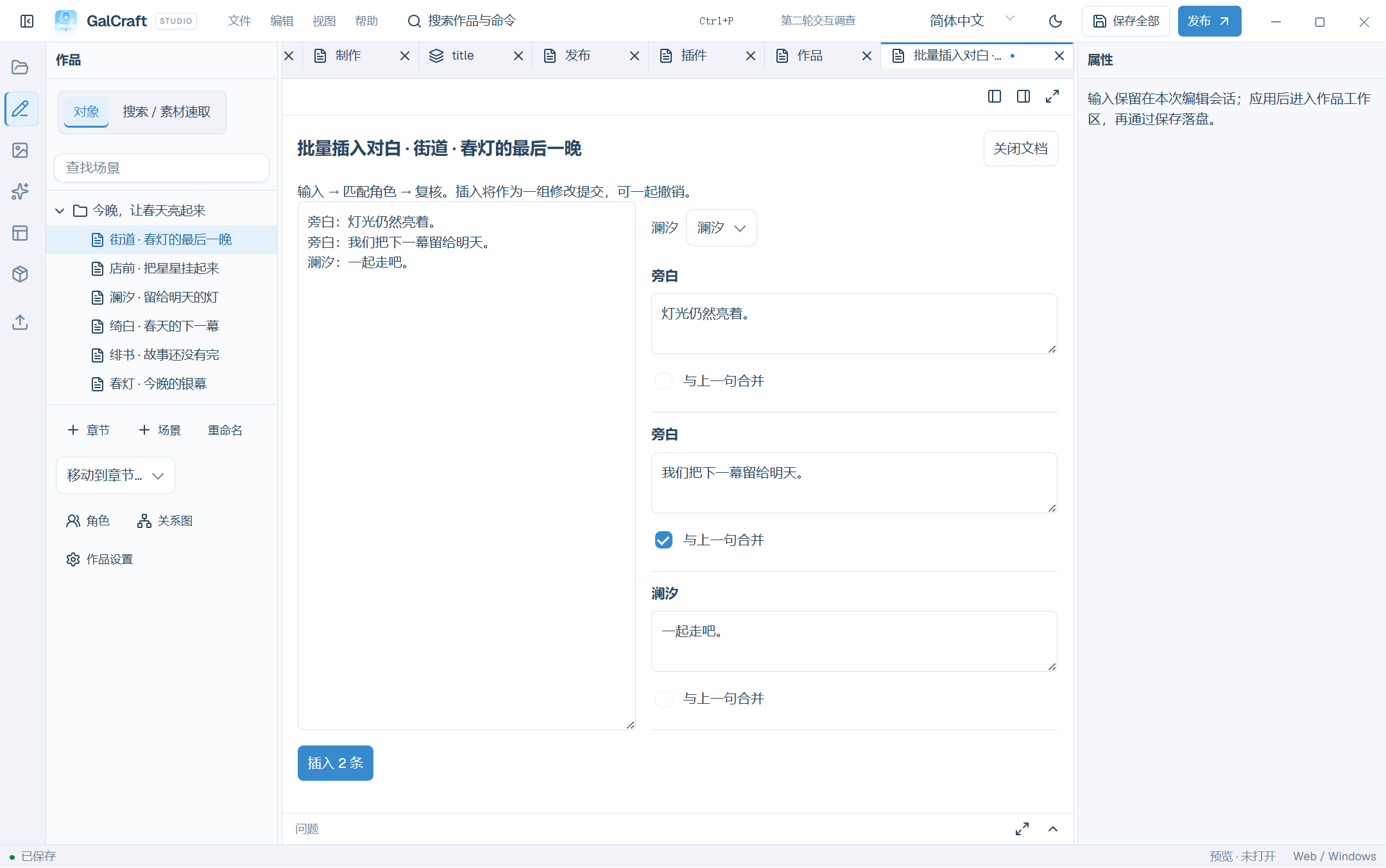
The plus before a command inserts above that row. Its label appears on hover or keyboard focus. “Add command at end” appends after the final command. Escape closes the insertion panel and returns focus to its trigger.
Common instructions
| Goal | Input and verification |
|---|---|
| Change background | Pick an image and transition, for example 600 ms; check framing then play the transition |
| Show a figure | Choose character, asset, position and framing; later commands can reference that stage object |
| Dialogue | Choose the speaker and text, optionally voice audio; check name, text and voice |
| Narration | Enter text without a speaker; check the absence of a speaking portrait |
| Music | Select audio, volume and looping; listen in playtest rather than the silent stage |
| Choice | Give every option visible text and a target scene; play each reachable route |
| Jump | Select an existing scene and verify its flow |
| Call a common scene | Use callScene, end the shared scene with return, then verify continuation after the call |
| Return | Return from a called scene, optionally with a result; test through the actual caller |
| End story | At a route ending select Return to title (target.kind: "title"); optionally assign an ending ID such as lanxi-end |
| Player input | Provide prompt, default and variable; test input and a later condition |
Prefer named pickers. Use explicit IDs only when you know the target identity; names, file paths and filenames do not replace IDs.
Independent portraits and figure crops
A reading portrait can be an independent image or an enabled stage-figure crop. The player's portrait preference must allow it and the reading mode must be ADV; NVL suppresses portraits. Resolution order is: explicit image for this line → current independent portrait for this speaker → current shared-difference portrait → character default → enabled, matching stage crop. Without a suitable source, the no-portrait layout remains.
| Entry | Scope |
|---|---|
| Characters → Portrait and voice | Choose the character's default reading portrait, apply character changes and save |
| Dialogue Inspector | Choose automatic, a specified image or explicitly hidden; the choice affects this line |
| Current portrait instruction (miniAvatar) | Set an independent image for a character; omitting the character means only the current speaker. clear explicitly hides; auto restores automatic sources |
| Show figure → Portrait settings | Enable and crop that stage instance; select an explicit dialogue target when the character has multiple instances |
Explicit hiding blocks fallback; returning to automatic selection is a different action. Current portraits belong to their speakers and do not carry over to another character. Narration normally has none; its explicit line image/hide affects only that line. Save/load retains current sources and hiding scope.
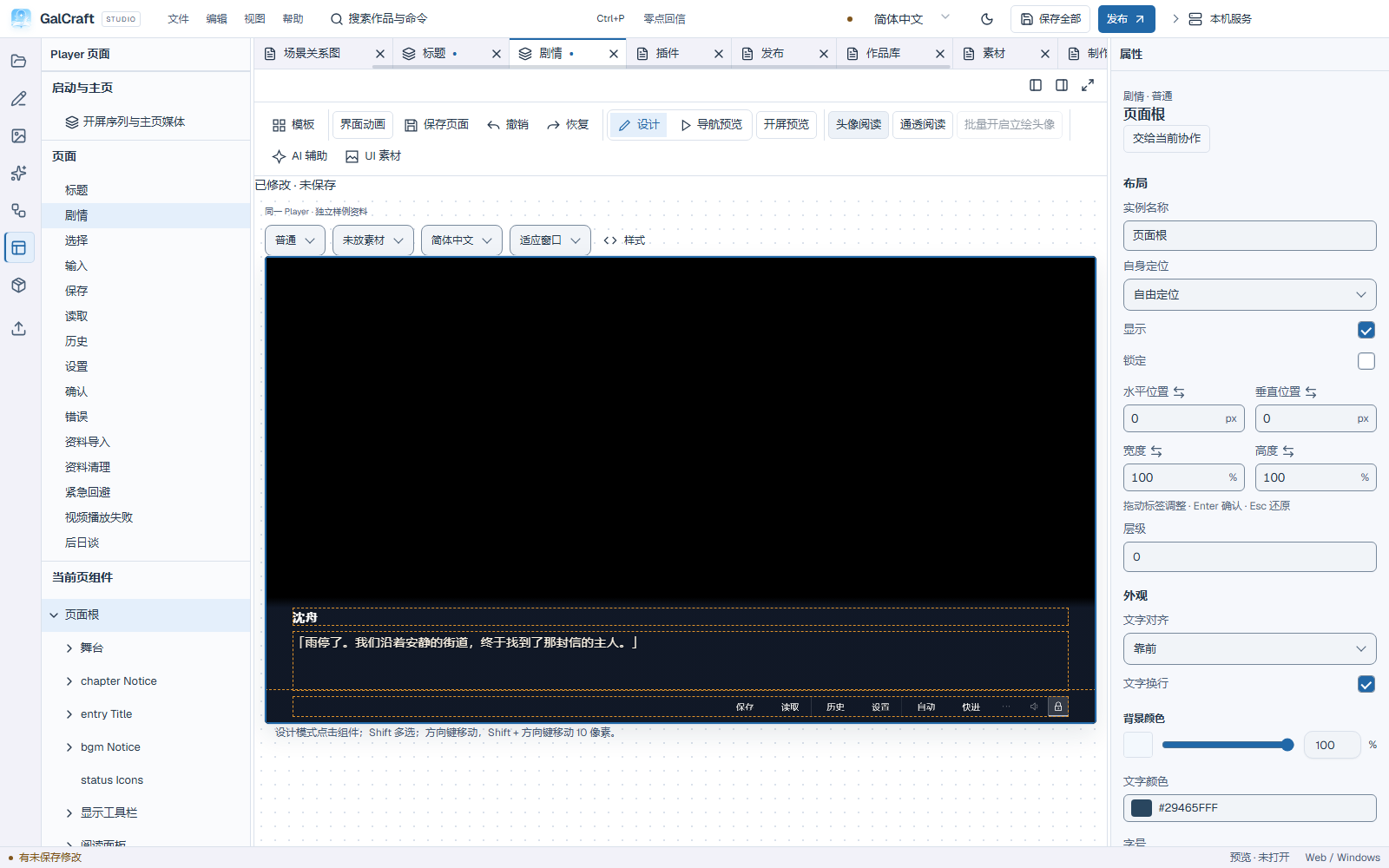
For a stage crop enable Show the current figure's speaking portrait, click the face, adjust left/top/width/height percentages and apply. Percentages use the complete source image independently of stage position/scale. Start with left 25%, top 0%, width 50%, height 35% for an upper-centre face, then refine. Check Live2D in real playtest because it reuses the actual stage instance.
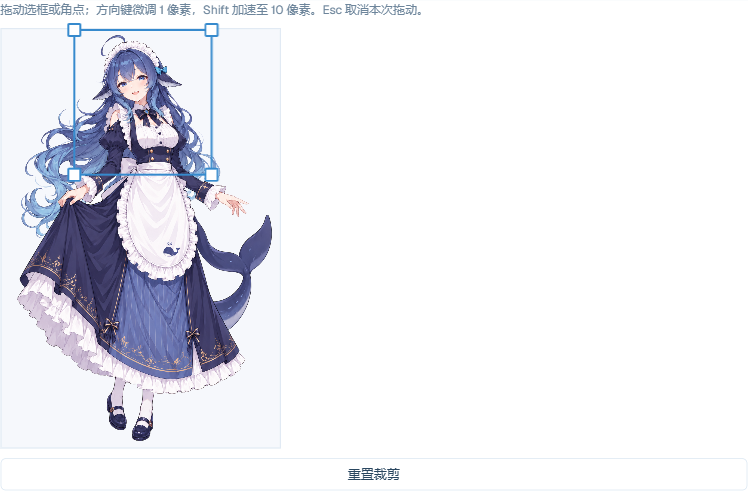
Reserve display space in the page designer; a portrait slot does not choose an image. This existing real capture shows a stage crop. Independent images do not require a visible matching figure.
Effects and locating problems
Choose Edit visual effects on a background or figure. The inline editor groups transforms, colour/blend and filters/light; the same instruction stage previews its draft. Apply makes one undoable change. Cancel or Escape restores the original preview. Reset clears this adjustment draft. Positions use logical pixels, scale 1 is unchanged, opacity is 0–1 and times use milliseconds. Colour supports swatches, HEX and RGB. Effects do not modify image files.
Explorer search finds text, characters, variables and asset usages. Select a result to locate its scene and instruction; Return to previous position restores the search origin. Repair incomplete source parsing before relying on results. Select a located problem in the Problems panel to reach its source. During errors, the stage shows Last valid version. Correct the located problem and preview again.
Preview and playtest
The current-instruction stage provides three actions:
| Action | What to check |
|---|---|
| View still frame | Run the selected route to the instruction result and freeze it silently, including the full reading panel, portrait and text |
| Play current performance | Play from immediately before this instruction; use Pause / resume to inspect intermediate frames, or choose Play current performance again to replay; stop at completion or an interaction wait |
| Playtest from here | Continue in the actual Player with choices, input, movies, system pages and sound; Stop returns to the still frame |
The still frame and current performance start muted. Use the stage sound switch to audition. Stop a looping performance explicitly. For a target after a branch, choose a reachable route and provide preview input when prompted. Change the route if needed. If the stage cannot refresh, it identifies the requested scene and keeps the last successful frame and its source. Check Last valid version, fix the reported issue and retry.
Start playtest from the beginning, current scene or current instruction to check motion and audio. Debugging supports pause, resume, step and record export. Choose Start for ordinary play. To replay an exported route and its inputs, choose Import playtest record. Return to the editing origin when finished. Debug variable changes affect only this session; edit the project for permanent initial values. Candidates can be playtested separately before adoption; see Production.
Independent illustrations and named states
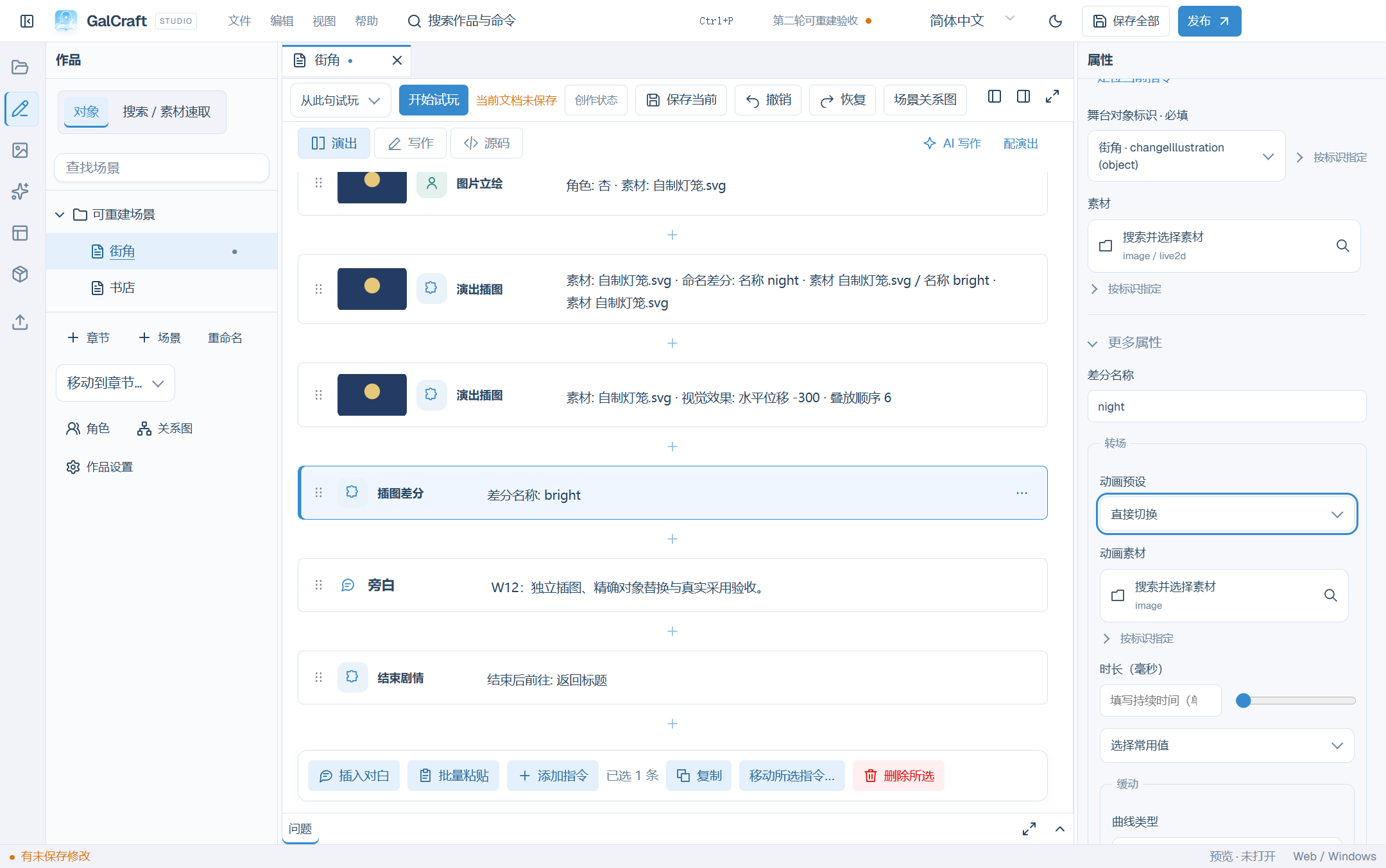
Use Add instruction to show, replace or exit an independent illustration (source command changeIllustration). Choose an image and a specific object; character association is optional for props, notices and foreground decorations. Illustrations use their own frame rather than figure framing. The default target box is half the canvas width and half its height, including transparent source margins. Position 0/0 is the stage centre. Adjust frame size, contain/cover/native fit and layer order without stretching the source.
Add named image mappings such as Calm and Glowing to the object. Insert an illustration-state instruction (changeIllustrationDiff), choose the exact object and state name, or select an explicit image. A state change retains position, frame, order and animation and normally does not replay entry. Do not change the asset library's global active variant to change one story object. Insert that object's exit operation when it should leave; exiting does not delete its asset.
Candidate adoption separates library-only from scene binding, then explicitly chooses a new object or replacement of the selected object. An image without a character can become a new illustration; character images can still use figure placement. Replacement identifies the actual scene, instruction and object and retains its layout. It does not guess another instance from character identity. Review, apply, undo/redo and save, then playtest. See Production.
Animation assets, timeline and whole-stage camera
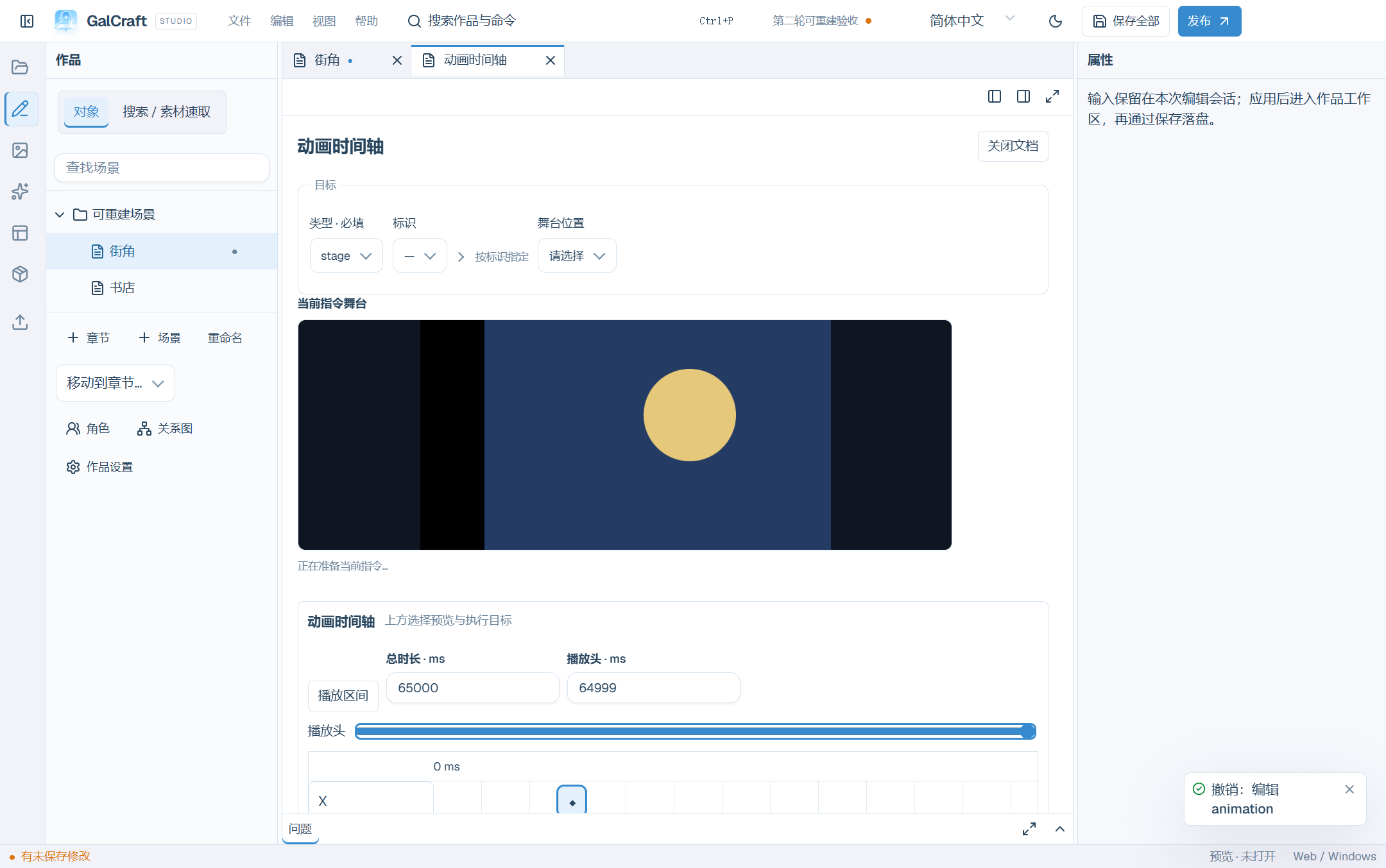
In a new complex-animation instruction or Inspector, apply one of the 16 common presets or select an animation asset, then choose Open animation timeline. The sample includes and actually references the named background-sway and character-breathing assets. Cards show the target and animation name; instance IDs remain in details. Switching inline, segment and asset sources supports one-step undo. Check whether the target above is a particular stage object or the whole-stage camera. Add only the property tracks you intend to change; omitted fields retain their values.
- Set duration and select a track/keyframe. Edit time, value, easing family and direction in milliseconds.
- Double-click a track or position the playhead and use Add keyframe. Drag its diamond to change time. With the diamond focused, Left/Right moves 10 ms and Shift moves 100 ms. A complete drag commits one undoable edit.
- Numeric tracks offer Absolute, Add and Multiply: write a target, add to the actual starting value, or multiply that value. Multiplying zero remains zero. Discrete switches use Absolute.
- Seek the playhead or Play range to inspect the shared stage sample. Invalid/incomplete input remains visible while the last valid preview stays available.
- Enter an animation name and Save animation asset, then save the project. The reusable .gca asset is available to preset animation, complex-animation resources and custom entry/replacement/exit transitions. Editing an asset creates a new version; pinned references retain their selected version.
Tracks support movement, scale, rotation, opacity and supported filter leaves. The whole-stage camera uses canvas coordinates, scale multipliers and rotation and has no character station. Relative animations use the actual baseline when each execution starts; rendering or restoring does not repeatedly add values. Playtest at the real story position to check waiting, queueing and the final state.
GIF, animated WebP and effects
Import GIF or animated WebP and confirm actual frame playback in the asset preview. Backgrounds, figures and illustrations loop by default without blocking dialogue. Choose once-and-hold-last for finite playback; waiting requires a finite single play. Infinite looping cannot wait for completion. Replacing a state with another asset starts the new animation at its beginning while retaining layout and track state. Scene jumps, calls and returns preserve still-valid objects and their playback.
Frame animation can run alongside object-property animation. Menus/focus pause and save/load preserve the logical position. Insert the object's exit when a loop should leave. Preparation/decoding failure retains the last valid stage; repair the reported asset. Use PNG, JPEG, WebP or SVG for still images, and GIF or animated WebP for frame animation.
Visual effects include shockwave, circle masks and front/back weather. Shockwave time uses seconds; amplitude, wavelength, radius and speed use design-canvas pixels. Circle radius is relative to the canvas short side. Textbox fades and cinema letterboxing have real durations: check their start, middle and end in playtest. If a station identifies several objects, choose the specific target first.
Ruby and local text styles
Select dialogue, highlight text in Inspector's Text and fragment selection, set Ruby, Fragment color, Fragment font size, Bold or Italic, then Apply to selection. Check the preview and save. Select text first when prompted and correct invalid sizes in the same form. Reset selection style clears ruby/local styles only in that range, returning it to template defaults.
Plain prose is always literal; HTML-like text does not become page code. Only an explicit style action creates controlled segments. Ruby remains attached to its base text and does not consume a separate typing pass. ADV, NVL, history, saves and exported games use this content. Whole-line sizing and page styles retain their own scopes. Playtest typing, completion and long-line pages while checking the original voice binding.
NVL accumulated reading
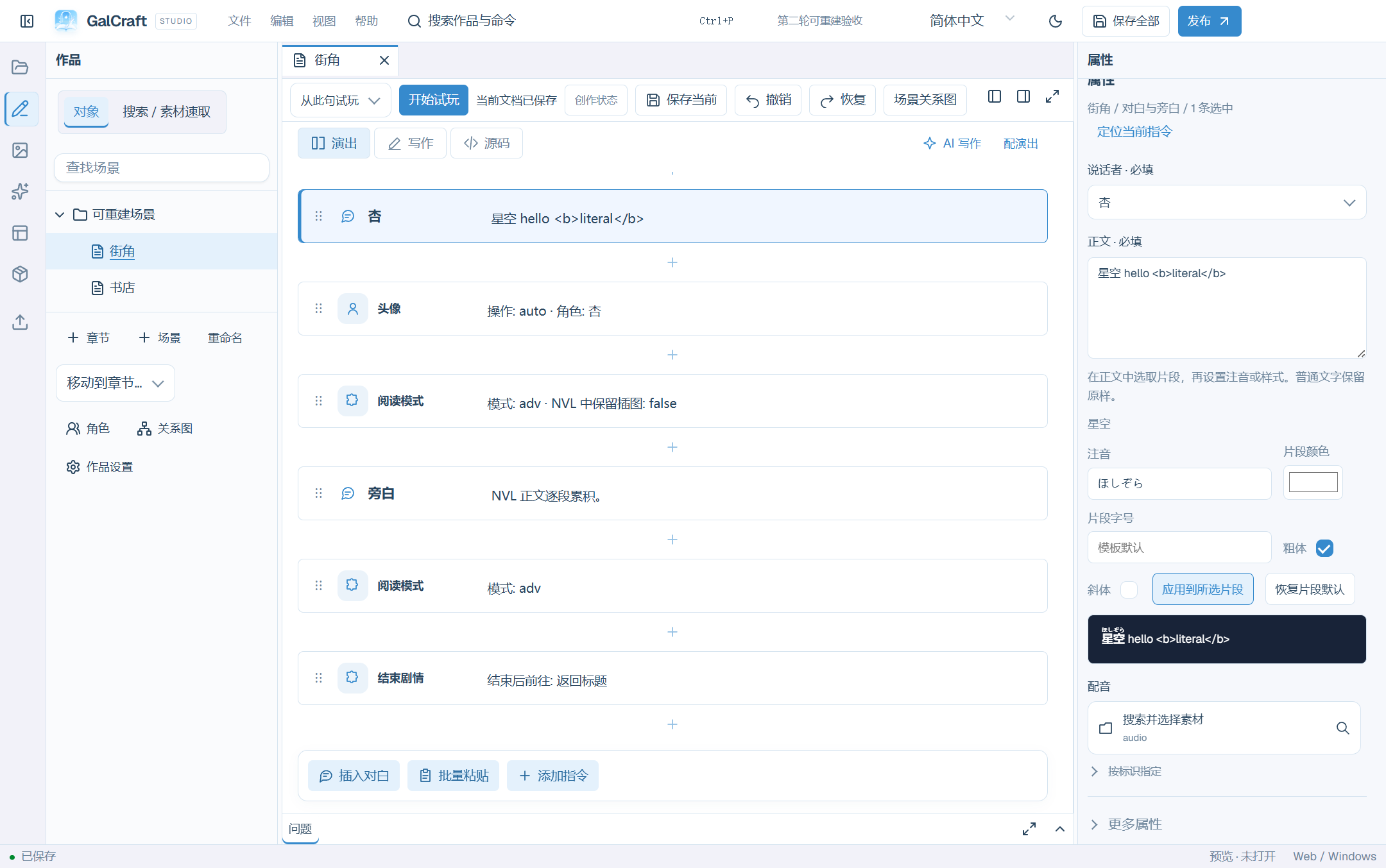
Insert Reading mode (readingMode), select nvl and leave retainIllustrations disabled for the default. Entry starts a new page. Each dialogue appends a paragraph while earlier paragraphs remain without retyping or replaying voice. Narration displays prose and dialogue normally displays Name: text. Fullscreen here means the story design canvas, not the operating-system window.
- Enter NVL and add several dialogue lines. The page designer's reading panel configures the NVL mask, padding, line/paragraph spacing and name colour/boldness.
- By default retain the background/video and mask while hiding figures, portraits and illustrations. Explicit illustration retention shows illustrations; figures and portraits stay hidden.
- Insert Clear page (clearPage) to end a page early. Automatic pagination uses actual fonts and available space. A paragraph that does not fit starts a new page; one oversized line continues through multiple pages.
- The first click completes the current page's new text; the next moves to its continuation or next line. Auto/skip follow the same boundaries without jumping past an unfinished long line. Clearing retains history.
- Insert readingMode with adv to leave, end the NVL page and restore the current valid stage and normal dialogue layout. Re-entering NVL starts a fresh page.
Hiding retains stage objects. Changes and animations during NVL still update the current scene, so leaving shows its latest state. Saves retain mode, logical paragraphs, current line/page progress, portraits and stage state; loading does not append completed paragraphs again. Resizing or changing font size repaginates around the logical text position. Check continuation, early clearing, settings return and mid-page save/load in playtest and standalone output.
14. Shared character differences and ordinary afterstories
Bind the image version you are viewing in the Asset library directly to a named shared difference.
- In Assets, select the image and choose View version in Asset properties to check the intended version. Choose Bind character variation in the properties or the central image preview.
- In Bind shared difference, confirm the figure source and pinned version, then select the character and name the difference. For the reading portrait, crop the figure, use the same full image or use the character default. Choose Use as initial difference for new sessions as needed. Studio selects it automatically when the character has no initial difference yet.
- Choose Bind difference. Studio opens the character tab at Shared differences and selects the new entry. Check the result and save the project.
You can also add or edit a difference in the character tab's Shared differences section, select the pinned figure version and reading portrait, then apply and save. The initial difference applies to new sessions. In a scene, the Character Difference command changes the character's current difference. Bound stage figures and reading portraits update together and keep separate visibility controls. Scene instructions control each stage object's position and framing. A per-line portrait override applies to that line. New ordinary image replacements use a 180 ms crossfade by default, with options for a cut or a different duration.
Choose Crop this figure, then drag the selection on the source image to move it or drag any corner to resize it. Focus the crop box and use arrow keys for one source-image pixel, or Shift+Arrow for ten pixels. Releasing commits one form edit. Esc cancels the current drag and restores the previous box. Reset crop restores the upper-centre default: left 25%, top 0%, width 50% and height 35%. The editable x/y/width/height fields use source-image proportions from 0 to 1. Apply the character changes and save the work.
The story's shared-difference picker displays names and pinned-version thumbnails. Filter by name, then select with arrow keys and Enter. Reference details retain the specific source. Esc closes the picker and returns focus to its trigger. Choose No shared difference to clear the field before selecting another difference. Missing references remain visible in details for explicit reselection or clearing.
Personal routes and ordinary afterstories are optional for main characters; release does not require afterstories. An ordinary afterstory can configure its title, scene/label entry, unlock endings, initial progress, locked presentation and card figure framing/order. Author executable content and an ending for a selected entry, then apply and save as needed. Player exposes entries according to achieved endings. Ordinary afterstories use authored story content; the AI afterstory plugin has its own configuration and execution scope.
The sample places its three afterstories in a separate chapter. The command stage and Playtest from here use the selected afterstory entry, starting label and independent initial variables. The entry picker changes preview context in an isolated author domain.
In Pages → Afterstories, use Character order and framing to drag characters into order or use the Left/Right buttons. Select a transparent figure and pinned version, then drag the crop frame or corners for upper-body framing. Arrow keys adjust one source pixel, Shift accelerates, and Esc cancels the gesture. The crop sets zoom and position for both locked and unlocked portraits. Per-character settings survive template changes.
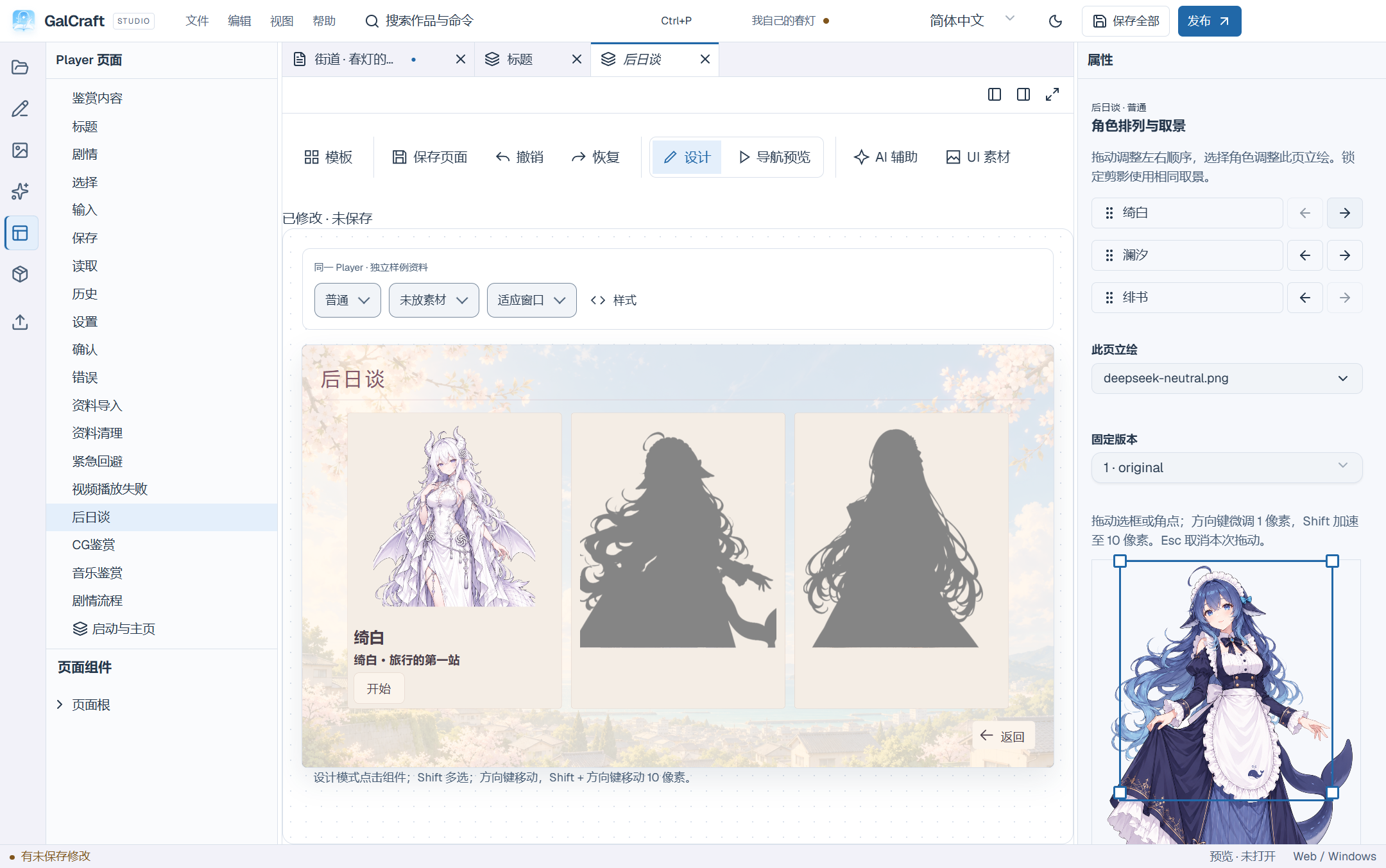
15. Chapter/scene entries and animation targets
Select a chapter or scene in the object tree and choose Entry presentation, also available in its object menu. Enable a title card and edit its text and hold time. Select a fullscreen interlude image, pinned version and optional voice. Configure old-stage exit, interlude enter/exit and new-stage enter separately. Grid flip and diagonal reveal expose rows, columns and direction.
Apply entry settings to the workspace. With the entry document active, Save current document saves the corresponding chapter or scene settings; review the differences before saving. Preview complete entry first applies the input and starts a real scene playtest. A single entry handles the chapter before the scene and combines the two title levels. Voice starts after the image enters. Right-click or Esc skips the whole entry when allowed. Loading restores the reading position.
Animation targets show character, asset, station and chapter/scene/command source. Search by name, navigate with arrow keys and locate the source. Cross-scene and route-dependent availability have explicit hints. Inspect the selection highlight on the same real stage. Preview proportions follow the design canvas; the selected route determines which objects are available.
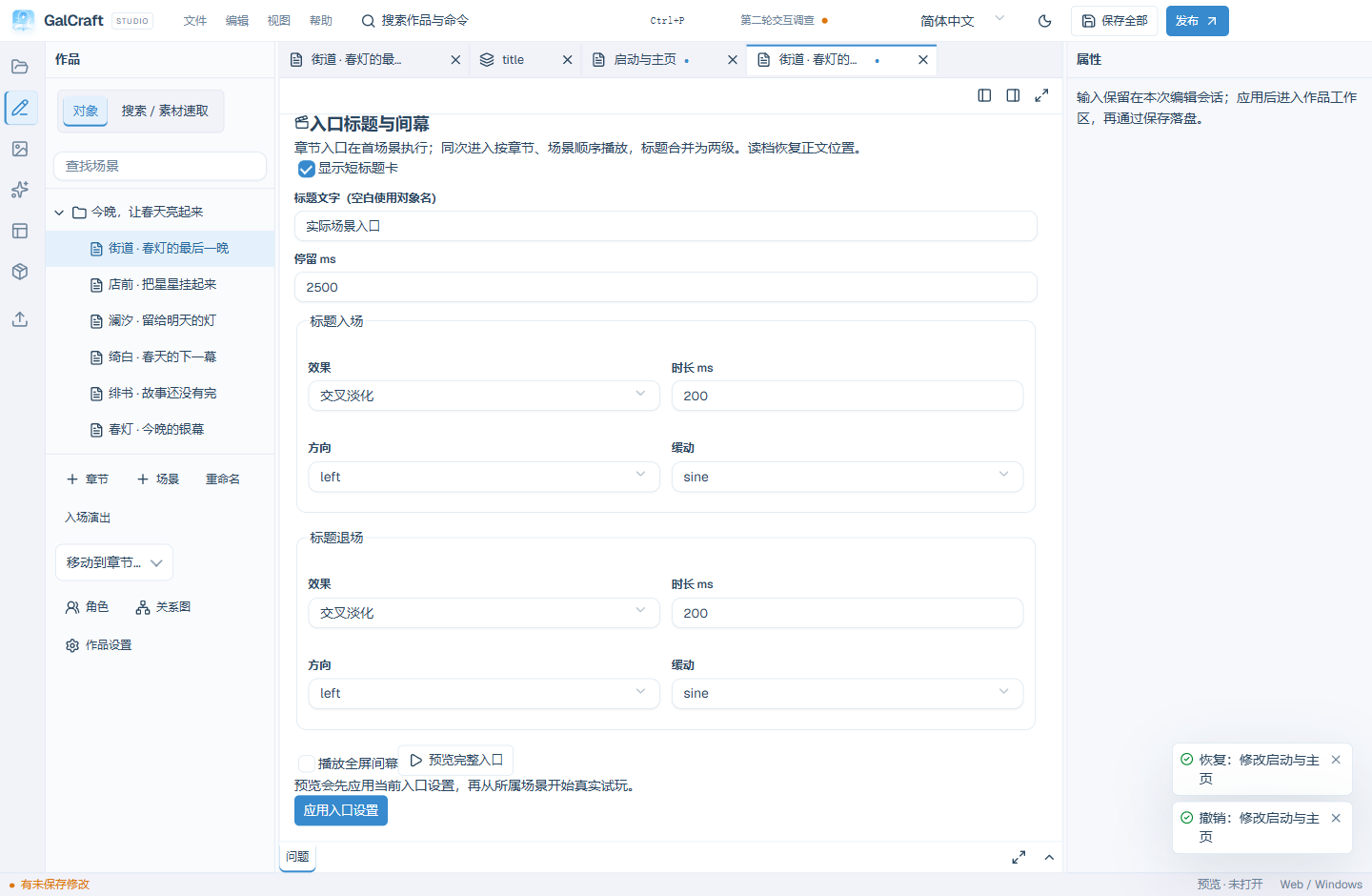
16. Animation presets, independent preview and stopping
Expand Apply an animation preset in the animation workbench. Choose sway, shake, jump, vibration, breathing, movement, slides, fades or brief emphasis; adjust duration, amplitude, cycles and position, then Apply and edit keyframes. The result is ordinary editable tracks. Reactions and emphasis return to their actual starting state; movement retains its endpoint. Independent GCA stores property tracks; story Show and Exit operations create and release display instances.
Asset browsing, Inspector editing and the story timeline share playback, pause and seeking. Independent preview provides a neutral figure and simple background and can temporarily use a project image. The preview target and playhead do not enter GCA. Story editing uses the actual object on the selected route.
Add Stop animation and choose a started instance by name, target and source. Its ID identifies that use, not the reusable asset. Stopping a temporary reaction restores its baseline; stopping movement retains the current position. Other instances and properties already taken over by later actions continue. For cross-line motion, start a 1000 ms movement without waiting, wait 400 ms, change the figure state and let movement continue. Playtest timing and actual exit.
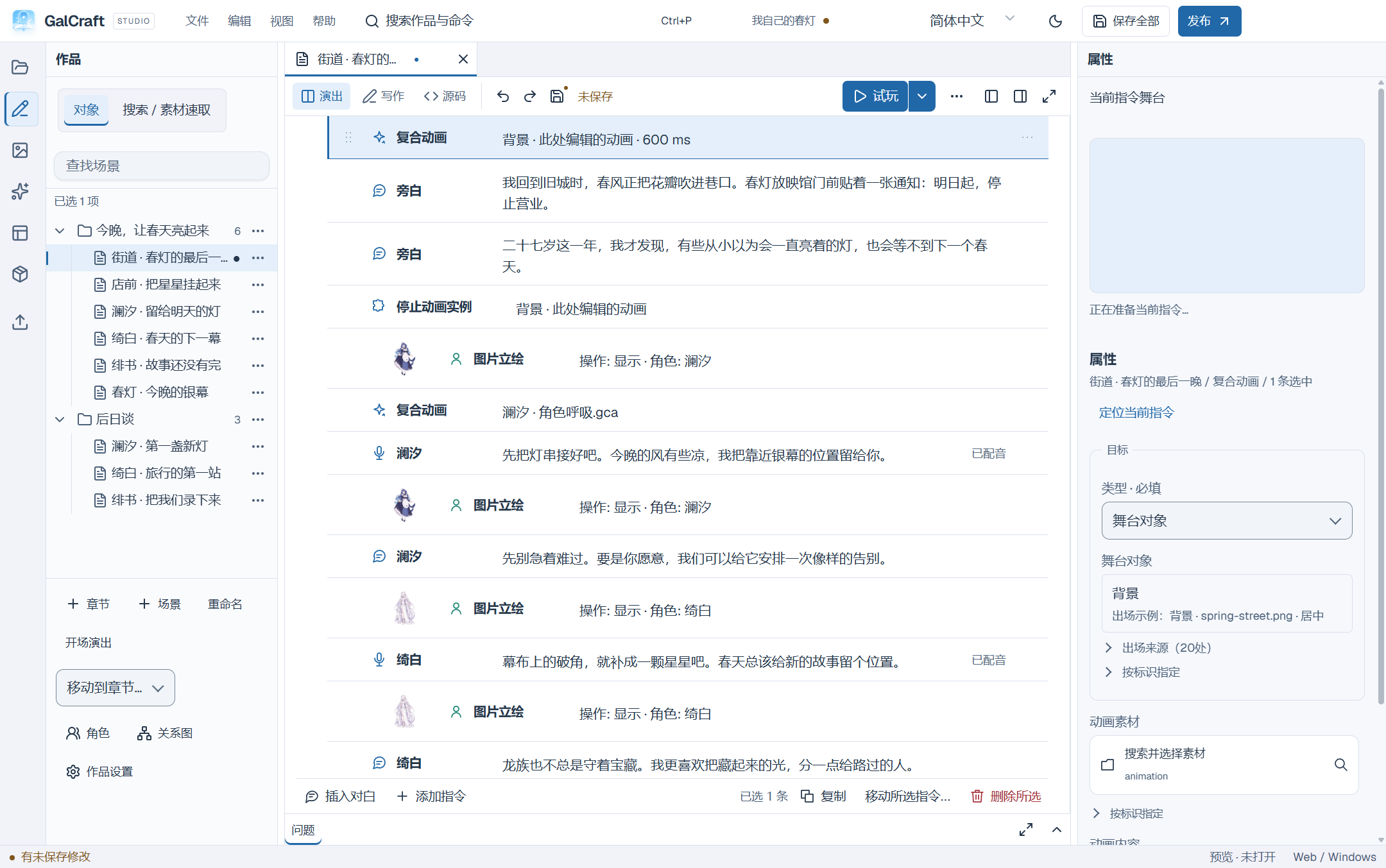
17. Stage effects and independent sounds
Add instruction → Stage effects separates weather particles from screen filters. Cherry blossoms, snow and rain prepare texture, motion type and parameters, including dependencies in an empty project. Adjust density, speed and direction. Filters include old film, dots, reflection, glitch, RGB split and god rays. Check whole-stage or specific-object scope. Object visual effects continue to edit that object's appearance. Clear stage effects explicitly selects an instance, target or all.
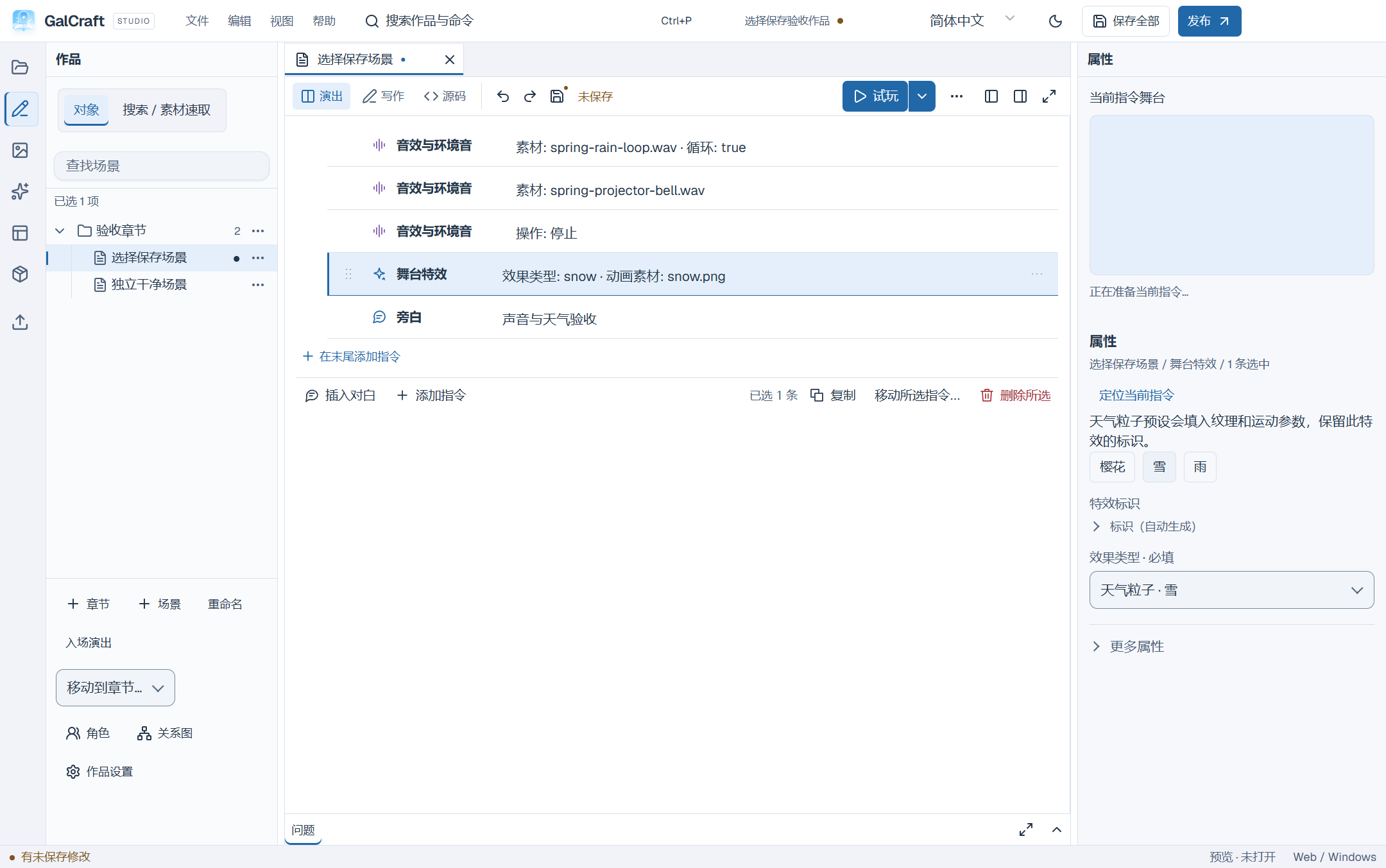
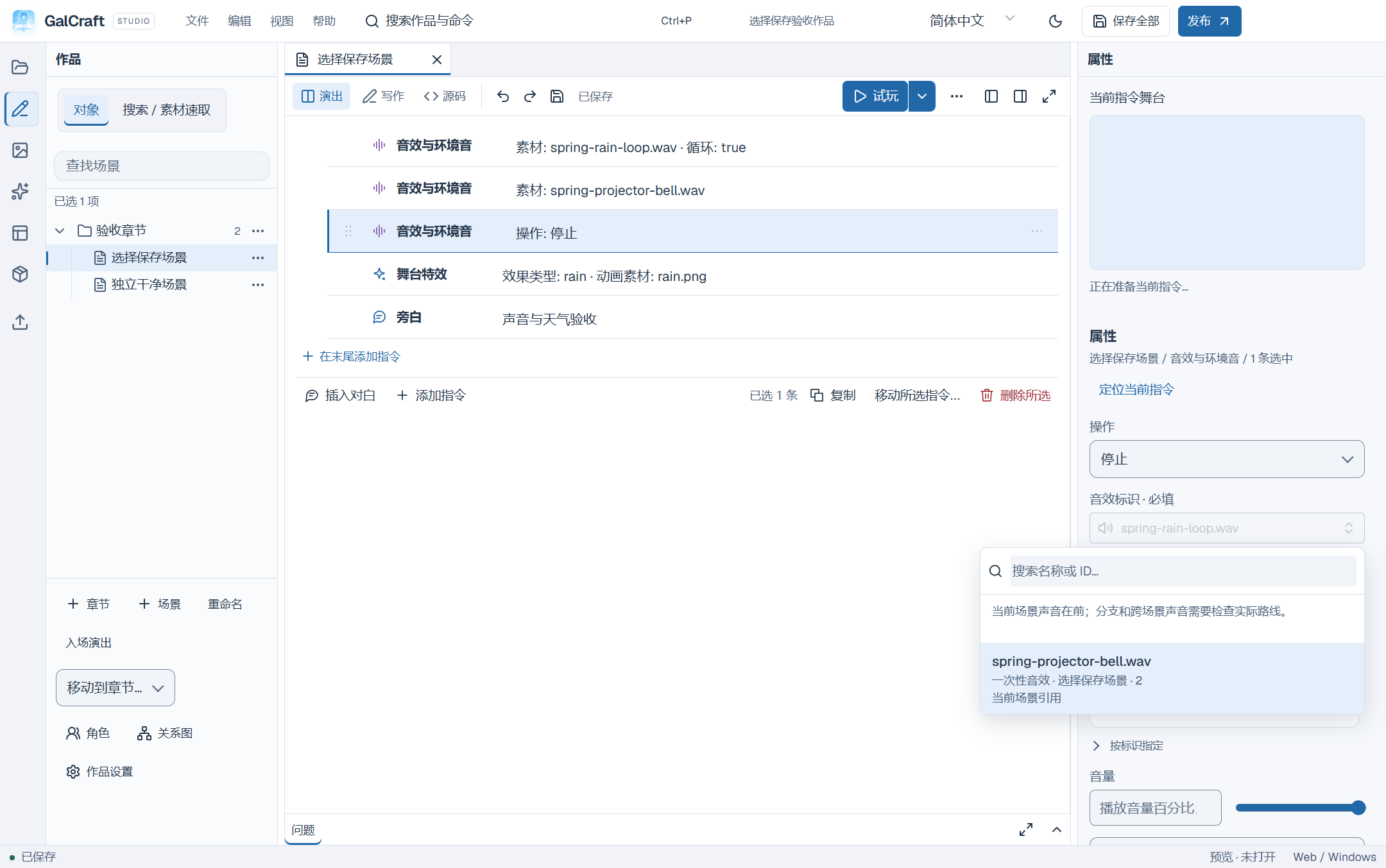
Sound effects & ambience offers Play and Stop. Choose audio, volume, looping, start/loop range and fades. A sound object ID identifies the independent sound; one audio asset may play as several objects. Replaying an ID replaces itself; distinct IDs overlap. Stop selects a sound object by name/ID with its source. Only All stops every effect sound. BGM keeps one main track and a new track replaces it; dialogue voice retains its own binding.
In the preparation scene, inspect BGM, looping rain and the one-shot bell. After the bell starts, wait 1500 ms and stop only the rain object. BGM and the bell continue until the bell ends naturally.
Waiting and continuous execution
A normal dialogue or narration line waits for player advance after displaying. In DSL, set continue:true explicitly for continuous execution.