

Production, services and continuing a story
Configure AI service connections and ComfyUI workflows. Use scripts, prompts or existing assets to create story, images, voices and music, review candidates, adopt results and save. Bring your own external services.
GalCraft Studio 0.2.0. Return to the Studio guide.
Start with existing input
Keep an existing script and add only its missing direction or media. Import and bind supplied pictures or recordings directly. Use an existing prompt or structured input with an already configured compatible connection, model and workflow. Schemes, prompt generation and text-model preparation are optional; usable input does not need an extra text-model request. Established character text and selected reference images come from the project. Images travel through real media-reference ports; an asset ID written in prose is not an attachment.
In a connected AI client, the galcraft-create Skill reads only the operation guidance relevant to the goal. When existing authorization covers the input, service, request allowance and adoption impact, the client continues through preparation, submission, waiting and requested adoption/binding without returning to Studio for each item's confirmation. Explicit requests to compare candidates, pause or review remain effective. Ask when a material choice or expanded authorization is actually needed.
A candidates-only request ends when the requested candidates complete. A request to use media for a character, scene or page continues until adoption and binding succeed. accepted means the call was accepted; an outer completed means that call returned. Query the original callId for task state. When it completes, choose a candidate, review and apply its adoption plan, then save the work.
Production workbench
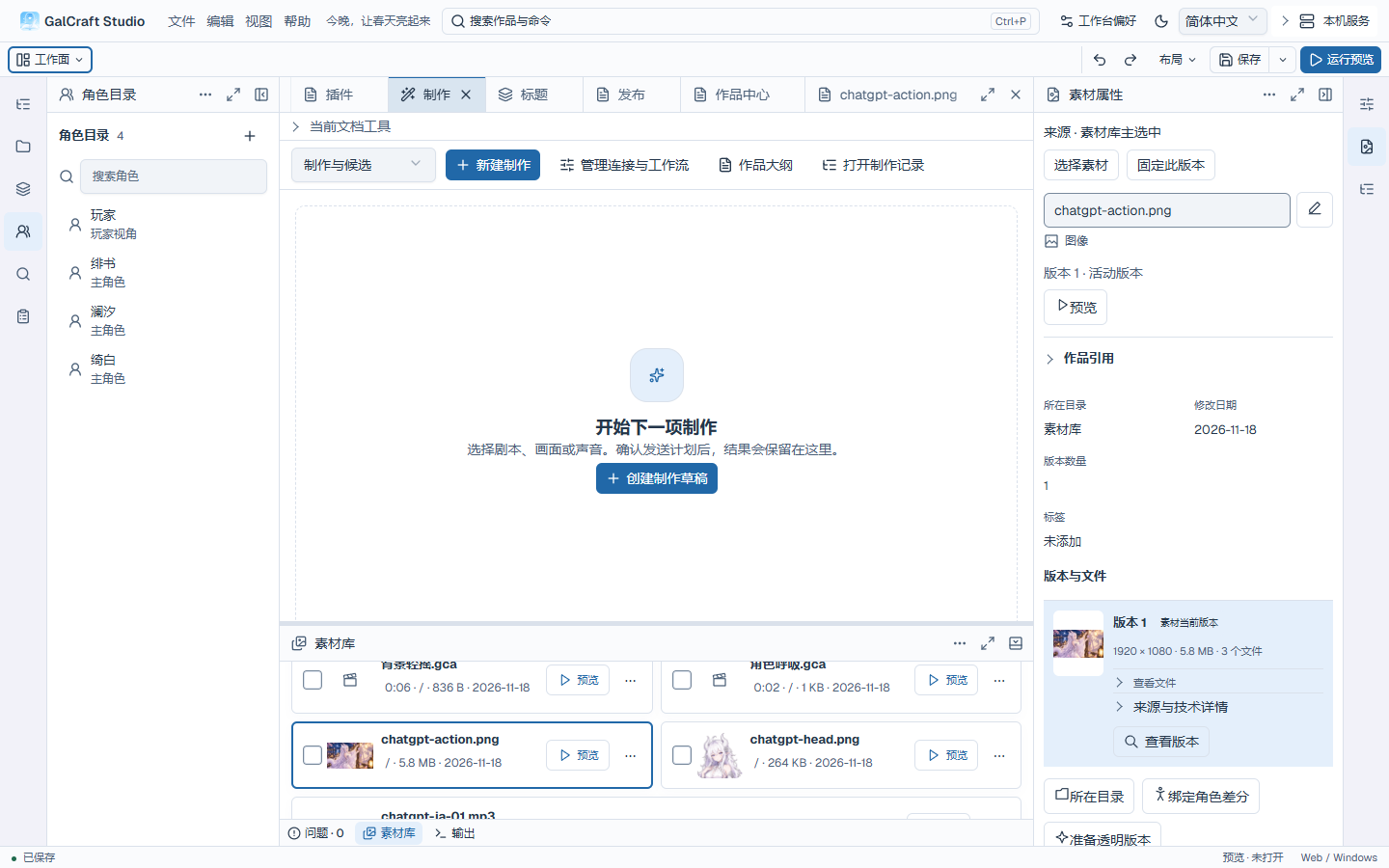
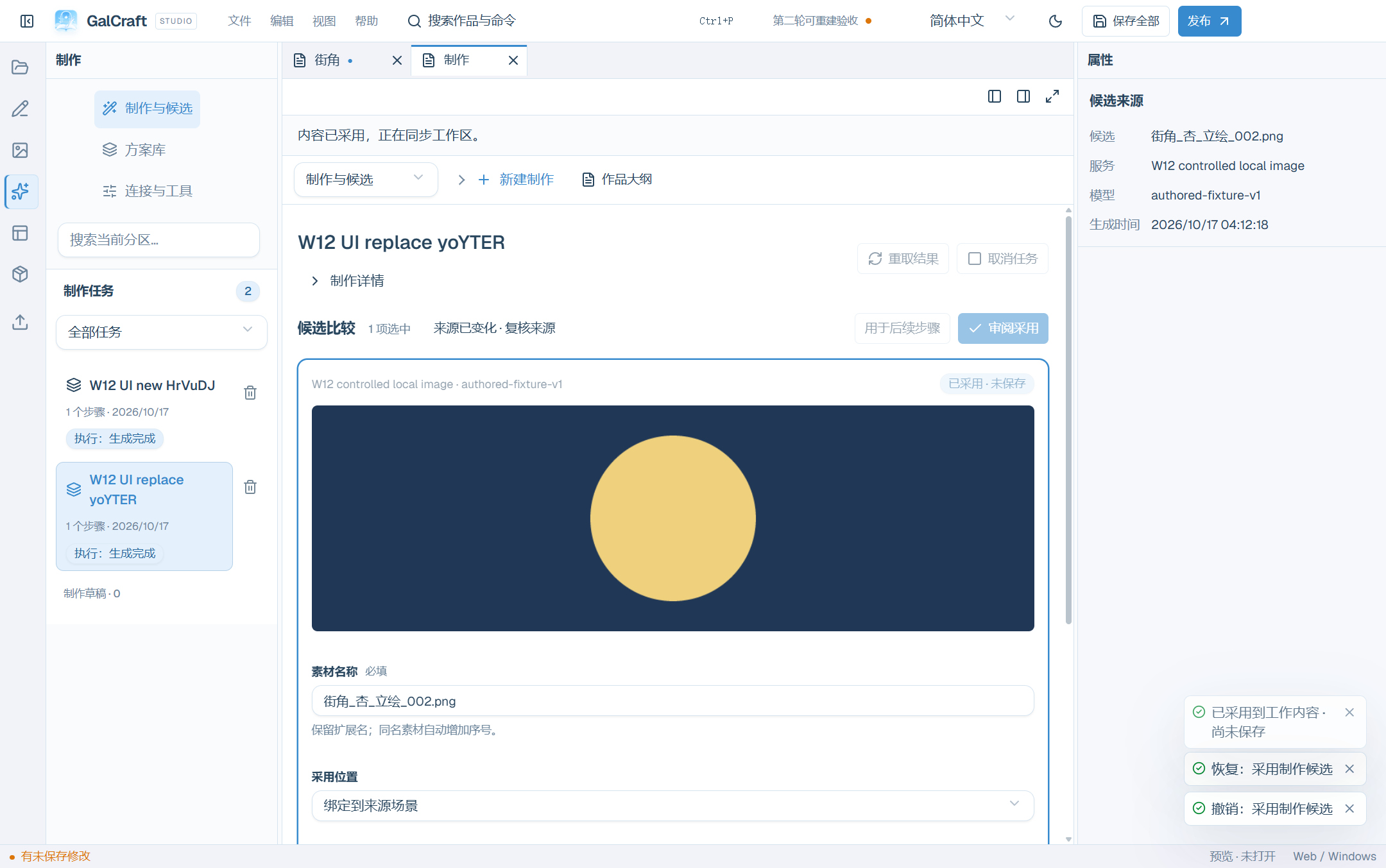
Choose Produce from Workfaces to open the central Production tab. New production offers story writing, performance, backgrounds, figures, CG, variants, voice, music, pages and UI assets. Shortcuts from an asset, character, scene or page open a draft in the same tab and retain the source for returning.
New production groups story/staging, artwork, sound and pages/UI, with operations contributed by enabled plugins. Search by name, use arrow keys and Enter to choose, or Escape to cancel and return focus. Clicking outside closes the picker. Choosing opens a draft; review the actual input and request plan before sending.
The task summary shows generated, active and attention-needed steps. Sampling steps are labelled Current sampling node, separately from workflow node counts. Missing totals stay total unknown or Count unknown. Execution steps retain the actual node, elapsed time, latest update and cached-node information. Review execution issues locates the existing step/retry controls and keeps previous candidates.
Failure explanations follow the Studio language. Diagnostic details retains the technical code, object, recovery actions and original provider text. ComfyUI’s Failed node and service exception retains the node, exception type and original traceback. Query the original task before deciding whether Retry with new request should send another request.
Open Instance resources and release on a ComfyUI step to inspect the entire service queue, service RAM, device VRAM and available local Windows commit metrics. The author can confirm a manual release. Receipts show a busy queue, observed resource release or release awaiting confirmation. Inspect active tasks when busy; refresh the receipt and inspect service state when awaiting confirmation.
Edit ComfyUI ownership and release policy in Connections. Shared instances use manual release. A Studio exclusive instance can release when the production type or model family changes, or after each task to reduce memory use. Releasing after every task increases model reload time. Connections to the same instance use the same policy. Declare the actual Model family in a workflow to reuse consecutive tasks; when blank, purpose, model and workflow version determine switching.
| Area | Work |
|---|---|
| Production and candidates | Drafts, send-plan review, execution, comparison and adoption |
| Scheme library | Schemes, prompt rules and parameter presets; inspect, edit, copy, import/export |
| Connections (separate workface) | Personal services, connection checks and ComfyUI graphs and mappings |
In Production and candidates, the central tab keeps input, parameters, the send plan, progress, candidate comparison and adoption review together. Project outline opens an outline document. Applying an outline is a project edit you can undo in authoring. Save the project to keep the change.
Choose Layout → Show production records or Open production records in Production. Production records docks on the left by default and can move to the right. Search drafts and tasks by name or filter tasks by status, then select a record to open it in the central Production tab. History and drafts collapse separately and show 20 items per page. Candidates show 12 per page and retain selection and edits across pages. Reopening the project restores the selected record and its browsing state. Use Layout → Save named layout to reuse the arrangement of the Production tab and docked tools.
Draft, source, actual input and adoption target
Changing input, parameters or references creates and autosaves a personal draft; browsing defaults alone does not. Rename the draft in place. The status shows saving, saved or unsaved; Save draft also saves explicitly. Failure retains input. Before switching or exiting choose continuing, retrying save and continuing, or explicitly discarding unsaved input. Discard restores the latest saved draft; when none exists it clears only the current input. Existing tasks and candidates remain.
Draft saving and project saving are separate. Adoption edits the project and needs project saving. Deleting a draft, cancelling a task, removing its record and undoing adopted content are different actions.
| Concept | Purpose |
|---|---|
| Source | The asset version, character variation, scene, instruction or page selection used to return to the original object |
| Actual input | Text, reference files and effective parameters sent to a service |
| Adoption target | Library-only import, dialogue binding or page update location |
Selecting a target does not add material to the request. Independent media freezes only referenced sources. If the target changes, recheck its version and prepare a new adoption plan. Text production and explicitly enabled text preparation offer selected reference material. Read the current scope, then include, exclude or rewrite it. Manual projections are retained when sources change; compare and choose updating input or retaining this rewrite.
The context summary counts selected Unicode characters, actual attachments and the current rule/message text. Spaces and newlines count. Token usage comes from the service receipt. Hidden selected rows still count. Provider-dependent figures remain estimated until the frozen plan; later media inputs can be checked after upstream results. Per-line voice preparation lists each selected line. Expand complete send content below the table, copy the full content or edit this request's text. Performance context normalizes generated numeric precision while retaining story text and expressions.
A context checkbox controls whether that input is sent. Open its named row for complete text and editing actions. Use Up/Down to browse, Enter for details, and Back to list to return to the same item. Selected inputs hidden by filters remain counted. When a source changes, update the input or keep your edit. Copy/export management actions are grouped in the management disclosure. UI plan review groups requirements, reference assets and dependencies by step, with review actions at the bottom.
Choose Review request plan to see the destination, model, input and request count. Edit input returns to the draft and restores your place. Start generation submits the reviewed request. If submission fails, the plan stays open so you can check the cause.
Direct voice
From selected dialogue, each row shows character, original text, spoken text, language and voice. Editing spoken text does not edit story text. Default voice participation affects batch selection: ordinary characters start included and viewpoint characters excluded; authors can change this or select a row manually. Adopted audio remains playable. For independent text paste it and split non-empty lines. Use the project's voice-language identity for presets and dialogue; the provider maps service language codes. An empty row voice inherits the common voice. Set only supported voice, speed, emotion and reference-audio fields. Reference-recording language, reference transcript, target language and spoken text remain distinct; GPT-SoVITS may also need a service-readable directory.
Direct voice sends only selected spoken text and voice parameters. Optional text preparation is an explicit additional step requiring a text connection and review. Review request plan prepares actual requests; Start generation sends them. Voice item counts and HTTP request counts are displayed separately. Select or adopt according to the goal; listen when comparing sound is part of that goal, and redo only needed/failed items. Dialogue-origin candidates bind stable instructions and language; independent voice can enter the library only.
Continue existing drafts and tasks
Connected clients can discover saved drafts, tasks and candidates created in Studio or other collaborations within the current project and authorization. Start with summaries and expand only selected records. Frozen input exposes recorded nonsecret parameters, reference versions and connection/model/workflow/scheme identities and versions; unrecorded values stay unknown. Update drafts against their actual revision, prepare them, retain existing results, transfer a prompt or plan a continuation.
After a disconnect or uncertain result, query the original call and task first. Queries, waits and refetches preserve remote identity, attempts and actual send counts; a new continuation is a new send. Paused work still permits querying existing output. Explicitly reconnect after reopening or switching projects; unsent stages continue under current valid authorization. Missing connections, plugins or workflows are configured through existing Studio interfaces; clients discover environment state and available capabilities.
Images, music and UI
| Kind | Inputs |
|---|---|
| Background / figure / CG | Positive/negative prompts; Inspector size, count, seed, reference images |
| Variant | Required base image; describe what changes and what remains |
| Music | Description, duration, instrumental option and applicable lyrics |
| UI bitmap | Visual prompt and size; a scene/page is optional |
| SVG | SVG text generation, then validation and review |
| Page plan/change | Explicit page/component scope and requirements, followed by page validation and impact review |
Images accept direct prompts or assisted description preparation. Only assistance adds a text connection and prompt rule. Select a preparation candidate for the next step in the same task; retain the image input/candidates. Existing prompts can bypass preparation. Choose explicit dimensions or the project canvas. Scheme limits remain binding; presets and overrides do not expand capabilities. Exclude unsupported optional values from this send without erasing them from the draft. Background removal happens explicitly after image adoption. NovelAI prompt preparation and editable composition provide dedicated workstations; see the sections below.
From Page Design, UI assets opens the same Production tab with the current page and component selection. Prepare media, layout or style candidates through the corresponding production operation. Choose Return to origin in the draft or Return to source in the task to restore the original page and selection. Assets and pages
Create a figure variation
- Open the exact image version in the asset preview and choose Create figure variation. You can also choose it on a character’s existing whole-image variation. The draft starts with that image version as its main reference. You can adjust Adoption character separately.
- In Positive prompt, describe the pose or expression to change and the character details to keep. For ComfyUI, select an image workflow with an image upload input and a mapped image output. Choose Review request plan to review the main reference version and actual request, then Start generation.
- Compare Frozen main reference and the candidate in the central task. Check that the character is recognizable and the requested change is visible. Choose Add to asset library, then Review adoption and Adopt into working content.
- Choose Bind adopted version as a shared difference on the result. Confirm the character, name and framing of the exact version. Use the named difference in the scene, then save the project.
Story writing and performance
- Select scene, instruction range or insertion point and open AI writing/performance; alternatively select an adoption scene from Production.
- Choose story, performance or discussion and enter concrete requirements, such as preserving two lines while softening the farewell.
- Review the target and explicitly selected text, character and outline context.
- Choose connection, model, prompt rule and output limit in Inspector.
- Check the plan's destination, actual text, references, request count and frozen configuration.
- Start generation after review. Changed input, service, scheme, parameters or target require another check.
- Handle candidate blockers and select, adopt or bind according to this goal. Text comparison and playtesting are available when needed. Save only authorized objects when saving is part of the task.
Performance assistance protects dialogue, speakers, instruction identities and branches. Out-of-scope changes produce diagnostics; revise the candidate or requirements. Discussion is for planning/continuation, not direct script adoption. Without an explicit insertion point, adoption preserves a scene's ending flow instruction.
Continue and branch
A completed script or discussion candidate can continue through more rounds: discuss conflict, write three lines, revise the ending, add performance, playtest and adopt. Choose the baseline version and round mode, enter requirements, inspect this round's send plan and confirm sending. Older versions can branch; original service output and author revisions remain separate. Changing baseline, mode, requirements or summary invalidates the plan.
Unsent requirements, summary, mode and baseline stay with their task when navigating elsewhere. Recheck the send plan on return. New input during preparation/execution is retained. Performance requires a script baseline rather than discussion text. Wait for completion/cancellation before another round. If adopted text was subsequently edited in authoring, start from that current text. Continuation adoption targets the previously adopted range to avoid duplicate insertion.
Session material retains initial context and selected replies. An author-confirmed summary can replace intermediate rounds in sent history; records remain. Empty summary retains complete messages. Image, voice, music and prompt preparation have their own steps rather than this story continuation flow. Stable rules/history with appended requirements may reuse a provider's prefix cache; changing modes or history changes the prefix. Cache and token counts come from actual receipts. Not provided differs from zero, and repeated sending is a new request.
Schemes, prompt rules and presets
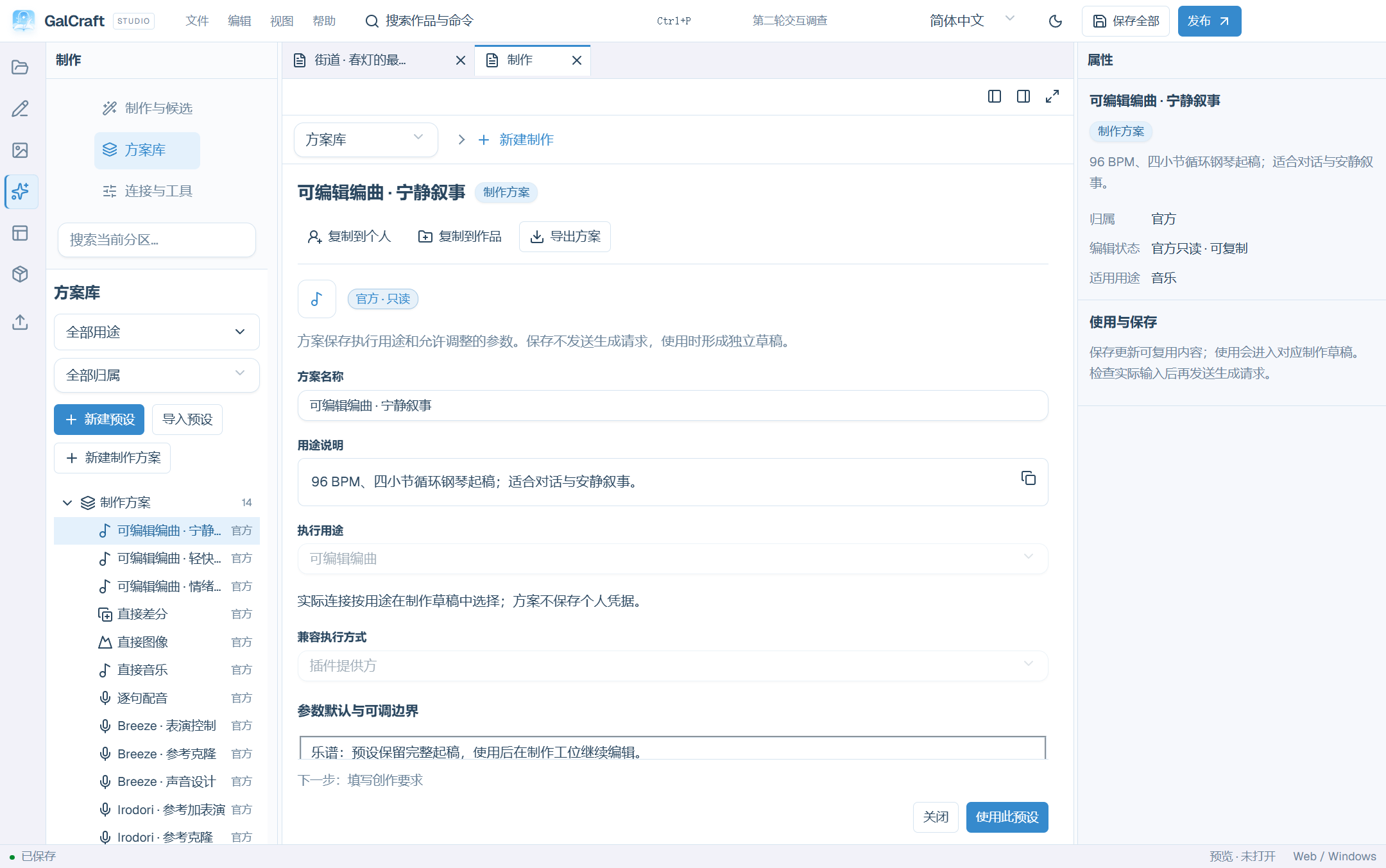
Schemes define operation, execution method, defaults and adjustable ranges; compatible ComfyUI schemes carry graphs/mappings. Prompt rules define the style, templates, examples, output requirements and reference defaults of explicit text steps. Parameter presets reuse values exposed by a specific scheme; they do not change modality or add requests.
Filter the library by purpose and official/personal/project scope. Official entries are read-only; copy to personal, copy to project and export remain visible. Self-owned entries may be deleted after reviewing impact. Save changes before managing the saved version. Use opens an independent draft whose overrides leave the library untouched. Inspector supports presets, per-field overrides/default restoration and saving exposed parameters as a personal preset. A changed scheme version requires a compatible preset.
New preset creates a prompt rule; New production scheme creates a media scheme. Saving sends nothing; Save and use opens input. Project schemes also need project saving. Exported parameter presets include the referenced scheme and exclude credentials. Import recipes.galrecipe.json, inspect its persistent import-review document and apply. Missing deleted schemes/rules require reselection in drafts; historical tasks retain frozen versions.
Connections
Open Connections from Workfaces, or choose Manage connections and workflows in Production. Choose Add service. The list stays on the left, and the configuration and check result stay in the center. If you came from Production, Return to production task returns to the original draft or task. Submitted tasks keep the input frozen at submission. Enter a recognizable name, actual HTTP(S) endpoint, required authentication, provider model identifier and supported purposes. Local ComfyUI commonly uses http://127.0.0.1:8188; confirm its actual port. Credentials start masked. The eye control reveals only the current new input. Existing credentials are never filled back into the form; leaving the field empty retains the saved credential.
Save connection retains the editor. Select the purpose to check; images additionally specify background/figure/CG/UI and a matching ComfyUI workflow. Save and check saves first, then reads service information and validates the selected model/purpose/mapping. Failure retains saved settings. The result shows connection, model and mapping status. Return to the production draft to review its plan and start generation. Save or cancel unsaved configuration before switching.
Studio checks core connections through the local service. Plugin services require the project's enabled exact provider and declared purpose; missing prerequisites retain configuration/history with diagnostics.
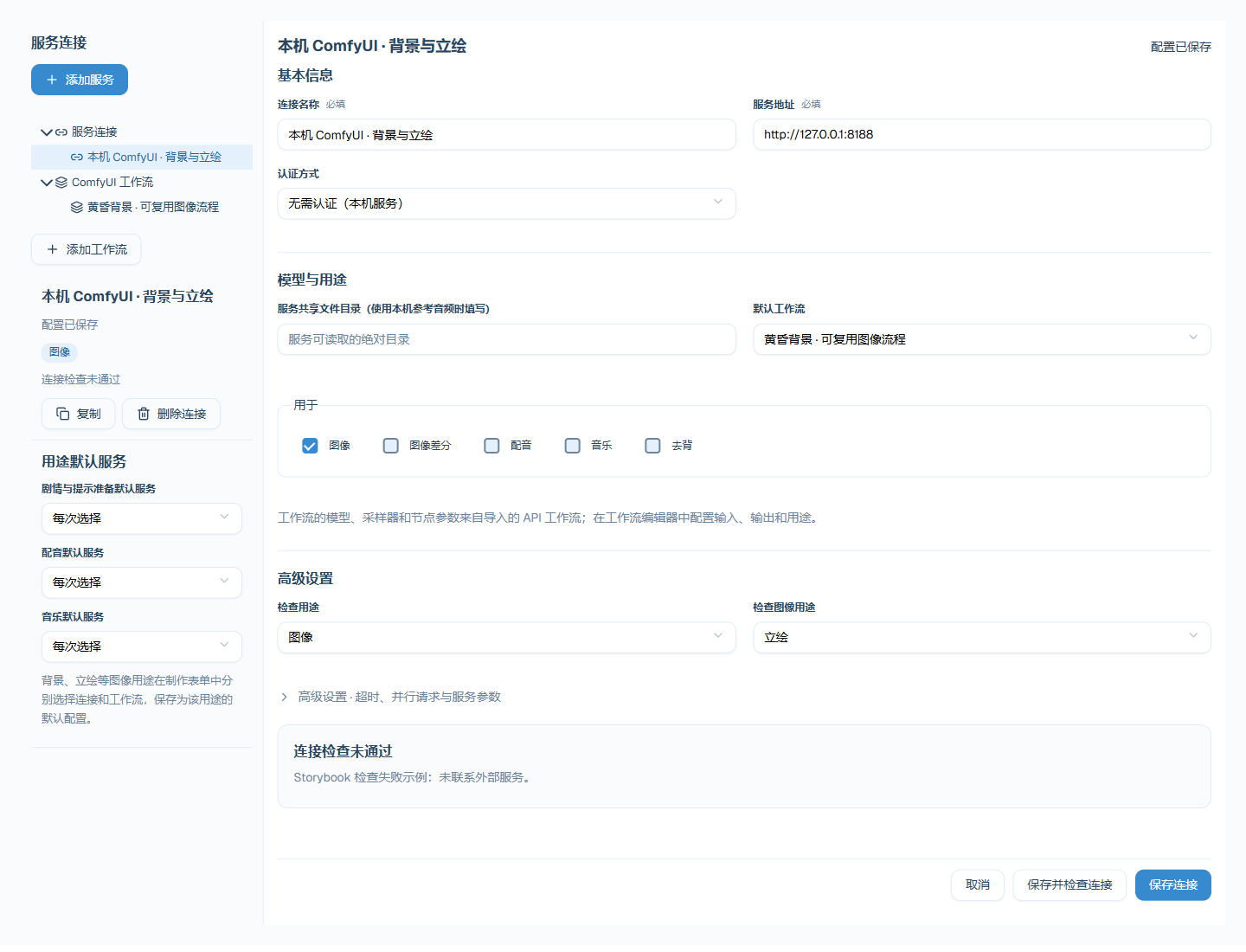
Connections own authentication, endpoint, model and general settings. Production Inspector owns current prompts, sizes and voices. Advanced settings expose per-purpose timeout, concurrency and service-parameter JSON; request contains service request parameters. ComfyUI model/sampler settings come from its API graph. GPT-SoVITS references may require shared storage. Select default text/voice/music connections; image defaults also carry saved purpose/workflow choices. The frozen plan identifies the effective compatible connection.
Copy creates another configuration and can share saved credentials. Complete/cancel active tasks before deleting a connection. History, candidates, adopted content and reusable graphs remain; deleting a connection does not stop a local service.
ComfyUI API graph and mapping
In Connections, open ComfyUI workflows → Add workflow. Configure an execution API graph and input/output mappings for a compatible ComfyUI scheme. Other operations use their own fields.
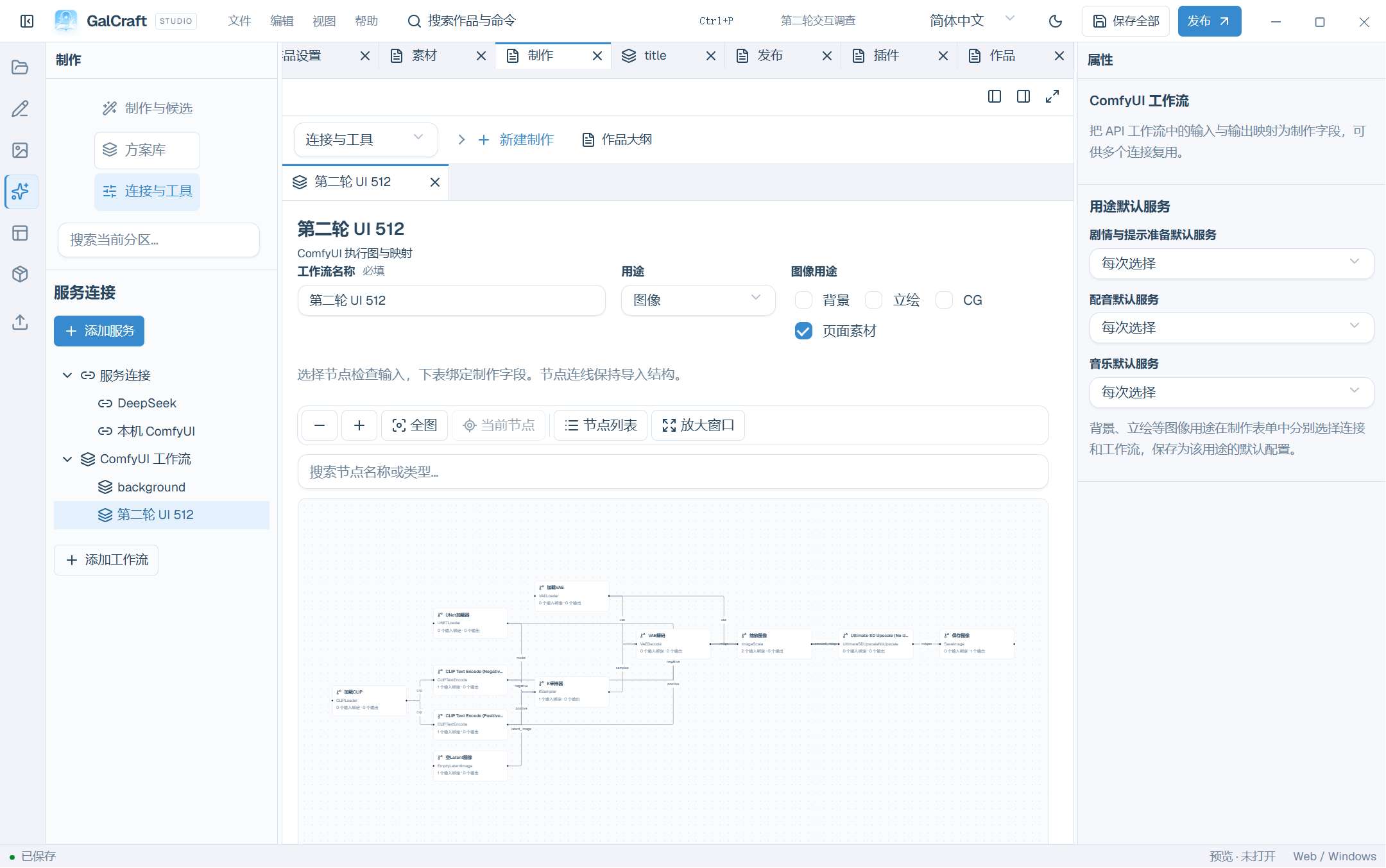
- Export API-format JSON from ComfyUI or import a complete GalCraft workflow configuration. Export ordinary editor JSON again in API format.
- Ordinary import opens a new document; Replace current graph edits the current copy. Import errors retain existing content and show the reason and recovery action beside import.
- Name the configuration and select its real purpose/operation and image uses. Enabled plugin operations supply their own fields and media ports. Inspect nodes, inputs and connections; graph/list, search, pan and zoom do not edit structure.
- Map supported public inputs to actual node inputs. Keep original preserves graph values; connections remain read-only. After replacing the graph or operation, fix retained incompatible bindings through their located diagnostics.
- Standard image and audio references default to HTTP upload. For nodes requiring shared paths, the connection records the GalCraft-writable directory and service-readable prefix separately; the workflow declares the required filename/path format. The directories must already be connected.
- Select the output node and result file-list field, such as
history.outputs[nodeId].imagesor.audio. Custom nodes retain an advanced manual field. Choose the file-list key from an actual task history; use the advanced field for custom nodes. - Save unfinished work as a reusable personal draft. Complete local validation and explicitly Save as usable/Update usable configuration to replace the available version. Draft saves retain the old usable configuration. Connection checks and actual generation history keep separate status; saving a valid configuration requires no additional paid trial.
- Select the graph from a compatible scheme or production Inspector. Copy/export carries the graph and mappings; tasks freeze the effective version.
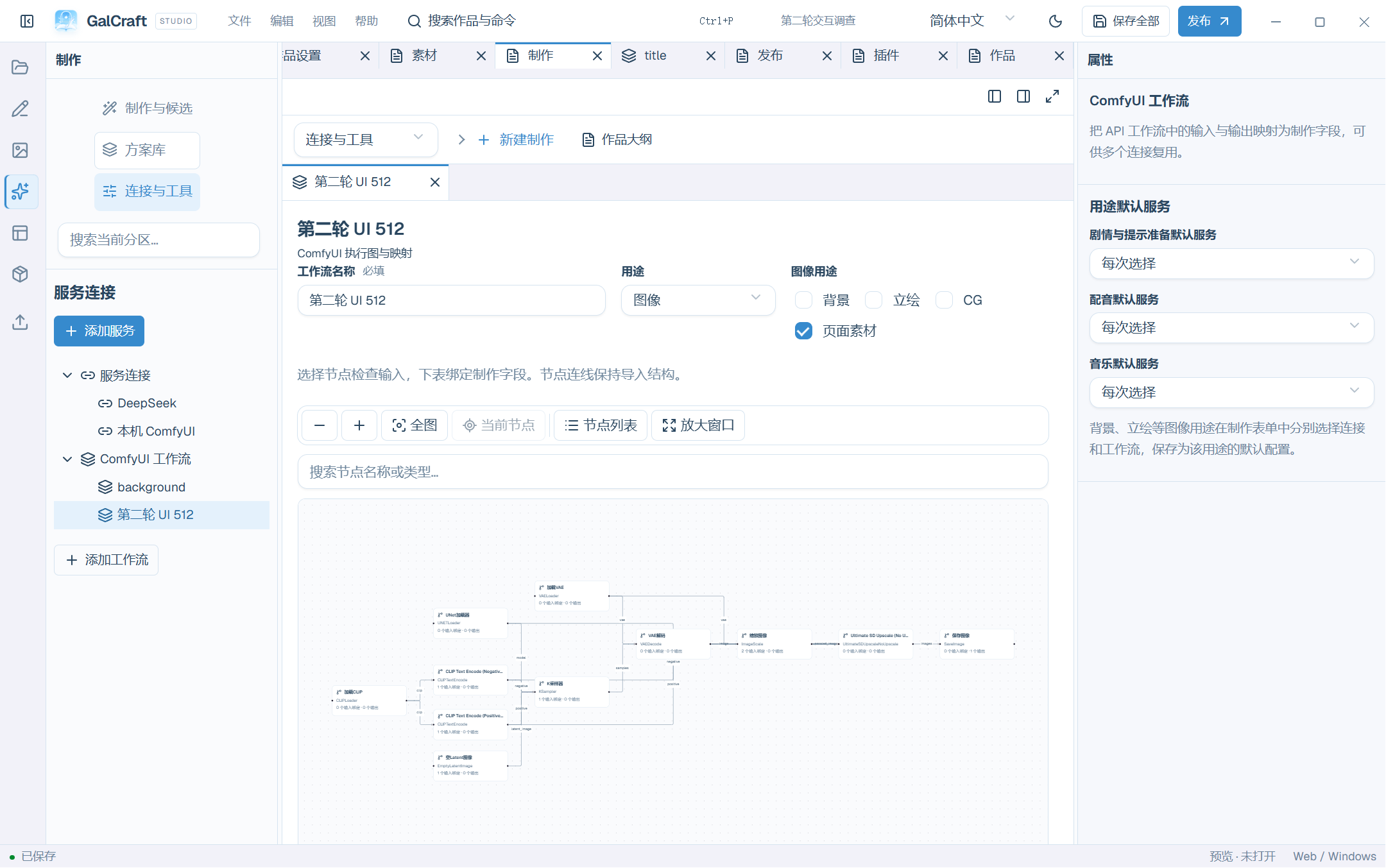
Graphs have independent documents. Switching between clean graphs is direct; a modified graph retains JSON, mapping and scroll state when returning. Fix failures in the same workspace. Closing unsaved edits offers continue, discard or save. Multiple compatible connections may reuse a graph; task continuation is separate.
Candidates and adoption
Preview results with their names and adoption positions nearby. Results ready to review means generation finished and you can review the candidates. Adoption and saving each have their own status. The adoption review lists affected documents, assets and positions. Technical details retain complete JSON; long previews paginate and copying retains all text. The Inspector temporarily hides when it has no applicable fields and returns with the workbench.
Success closes the review. If adoption succeeded but refresh failed, retry refresh instead of adopting again. Repeated confirmation of the same request commits once. Cancelling an unapplied review preserves project content. Choose a candidate, review and apply its adoption plan, then save the project. Candidate kinds include discussion, script, prompt, SVG and page plan/change; media has preview, comparison and source details.
Rename image/audio assets before adoption, retaining correct extensions. Suggestions use scene, character, purpose and sequence; collisions receive distinct names. Renaming adopted assets preserves references. Transparency is optional: compare first, retain the original on cancellation/failure and save after adoption.
The review retains its candidate, version, scope and diagnostics when changing tasks. Confirmation commits the original plan; source conflicts remain for review. Choose library-only or the listed real target. Review background source and framing separately, bind voice by instruction/language, and inspect actual DOM/style/resource dependencies for page plans. Validation by the responsible module precedes a grouped project edit. Failure retains candidates. Success first shows Adopted / Unsaved, then Adopted content saved. Undo/redo handles the group. Removing a task record leaves adopted content intact.
Usage, cancellation and recovery
Request counts come from actual steps. Pricing follows the service receipt; missing values show Not provided. Zero usage means reported zero; Not provided means unknown, including cache usage. On failure/interruption inspect errors, remote identity/state and existing output first. Capable providers can query, refetch or reconnect. A retry that makes new requests requires confirmation, preserves successful items and retries failed steps. Cancelling execution differs from deleting drafts or records.
Check whether a request was already sent, then inspect connection, model, graph and output contract. Recheck adoption after source changes and sending after input changes. Unknown cache data requires no configuration change. Incorrect character facts call for narrower explicit context and clearer requirements.
Joint UI plans and plugin operations
Review UI plan opens its steps centrally; Explorer navigates phases/dependencies. The plan retains its originating draft and page scope when switching elsewhere. Reprepare after changing requirements, steps or references, then confirm generation. An image step may create an asset independently; later adoption decides its binding.
An enabled exact provider plugin contributes named operations to New production. Configure its service and select the operation. Generic fields and media ports show accepted types/MIME, required status and single/multiple selection. Replace/remove affects only that port; other port references remain. Fix missing or mismatched references before preparing the plan.
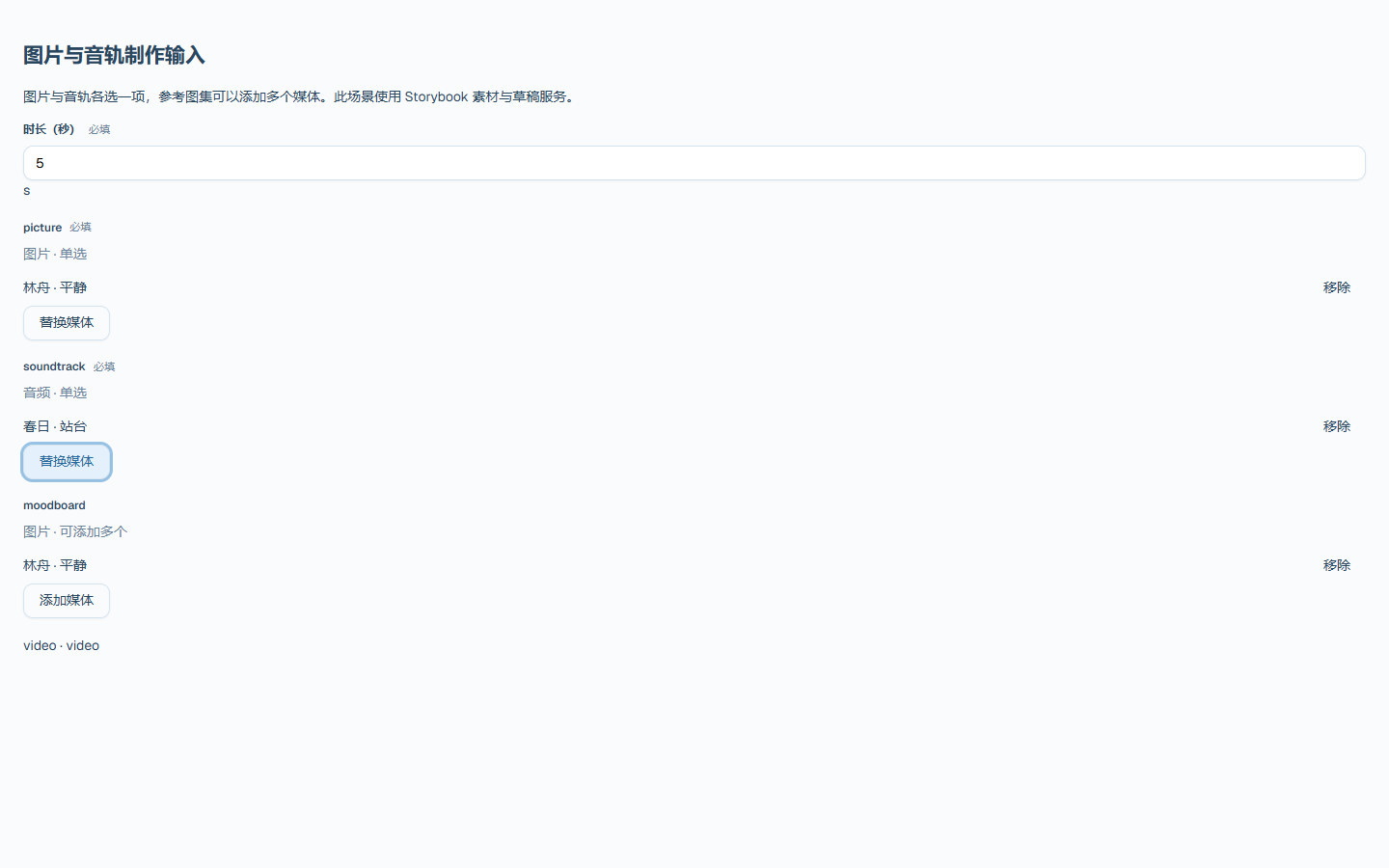
Custom input controls are optional. Save production input checks fields and draft revision, retains invalid input and creates no project edit. Changed parameters/media invalidate the send plan. Reopening retains operation version and port references; restore a missing exact plugin to continue with retained drafts, tasks, candidates and files.
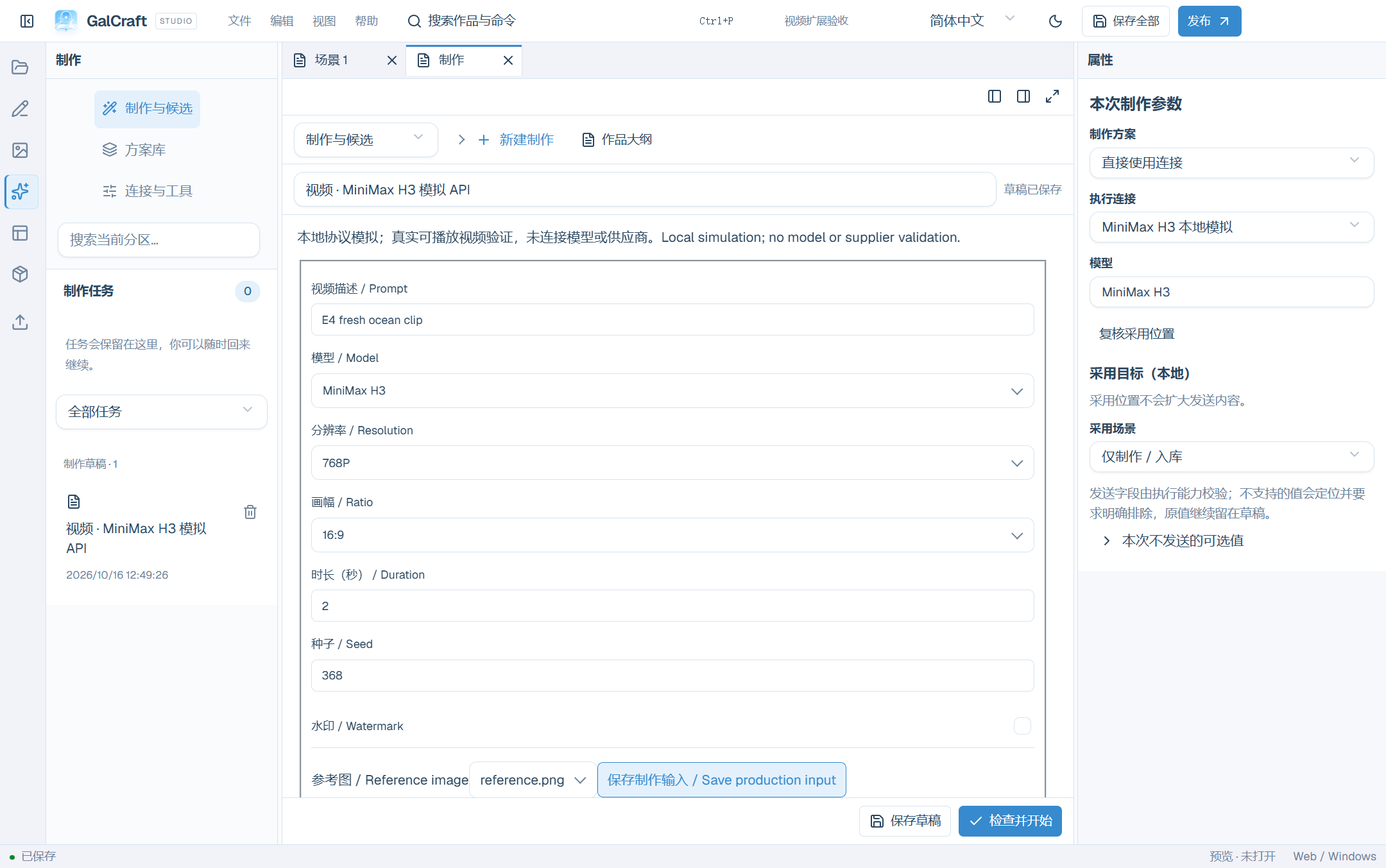
The video example uses a local simulated MiniMax H3 workflow API. Preview a video candidate, then import it alone or adopt at an applicable background position. Undo/redo/save use the same project edit group and preserve task/candidate provenance. Video is for backgrounds or story video; figures require compatible images/models.
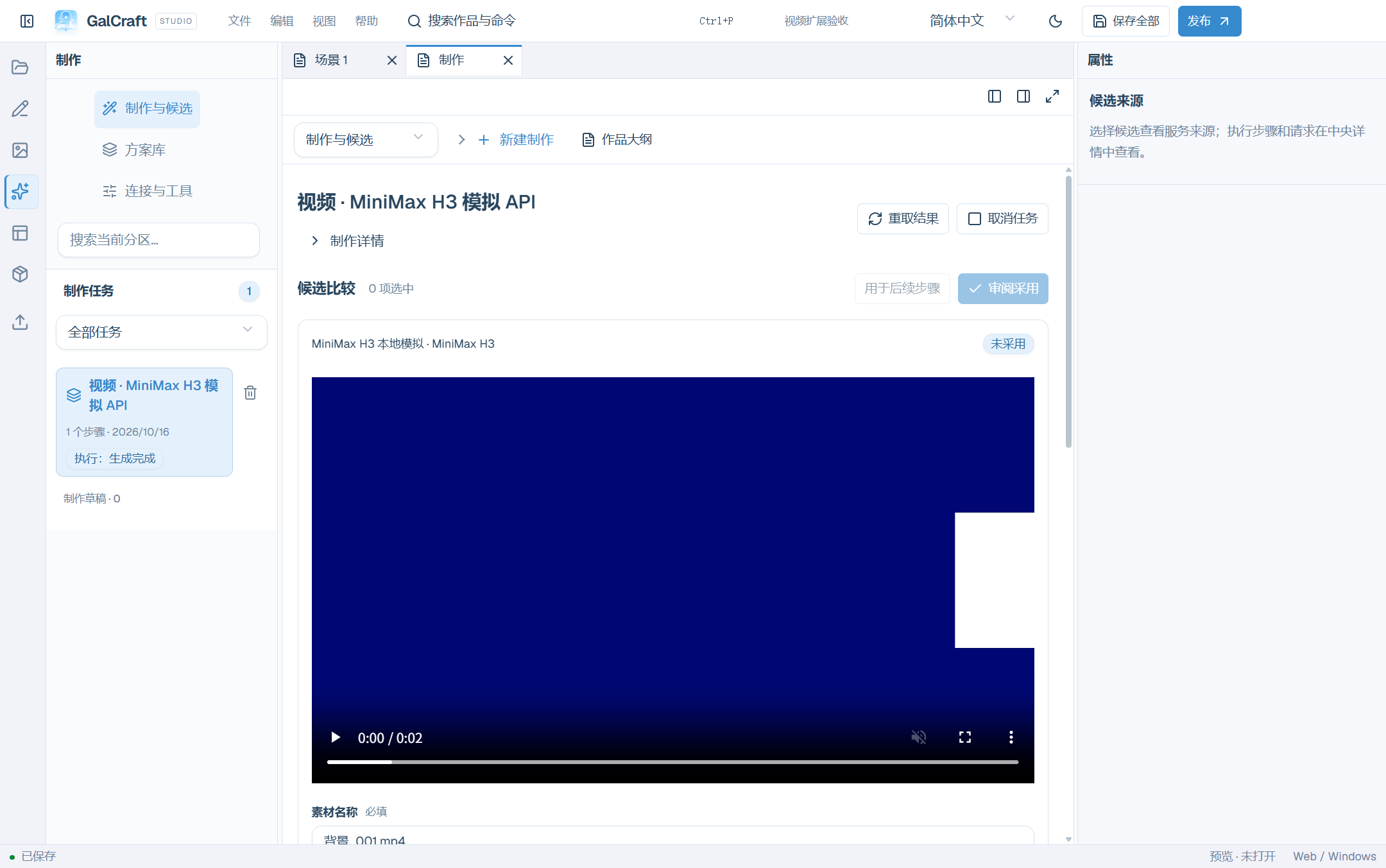
After interruption/reopen query the original remote task first. Changed providers/connections do not rewrite frozen identity or parameters; new-request retries require review. Independent Player receives only adopted content and playback dependencies. See Plugin development.
New image objects and exact replacement
For image/variant candidates first choose library-only or the source scene. Scene adoption specifies figure or independent-illustration use and explicitly chooses a new object or replacement of the selected object. An illustration may use an image without a character. Character association identifies the character; the adoption target selects the scene, instruction and object. Variants still require an explicit base image and change instructions.
Replacement reviews the scene, instruction and object identity while retaining layout and performance fields. Recheck if the source has changed; cancellation leaves the project intact. Review, apply, inspect the stage and save for new, replacement and library-only adoption alike. Background and BGM keep their existing adoption positions; they do not require new illustration placement.
15. Editable composition and sampled instruments
Use local render for an existing complete score, or writeScore with a configured text connection for writing from a description. Style, recipe, reference score and a full instrument list are optional. Choose a real installed soundbank when no reference or scheme supplies one. Starting-score identities and ambient/dramatic/pop writing styles are distinct; correct a missing bank or unknown style through the located diagnosis.
Keep creative references separate from explicit constraints. Declare requested fixed BPM, meter, body bars/body seconds, finished total seconds, allowed error, loop range and required/allowed/excluded real instruments through the music contract. Reference tempo, duration and orchestration remain creative context. Body duration excludes trailing release; finished duration follows actual render/loop treatment. Explicit overrides win, then explicit direct input, applicable recipe/parameter defaults and operation defaults. A modified score stays whole until explicit replacement or restoration of default following. Retain violating results and correct/reprocess locally without a new model request; a necessary new writing request follows existing authorization and actual additional-send accounting.
Choose Editable composition under Production → New production, or use one of the three composition schemes in the library: Quiet narration, Emotional development and Light everyday music. Each scheme opens a complete editable starting score without calling a text model. Copy schemes to personal or project scope, or export them. Edit the current score in the workstation after using a scheme. Music service sends descriptions to an external music service.
Enable the Editable composition plugin for the work, then open Connections → Add service. Choose Plugin service · renderProvider, select no authentication, retain the Editable composition purpose and save. This provider runs inside the local Studio host, so its address and API key can remain empty. Select this execution connection in the composition draft, install a soundbank, preview and render.
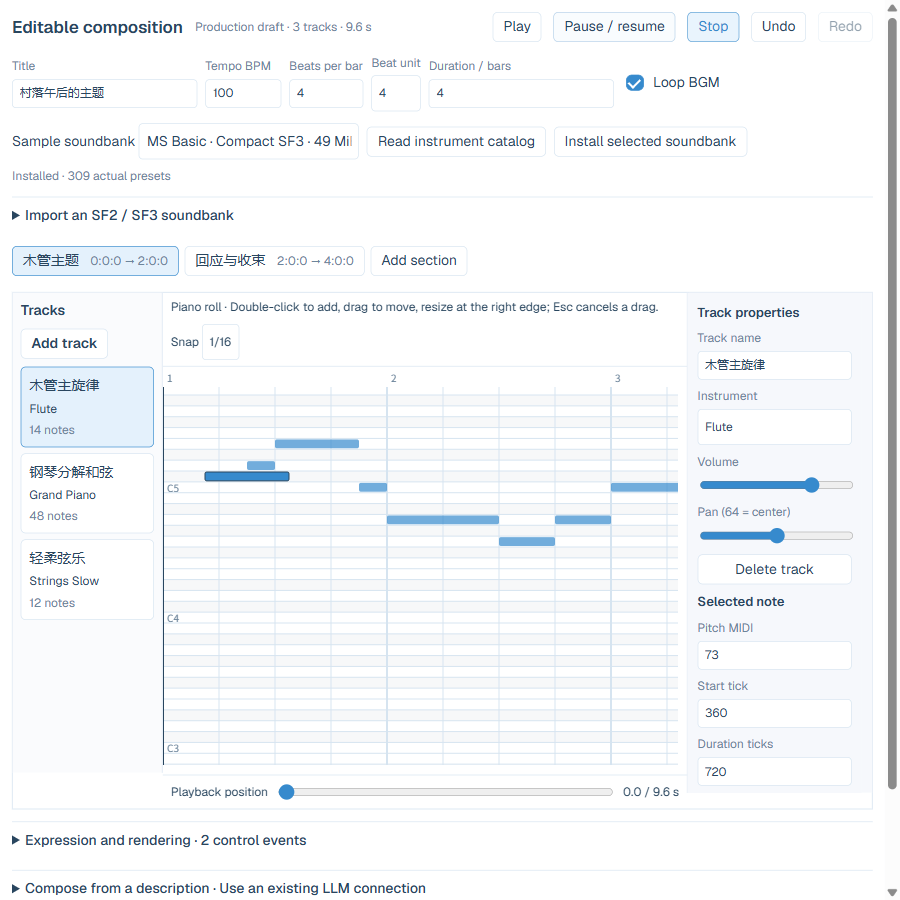
Enable the official editable composition plugin and choose Editable composition in Production. Specify the style, purpose, tempo, length and looping intent. For AI preparation, choose a text connection and review the actual send before generating the score. The workstation preserves sections, tracks and stable instrument identities. Its public labels follow Studio in Simplified Chinese, English or Japanese; authored titles, track names and prompts retain their original language. Edit notes, velocity, tempo, orchestration, sustain and supported controllers. Invalid output retains its original text and field issues while the last valid score stays editable.
Explicitly install MuseScore General HQ 0.2.1 SF2 or MS Basic SF3 in the soundbank section. HQ uses more memory; Basic provides a lighter option. Review the source, license, version and size before installation. Opening the editor reads the catalog. To import your own SF2/SF3, select the file and supply its name, source and license. Install a missing original bank or explicitly select another bank, then review the plan again.
Drag a note in the piano roll to move its pitch and start, or drag its right edge to change duration. Release to commit one edit. Press Esc during either drag to cancel it and restore the previous score. Undo and redo affect committed score edits. Preview starts sound after your click; pause retains its position and stop releases playback resources. Browser preview and offline rendering read the same score and selected bank. Set the loop range and tail policy for BGM; turn looping off for a complete short cue.
Audition a finished candidate, choose library-only adoption or an explicit BGM destination, and review the group before applying. Studio commits the audio, editable author document, loop settings and source relationship together. One undo restores the group. Save the work to retain the source for later editing and new renders. Player builds contain the required finished audio; the local soundbank serves authoring.
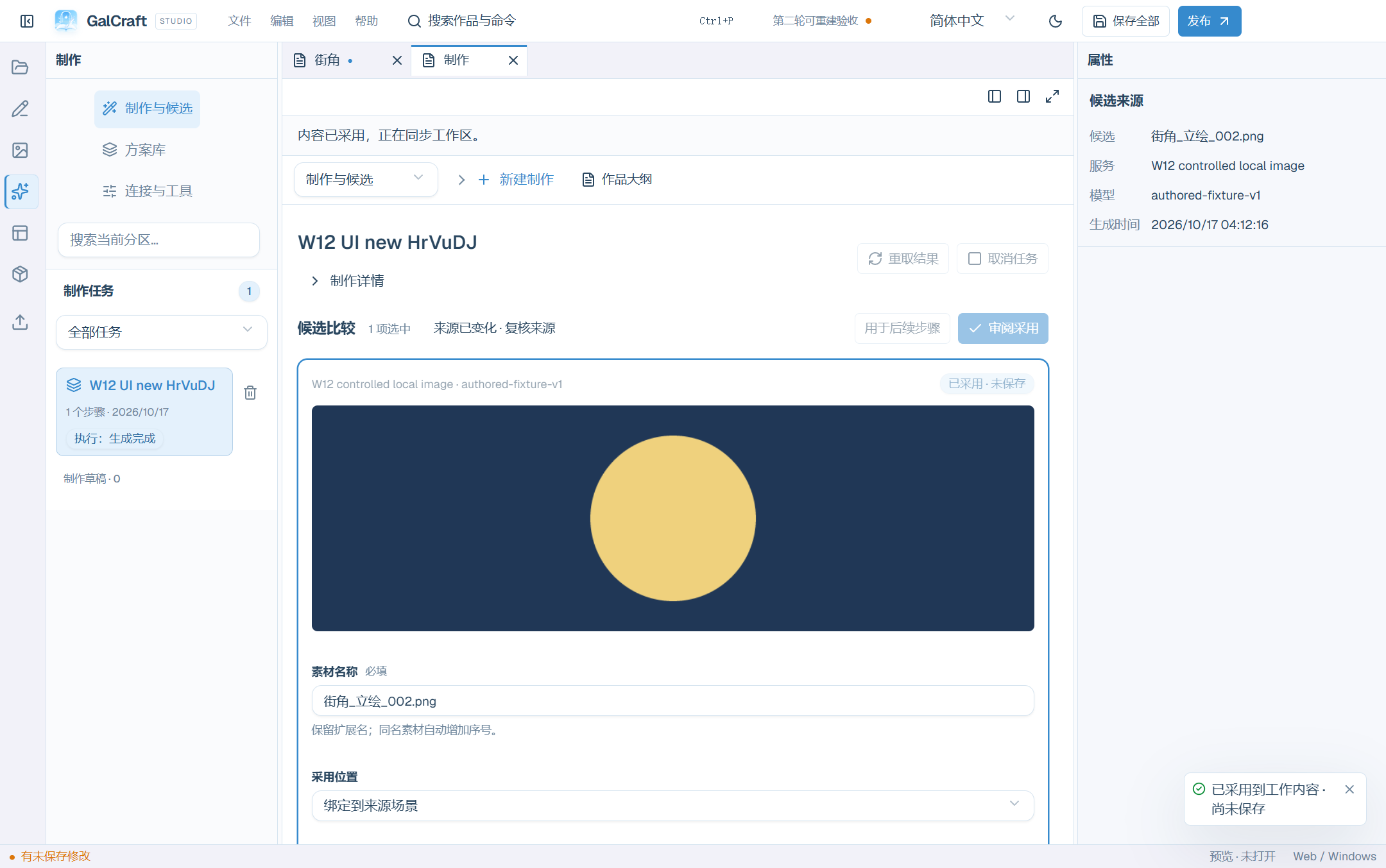
The following capture shows the ordinary exact plugin editor running in real Windows Electron with English labels. Authored titles and track names retain their original language.
16. NovelAI prompt blocks
Use the dedicated prompt-preparation entry and V5 prompt rules described here. For direct image generation, configure a NovelAI Image service in Connections, then select that connection in background, character-art or CG production. The account-verification scope is stated below.
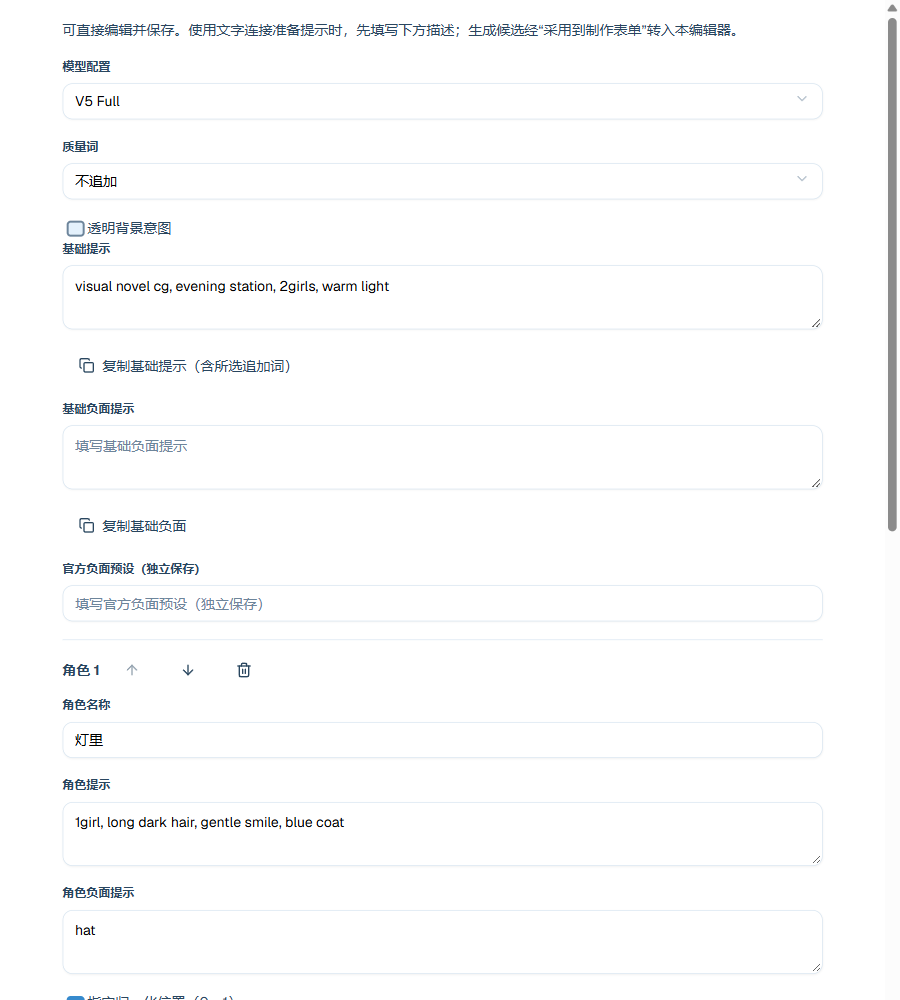
Open Production → Library and choose the NovelAI V5 Background, Transparent figure, Group CG, Chibi figure or UI graphic prompt rule, then choose Use. Select a text connection, enter the description and explicitly select character, setting and style context. Choose Review request plan, review the send plan and submit the text step. The result becomes a prompt candidate; choose Adopt to production form to transfer it to the block editor. You can also edit handwritten tags and save the draft there.
Edit the base positive and negative prompts, each character's positive and negative prompts, ordering and position separately. The personal draft retains model, quality and transparency settings. Quality terms are appended once when the base prompt expands. V5 quality and transparent-background additions apply to V5; V4.5 has a separate precise-reference design path.
For the NovelAI website, copy the base prompt into its base field and each character block into a separate character field. Alternatively, copy the combined prompt using the official | separator into one prompt field; first remove duplicate character fields on the website. Enter base negatives, character negatives and positions in their corresponding controls. Combined positive copying excludes those values. Put scene relationships in the base block and each character's appearance in that character's block.
The prompt tool supports text preparation, block editing, save/reopen and copying. Inspect images generated on the website. Imported file inspection determines whether figure art has usable alpha.
17. Breeze, Irodori and character voice presets
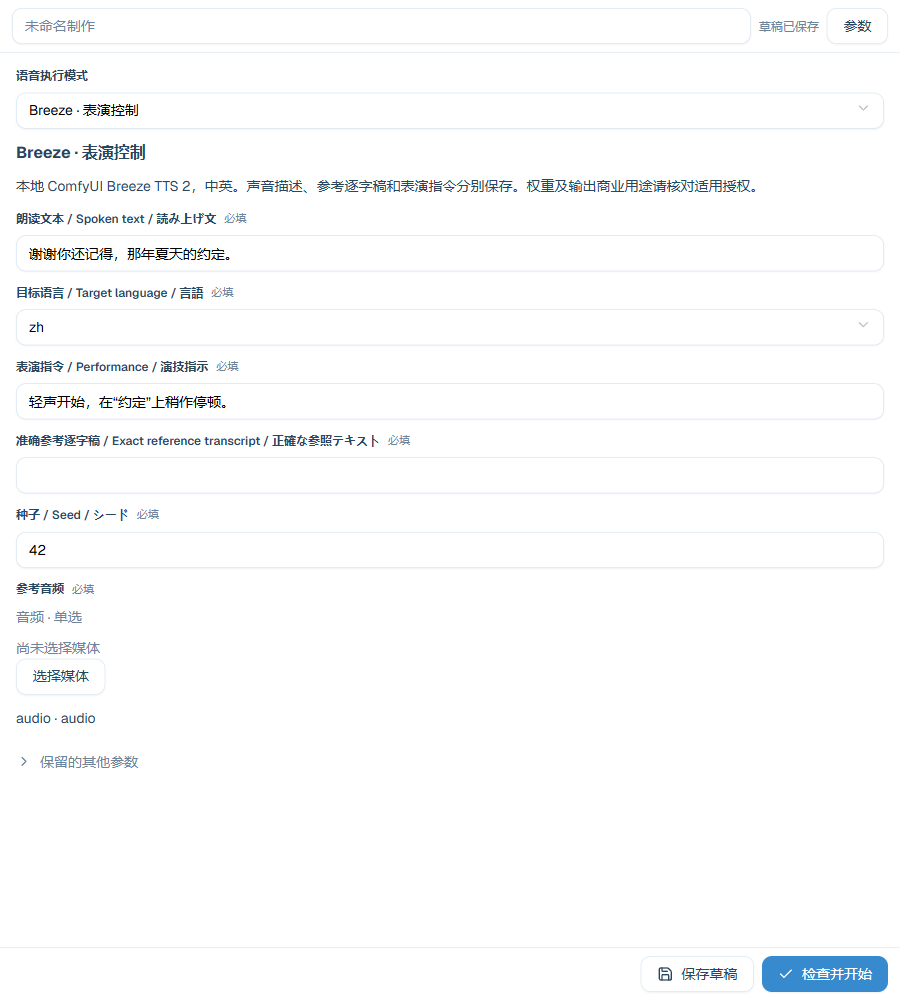
After enabling Breeze / Irodori Speech, the scheme library offers six starting schemes: voice design, reference cloning and performance control for each engine. Use a scheme to open its voice operation with language, seed and voice/performance descriptions. Choose the spoken text, reference audio and connection for the current production. Schemes can be copied and exported; using or saving one sends no speech request.
Install and enable the official speech plugin in the work, then choose the operation matching your local ComfyUI nodes. Breeze offers voice design, reference clone and direction; Irodori offers caption, reference, and reference with caption. The current local Breeze path supports Chinese and English; the Irodori Small path supports Japanese. Review fields, language, references and incompatible retained input after changing modes. The workstation submits fields through the actual execution-graph bindings.
Breeze Clone and Direction both require reference audio and its complete, accurate transcript. Direction also requires performance instructions. The current Irodori graph has no transcript input: enter a caption, a reference or both for the chosen mode, then review the final caption in the request preview. In the ComfyUI connection, choose a contributed mode template or validate a custom API graph and its semantic bindings. Check nodes, models, saved outputs and service-readable paths. The current Irodori graph saves MP3; Studio retrieves the actual history output keys.
After auditioning a design sample, choose Set as character reference voice in candidate review and specify the character, target language, reference language and connection/model. An imported recording can also become a language preset in the character's Portrait and voice document. Retain the transcript for a Breeze reference. Audio import and the character language preset form one edit group; apply it and save the work.
Batch speech shows each character, source sentence, reading text, language and actual voice. An explicit line override takes priority over a batch override, followed by the character's language preset and the scheme's permitted defaults. Line and batch overrides stay in the production draft; authors explicitly edit character defaults. Adoption reviews readable sentences by stable statement and language before binding audio. Review the plan again after changing a preset, text or reference version.
Recovery queries the original prompt_id. Retry retrieval to fetch an existing output; explicitly start a new execution to submit another request. Audition candidates, review and apply the group, save, and playtest the audio.
Consult the licence supplied with the Breeze model. See voice sources for the sample's model, adopted-audio summary and Chinese/Japanese line correspondence. The sample retains 39 finished Japanese voice lines for its three route characters. The player protagonist's dialogue and first-person narration remain silent. The sample includes the finished-media source summary and applicable notices.
18. AI animation creation and local edits
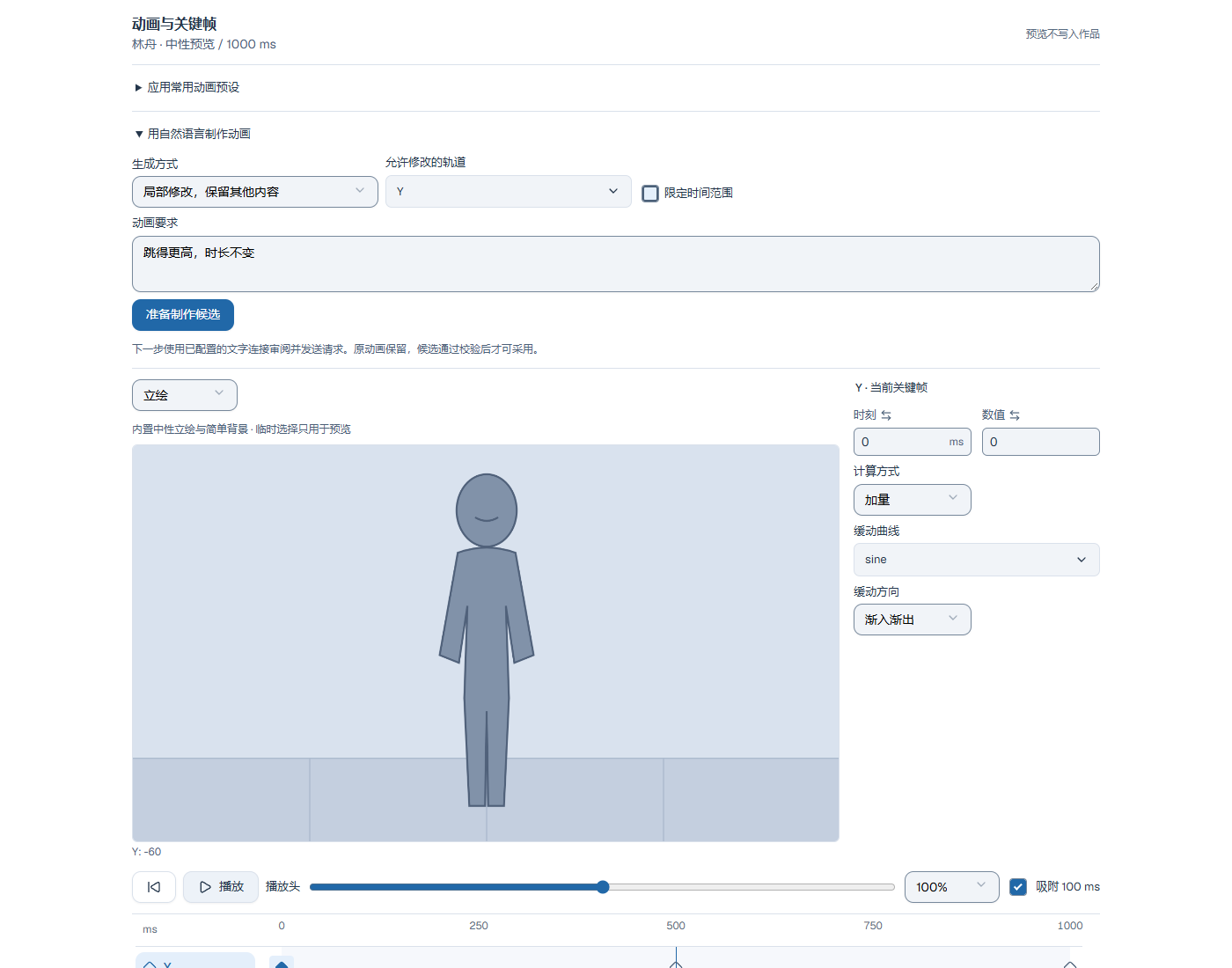
Install and enable org.galcraft.animation-generation exactly at 0.1.1 and choose an existing Chat Completions text connection. New animation in Production creates GCA; Use natural language to create animation in the workbench can edit the current animation. Enter the request and choose new, local edit or full replacement. A local edit selects allowed tracks and an optional time range, retaining other tracks, out-of-range keyframes and duration. Track deletion and full replacement require an explicit choice.
Prepare a candidate opens production review. Check the target context, connection, model and actual request, then generate. Valid candidates show added, changed and deleted tracks and their time range. Compare the original and candidate using the same stage, seek or hand-edit, then adopt. Invalid output retains the original animation and specific problems; canceling review does not adopt it.
New adoption creates an animation asset; editing appends a variant after checking the source revision. Adoption and story binding are one undoable edit. Save the selected objects afterwards. Task recovery reads frozen input without automatically sending again; explicitly retry for a new generation.
Motion Canvas program animation
Install and enable the exact org.galcraft.motion-canvas 0.1.1 plugin for the work, and prepare its declared local Motion Canvas toolchain. Open Production → New production → Motion Canvas video. Edit the Video project field's TS/TSX files, entry, resource aliases and output settings. After adoption, reopen Motion Canvas source from plugin author documents. The current entry uses the generic project fields.
In a source workspace, run node tools/motion-canvas/prepare.mjs. An installed Studio includes the preparation command below; replace the installation, personal data and browser locations:
node "<Studio installation>/resources/motion-canvas/prepare.mjs" --directory "<Studio personal data>/runtimes/motion-canvas" --browser "C:/Program Files/Google/Chrome/Application/chrome.exe" --media-tools "<Studio installation>/resources/media/bin"Follow the missing-toolchain diagnostic, prepare it, then check again. Frozen tasks require their original toolchain; review new production after updating it.
- Reuse project images, a font and one audio track. Bind actual asset and variant identities to semantic aliases that the source reads. The corresponding ports are
images,fontsandaudio. Save relative source files without local temporary paths. - Set dimensions, frame rate and duration in frames. The initial complete sample is an opaque 15–30 second video. Check the entry, readable resources and agreement between scene and output duration. Fix the reported file, line/column or field.
- Review the production plan, then render locally. The plan freezes source, resource versions, settings, exact plugin and toolchain. Progress reports preparation, compilation, frame rendering and muxing. Changes made during execution belong to the next reviewed execution.
- Open and play the complete video candidate. Check text, pictures, fonts, sound and synchronization. An external assistant can also read a specified time or frame. Change source or bindings and review a new render with a distinct execution and candidate identity.
- The author reviews and confirms adoption. Adoption links the standard MP4 and author source in one undoable working edit. The author then saves all. Reopen to continue editing the source. A complete work backup includes source and required production resources; Web and Windows releases play the standard output.
Cancel stops the owned render and encoder; older complete candidates remain available. Failures retain source and actionable diagnostics. Query completed results by their original task identity; an explicit new render creates a new execution. Restore a missing exact production plugin to continue authoring. Adopted standard videos use Player's video playback chain.
External creative collaboration
Studio Web defaults to http://127.0.0.1:9420 and MCP to http://127.0.0.1:9460/mcp. Automatic startup reuses the same data directory's live service, then the last successful port; occupancy allows at most twenty sequential legal candidates. Explicit ports are strict. Use the actual URL displayed by Studio or the CLI. MCP startup failure leaves editing and saving available, with persistent diagnostics and retry. After an address change, use Repair client configuration to preview/merge the current URL while preserving other settings, then reload the client when required.
Open your project and choose Collaboration activity from Workfaces. In Local service, choose Start service. The author can choose or create a work and establish collaboration in Studio or a connected assistant. Set the goal, editable documents, allowed additions, tools, operations, connections, models and new-generation allowance. The assistant uses galcraft_projects to discover templates and prepare opening/creation, and galcraft_collaboration to prepare a session or scope change. Apply the author's actual choice of target and scope. Creating a scene also updates its project chapter, so include the project document. Objects created in the session remain editable under their allowed addition kinds; narrowing those kinds removes this derived permission.
Choose Connect assistant and preview the DSH, Claude Code or Codex setup in Assistant configuration before copying, exporting or choosing Install / update MCP configuration. Codex lets you choose the assistant workspace directory, defaulting to the current project. Run a DSH personal profile with dsh --profile galcraft; a project patch requires an explicit --patch. Configure each client's model and login in that client. Merging preserves unrelated settings and keeps a sibling .before-galcraft backup. First-time DSH personal configuration creates the missing profile manifest and workspace settings.
Configuration status comes from actual files, and installation refreshes the preview. Configuration written and the assistant connection are separate: reload MCP in the client and check the connection. Success, cancellation and errors appear beside the action. Expand preserved Skill edits to review the .galcraft-update file. See Agents and MCP for states and retry steps.
Resume continues a paused round. An ended round retains its history: choose Start a new round, review the retained goal and current project scope, then confirm. New generation counts start at zero. If this project already has an active round, choose Open current collaboration. Open the original project before starting from another project’s history. Reconnect this round continues an unfinished round with an expired binding, preserving its scope, pause state and actual usage.
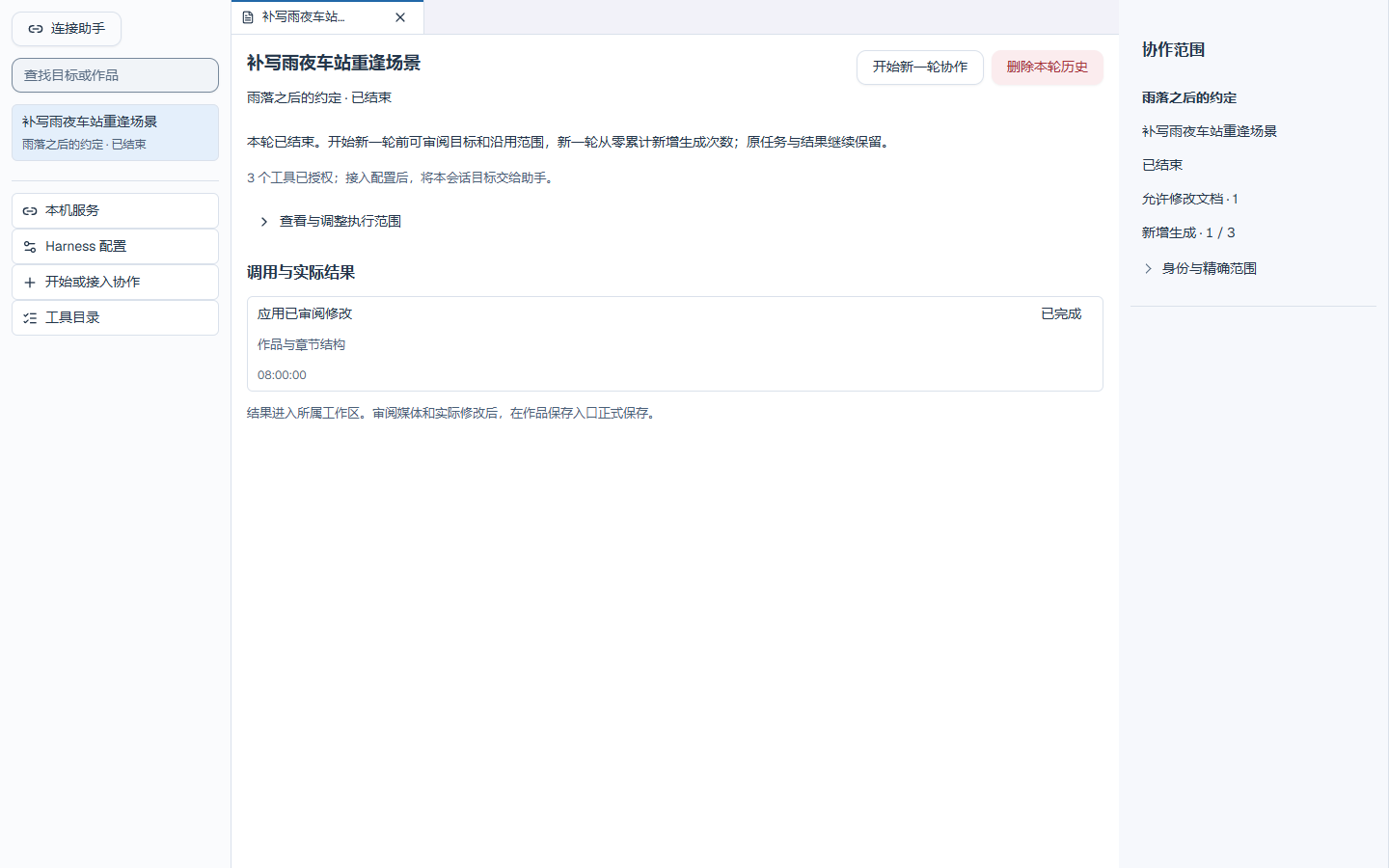
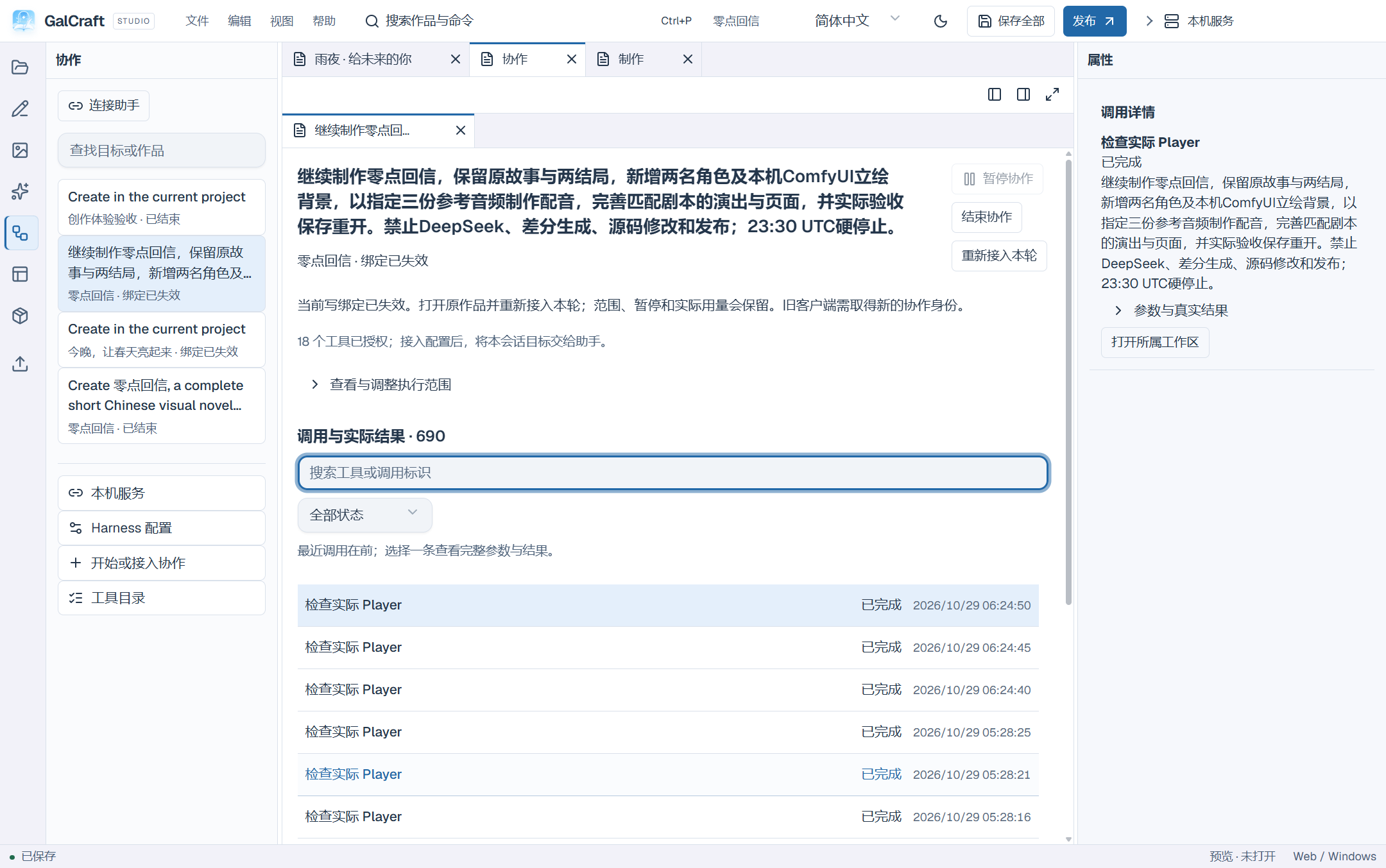
The assistant reads current unsaved content. Edits enter an undoable working version. Inspect actual calls and result summaries, then use Open owning workspace to return to authoring, assets or production. Pause blocks new edits, adoption and generation sends while existing tasks remain queryable and retrievable. Navigation does not pause the session. Closing the work invalidates its write binding; after reopening, use galcraft_collaboration to rebind or create a session. Historical calls retain their original identities. Keep the original call ID when verifying an uncertain result.
Call history shows the latest calls first, with 25 summaries per page. Search by tool or call ID, or filter by status. The history scrolls independently, with first, previous, next and last page controls. Select a call to read its full result in Inspector, then expand Parameters and actual result to inspect and copy the original receipt. Leaving Production or Collaboration, or hiding the window, stops that page’s polling; existing host tasks keep running.
Review actual changes, media and playtesting, then save in Studio or ask the assistant to prepare and review a formal save plan through galcraft_save. The plan lists chosen objects, required related content and shared changes; save according to the author's actual authorization. When the author requests a local release, galcraft_release checks and builds Web or Windows output using either newly saved content or an existing saved snapshot, and returns the real output and launch entry. Install plugins through Studio's plugin page.
The assistant first calls galcraft_guide for the product's own workflow, then uses galcraft_catalog to discover current commands, operations, author documents, pages and public properties. For example, {"category":"operations","text":"Motion Canvas"} filters operations; use the returned category and key to read the complete definition. Definitions include input/output schemas, prerequisites, scope, versions, identity sources, effects, receipts and recovery. Installing or removing plugins updates this catalog.
Core preset categories also include animationPresets, weatherPresets, uiAnimationPresets, readingLayouts, actionIcons and recipes. Read details, parameters and supported targets, then prepare a real edit plan. An action key selects a preset; setAnimation.presetId uses the actual animation asset ID returned by preparation. Weather textures and action icons are acquired and reused through the asset library. scene.setBackground and statement.bindVoice prepare bindings against actual asset versions, language and document revisions. Recipe selection retains its real identity and revision; preparation sends no generation request.
galcraft_documents reads, creates and updates projects through author-document transactions. The capture action of galcraft_preview returns an actual Player screenshot. galcraft_media reads an image or complete video/audio by asset or candidate identity, or samples video using timeSec or a zero-based frame. Read MCP resources through resources/read; the HTTP media URL supports complete playback and Range.
Tool isError means the request was rejected before acceptance. Accepted calls return accepted, callId, state, result, error and recovery in structuredContent. Inspect business state and query failed/uncertain results with the original call ID. planId identifies reviewed input, taskId execution and candidateId output. Generation completion still requires review, author-confirmed adoption and the author's formal save.
VoiceStudio character speech
Studio includes the official org.galcraft.voicestudio@0.1.1 connector. Install and start VoiceStudio and the required models separately, then add a VoiceStudio connection in Connections with its actual service URL. Save and check it, then choose the real engine, language, voice profile or supported engine preset returned by that connection. The production input shows the current connection and discovery status at the top. Expand Service details for the full connection name, model sources and conditions. Refreshing engines and voices preserves the text you are entering.
Choose VoiceStudio speech, voice design, voice clone or reference transcription from New production. Speech reuses per-line selection, character language voices, batch overrides and line overrides. Select reference audio from assets and enter its actual transcript for cloning. On a transcription text candidate, choose Use in the next production stage to carry the transcript and original recording into a clone draft, then review and edit referenceText. Audition a design or clone sample, set it as the character's reference voice for the selected language in candidate review, adopt and save the work.
Design and performance fields follow the selected engine. OmniVoice uses supported gender, age, pitch, accent and whisper attributes. Use the emotion fields declared by the current HTTP speech endpoint. IndexTTS WebSocket controls belong to its own service endpoint. Read the displayed capability limitations and review input after changing engines.
The execution review freezes the connection, engine and models, voice identity, reference versions and input. Audition completed candidates, adopt them into the library or bind them to dialogue, then formally save. VoiceStudio's current synchronous endpoints cannot query an in-flight request after disconnection or cancel one task remotely. Check an uncertain result in the service before explicitly deciding to send a new request. Adopted standard audio remains playable; rebind a missing service or voice on another machine before producing more speech.
VoiceStudio, its engines, model weights and outputs have separate usage conditions. Read the selected model's source and the upstream licence notice and follow the applicable conditions. GalCraft ships its connector separately; the author manages the service and models.
Official services, stages and recovery
Common generation services, ComfyUI and NovelAI share one connection catalog. Animation, voice and composition reuse these connections. NovelAI prompt and image operations retain complete base and character prompts, negatives, positions, quality and reference parameters. Confirm the actual model profile in the connection. Unconfirmed capabilities or missing exact packages retain the input and produce diagnostics.
Interactive production waits for Start this stage before a later remote stage; local processing continues automatically. Valid composition writing produces a local audition candidate. Invalid scores or missing exact soundbanks retain raw text for correction and local reprocessing.
Migration preserves originals of changed connections, unsubmitted drafts, personal recipes and workflows. Project recipes enter the unsaved working version. Historical tasks, candidates, remote identities and provenance remain intact. Prepare a new request creates a linked plan from current capabilities; review and confirm before sending. The original task remains queryable and retrievable.
Interface language and authored production content
Official operation, recipe and field descriptions follow Studio language. Copying an official recipe saves the displayed author-editable name and description into your independent copy. Existing recipe, draft and task names retain their saved text. Provider operation labels still follow the current language. System prompts, examples, execution values and frozen inputs retain their actual content; choose output language explicitly for your project or task.