

Plugins
Plugins — GalCraft Studio product manual.
Studio includes core authoring capabilities and ships 13 official plugins at version 0.1.1. Use the catalogue below to choose a capability, then configure a service or enable a project plugin.
Current capabilities and official plugins (0.1.1)
Built into Studio
| Capability | What authors can do | Where to start |
|---|---|---|
| Project editing and management | Authors organize scenes, branches, dialogue and characters, arrange performances and Player pages, and use shared undo, save and backup workflows. | Basic operations, Story authoring and Pages and assets |
| MCP collaboration | Authors connect an external AI assistant to read and edit the current project within the permitted scope, then review, undo and save changes. | Collaboration; Agent and MCP |
| Production tasks and candidates | Authors manage drafts, connections, tasks and candidates, compare results and adopt them into a project. Generation plugins supply the specific generation capabilities. | Production workbench |
| Asset management and processing | Authors import assets, manage versions and references, and prepare and review local background-removal candidates for images. | Assets; Assets and pages |
| Publishing | Authors check saved snapshots and exact dependencies, configure branding and output, and build standalone Web or Windows works. Android and iOS use the target plugins below. | Publish; Publishing and Player |
Official plugins provided by Studio
Studio supplies these six packages and loads them on demand. Authors configure services in Connections and select target builders in Publish. The connected service supplies the actual models and available operations.
| Plugin | What authors can do | Entry | Preparation |
|---|---|---|---|
| Common generation services | Authors connect text, image, speech or music services, submit production tasks and collect candidates. | Production: configure a service connection, then choose an operation | Service address, actual model and required credentials |
| ComfyUI execution | Authors run ComfyUI API workflows, map inputs and outputs, and retrieve generated candidates. | Production: ComfyUI connection and execution graph | Running ComfyUI with the matching nodes, models and API workflow |
| NovelAI creation | Authors edit base prompts, character prompts and reference settings to generate image candidates, and can use a text connection to help write prompts. | Production: NovelAI connection and image creation | NovelAI credentials; a compatible text connection for assisted prompt writing |
| VoiceStudio | Authors discover engines and voices, create character speech, design voice samples, clone from references and transcribe recordings. | Production: add VoiceStudio in Connections, then choose speech, design, clone or transcription | An author-managed VoiceStudio service and models; operations follow the selected engine |
| Android target | Authors export a complete Android project or use the local toolchain to build an APK or AAB. | Publish → Android | APK/AAB builds need JDK, Android SDK, Gradle and the selected signing configuration; the tutorial covers preparation |
| iOS target | Authors export a complete Xcode project and can create an Xcode archive with the macOS toolchain. | Publish → iOS | Archiving and distribution need macOS, Xcode and the author's Apple signing configuration |
Official plugins enabled in a project
Studio also supplies these seven packages. Authors enable the required exact versions in the current project before using their entries. Project templates can also bring their required plugin dependencies.
| Plugin | What authors can do | Entry after enabling | Preparation |
|---|---|---|---|
| Motion Canvas video | Authors edit and retain TS/TSX animation source and render standard MP4 video locally with project assets. | Production → New production → Motion Canvas video | Motion Canvas toolchain, Chromium and media tools; the production guide provides preparation commands |
| GCA animation creation | Authors describe a new GCA animation, edit selected tracks and keyframes, or rewrite an existing animation, then review and adopt a candidate. | Animation creation, editing and rewriting in Production | A compatible text-service connection; an existing animation asset for edits |
| Editable composition | Authors edit multitrack scores, audition sampled instruments and render music locally, with optional text-assisted composition. | Editable composition and instrument banks in Production | Exact instrument banks referenced by the score; a compatible text connection for text-assisted composition |
| Breeze / Irodori speech | Authors use ComfyUI for Breeze Chinese/English speech and Irodori Japanese speech, with voice design, reference cloning or performance descriptions according to the selected mode. | Speech production and character voice presets in Production | A ComfyUI connection with matching nodes and models; actual reference recordings and mode-specific input for reference or cloning modes |
| Live2D | Authors import Cubism models, configure motions and expressions, and use the models in stage performances. | Live2D entries in Assets and pages | Models and the matching official Cubism runtime; the corresponding Core for MotionSync |
| Steam | Authors trigger Steam achievement unlocks from the story and view simulated results in Studio playtests. | Platform actions in the story; Windows publishing | Windows x64, the author's AppID and a Steam environment for actual achievement integration |
| AI epilogue · Author settings | Authors choose route characters and endings, configure permitted context and asset allowlists, and preview the outgoing context. | Extensions → AI epilogue; the configuration instructions under Development directories below | Character routes and personal endings; the current delivered scope is author settings and context preview |
Optional plugin example supplied as source
The maintainer also provides Affection plugin source as an optional SDK example. Authors can configure relationship values, add or set values, compare them in conditions and display a relationship page. Follow that directory's README to build and install it separately, then enable it in a project. The two groups above define the 13 bundled plugins.
Developers can find plugin IDs and source directories in the open-source plugin index.
Install and enable plugins
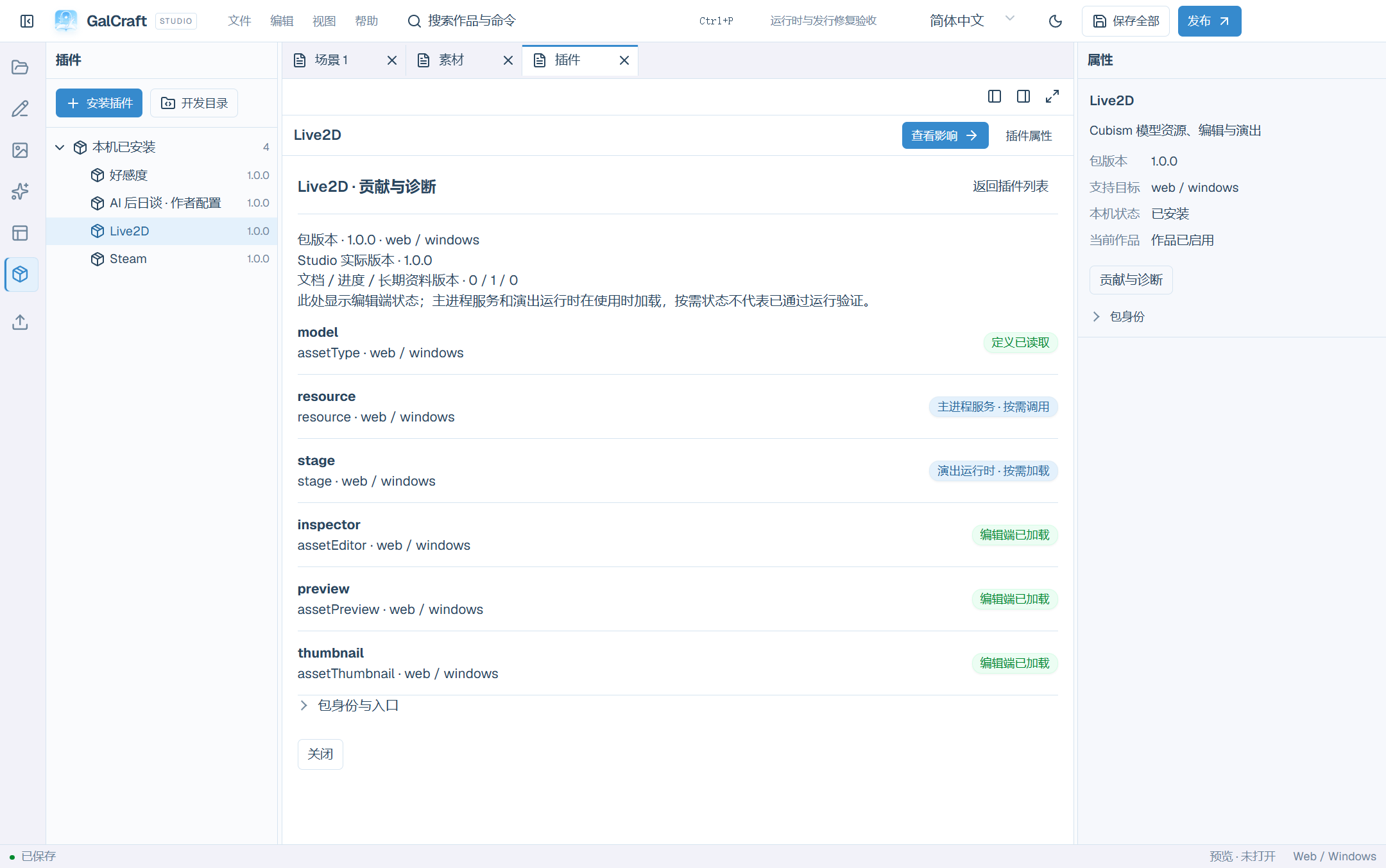
Open Plugins from Workfaces. Explorer lists installed packages and missing dependencies; selecting one shows its version, project status and actions in Inspector. The centre leads with purpose, version, project status and capabilities, followed by contribution diagnostics and change reviews. Installation makes a package available locally; enabling writes an exact dependency into the current project.
Explorer places Provided by Studio alongside Installed locally. Common generation services, ComfyUI, NovelAI, VoiceStudio and the Android/iOS targets belong to Provided by Studio: Studio supplies them and loads them on demand. Their list rows, details and Inspector show this identity. Configure services in Connections and select target builders in Publish. Plugin details retain contribution diagnostics; enable, disable and version-switch actions manage ordinary project dependencies.
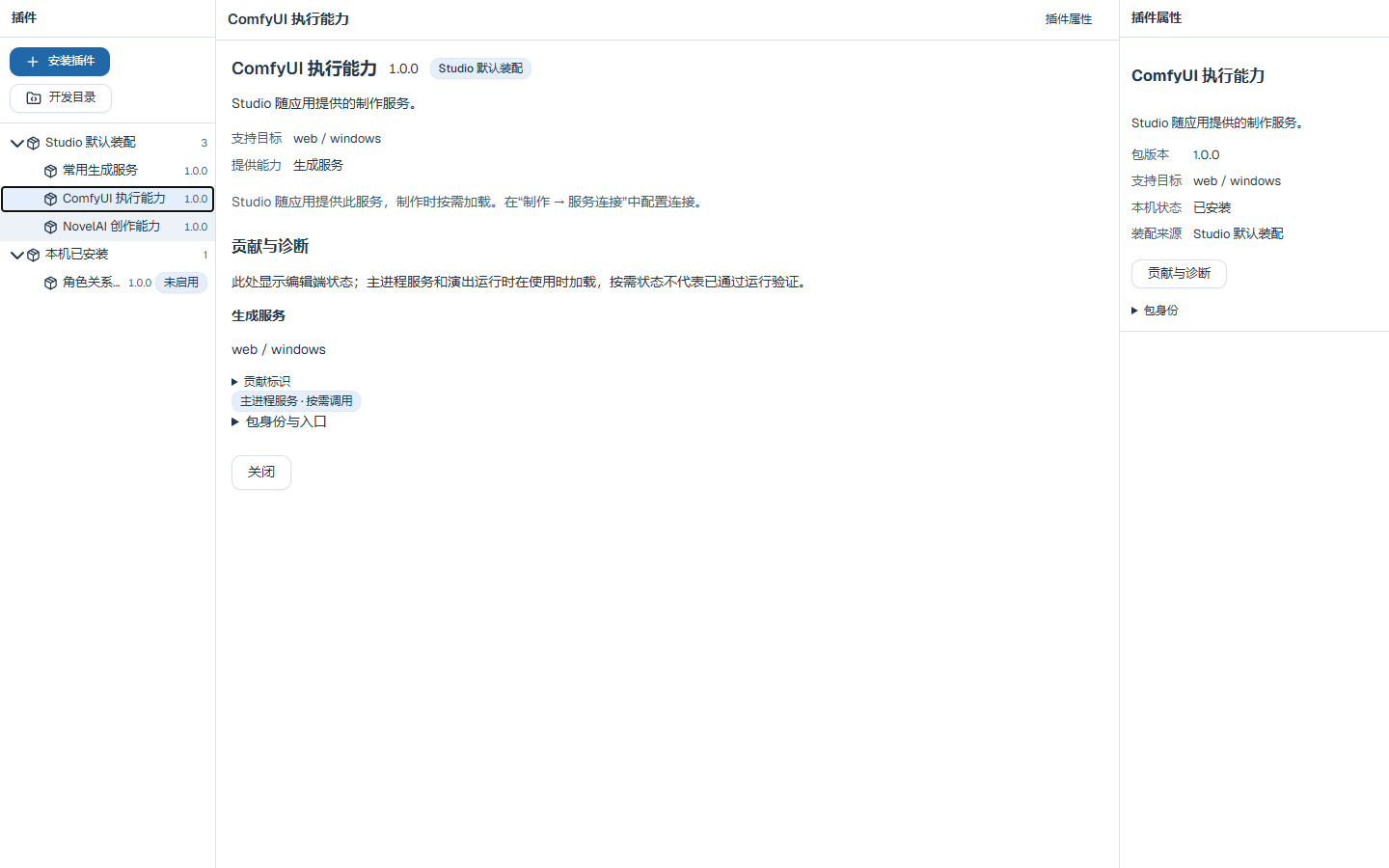
Install and enable ordinary project plugins as follows:
Plugin names and descriptions follow the Studio interface language. Bundled plugins provide Chinese, English and Japanese text. Third-party packages supply their own translations; Studio shows the author's source text when a translation is unavailable. Switching language retains the current selection and project activation state.
- Install plugin and select a valid ZIP/
.galpluginor its local path. Renaming an unrelated archive does not make it valid. - Check name, version, identity, targets, installed versions and problems.
- Confirm installation and verify the version appears.
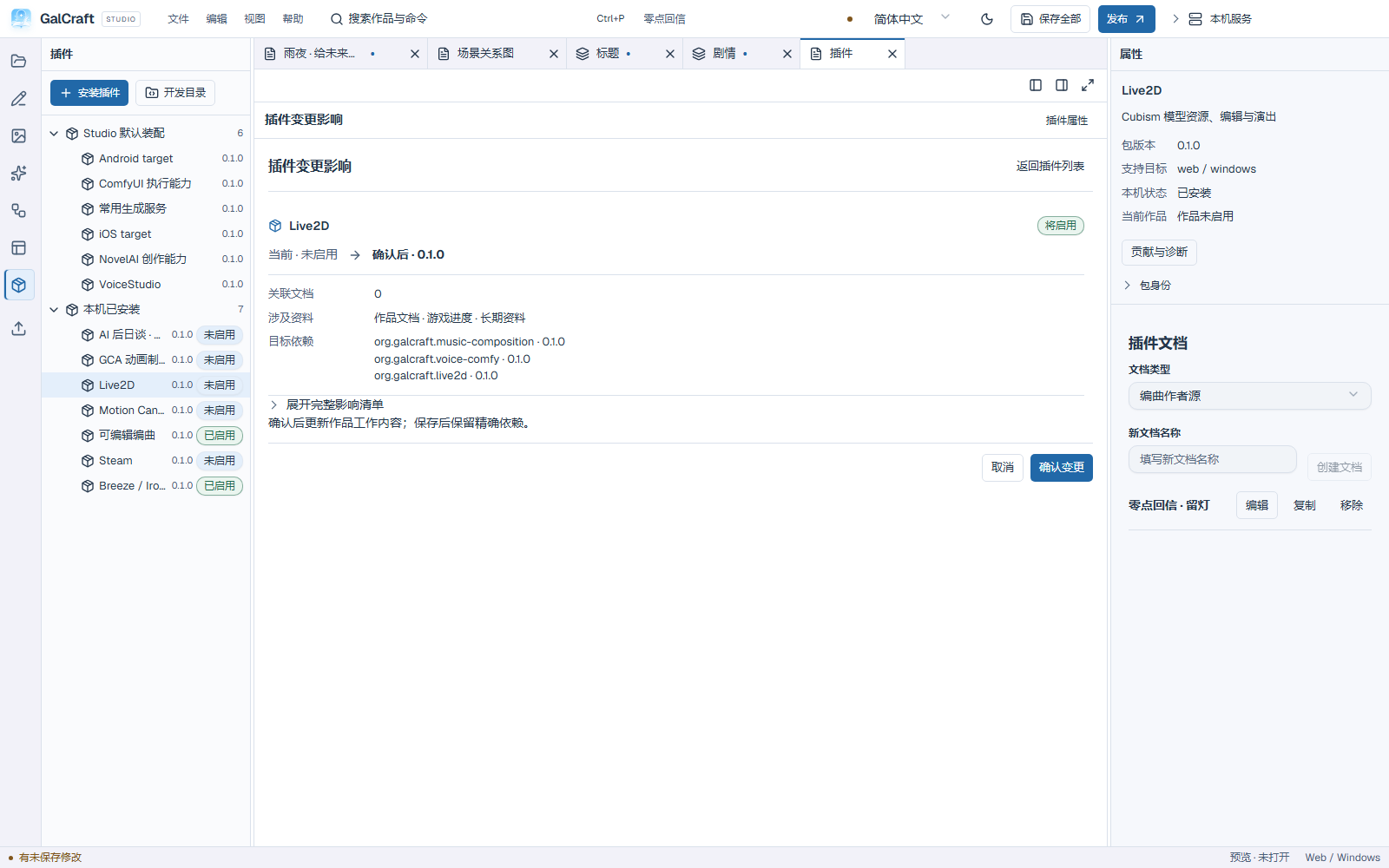
- Select Enable in project…, Disable this version… or Switch to this version…, according to the current state, to open Plugin change impact.
- Review old/new versions, affected documents, saves/persistent data and target dependencies, then confirm.
- Check project Problems and save all to persist the exact dependency.
Check/development/diagnostic/review documents remain beside the list. Returning to the list neither confirms future changes nor undoes an installation. Review usages before disabling a referenced plugin. After local installation, enable the required exact version for the current project.
Studio 0.2.0 bundles engine 0.2.0 and official plugins at 0.1.1. The public SDK is 0.2.0. After installing a package, enable the exact version required by the project.
Development directories and extensions
Developers can open Development directory, choose a directory and select Load development directory. Load it again if the path changes. Use Install plugin to inspect and install a packaged plugin. Follow the plugin's own help for extension pages and fields. Official AI epilogue author settings live under Extensions after enabling its provider. Choose a route main character, permissions, available endings and an asset allowlist, then apply and save. Context preview shows the permitted scope without making an AI request. Replace or remove invalid ending and asset references.
Plugin documents
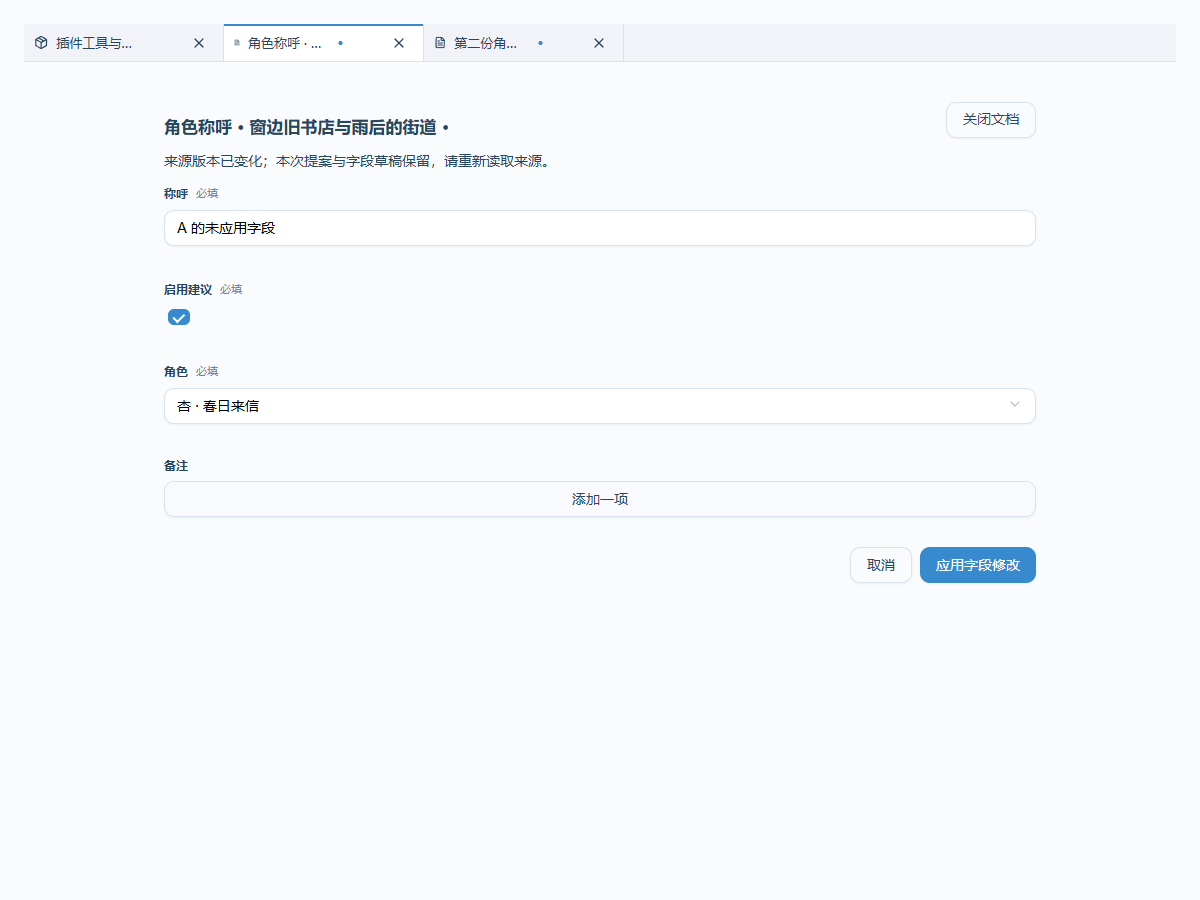
Choose a contributed document type, name it and create it. Multi-instance types support creating/copying/removing multiple documents; fixed-config types keep one. Each persistent editor retains its own fields and selection. Apply field changes updates the workspace; unified saving writes disk. Forms expose required values, ranges, units and reference names. Objects/arrays are editable and pickers follow declared types. Optional dedicated editors handle a plugin's own public fields. Close unapplied edits by continuing or explicitly discarding. Conflicts retain errors and drafts. Applied documents share normal undo/redo/save.
Selection tools and proposals
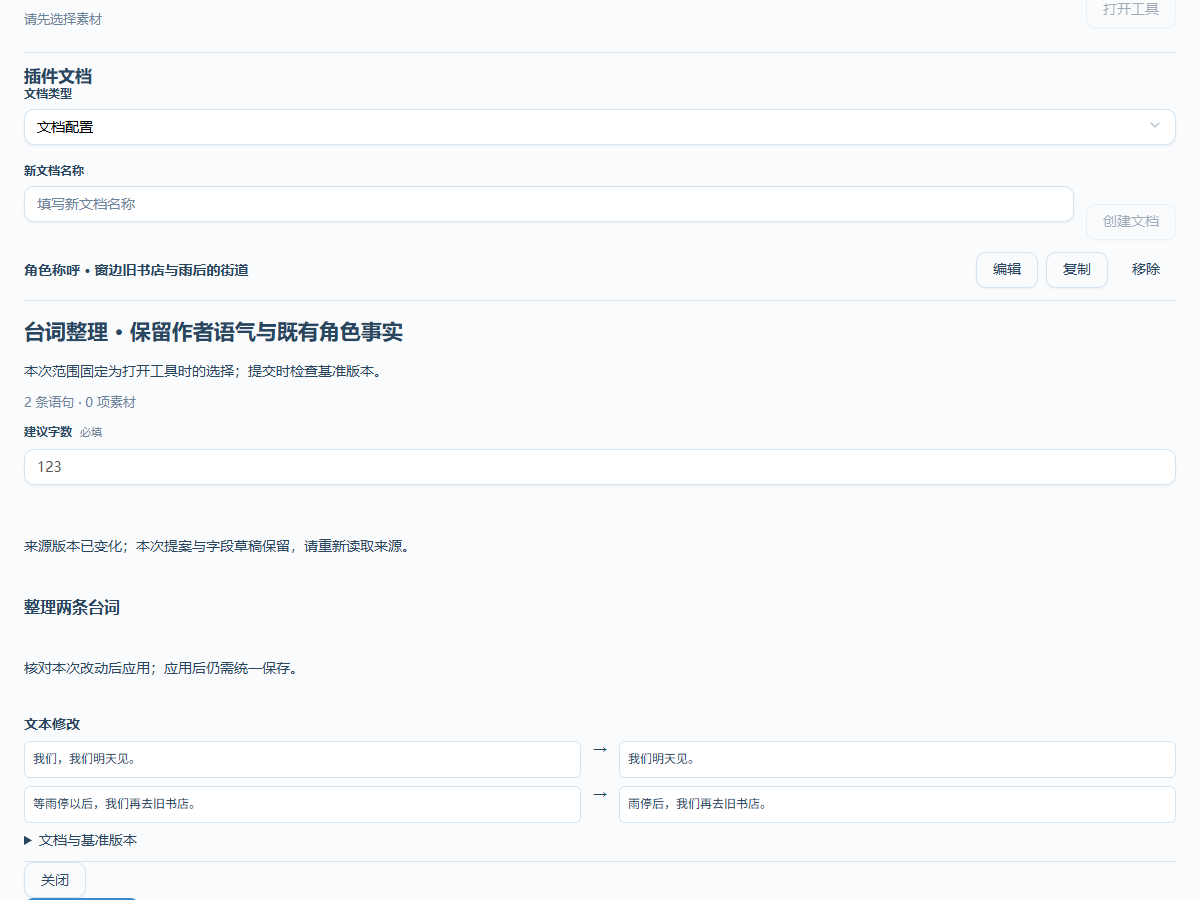
Contributed tools appear in plugin lists, authoring extensions, commands and object contexts according to applicability. Plugin tools or Ctrl+Shift+P opens the command palette; right-click cards/assets for contextual tools. Unavailable tools explain their required scope.
Opening fixes the selection and document baseline. Enter parameters and run. Pin to workspace before running for longer editing; navigation retains parameters and scope. Reports locate source; proposals show before/after and require Apply this proposal. Tasks/candidates open in Production. Save applied edits. Changed sources can block execution/submission while retaining the proposal; reopen for the current scope. Cancel stops receiving this execution's result while retaining completed results.
Project switching, disable/reload and view unmount release active UI/listeners. A failed reload retains the previous valid implementation with visible errors. Diagnostics distinguish definitions read, editor loaded, Node services and runtime loading on demand. Disabled exact versions and missing editor entries are reported separately.
Processing, generation and page components
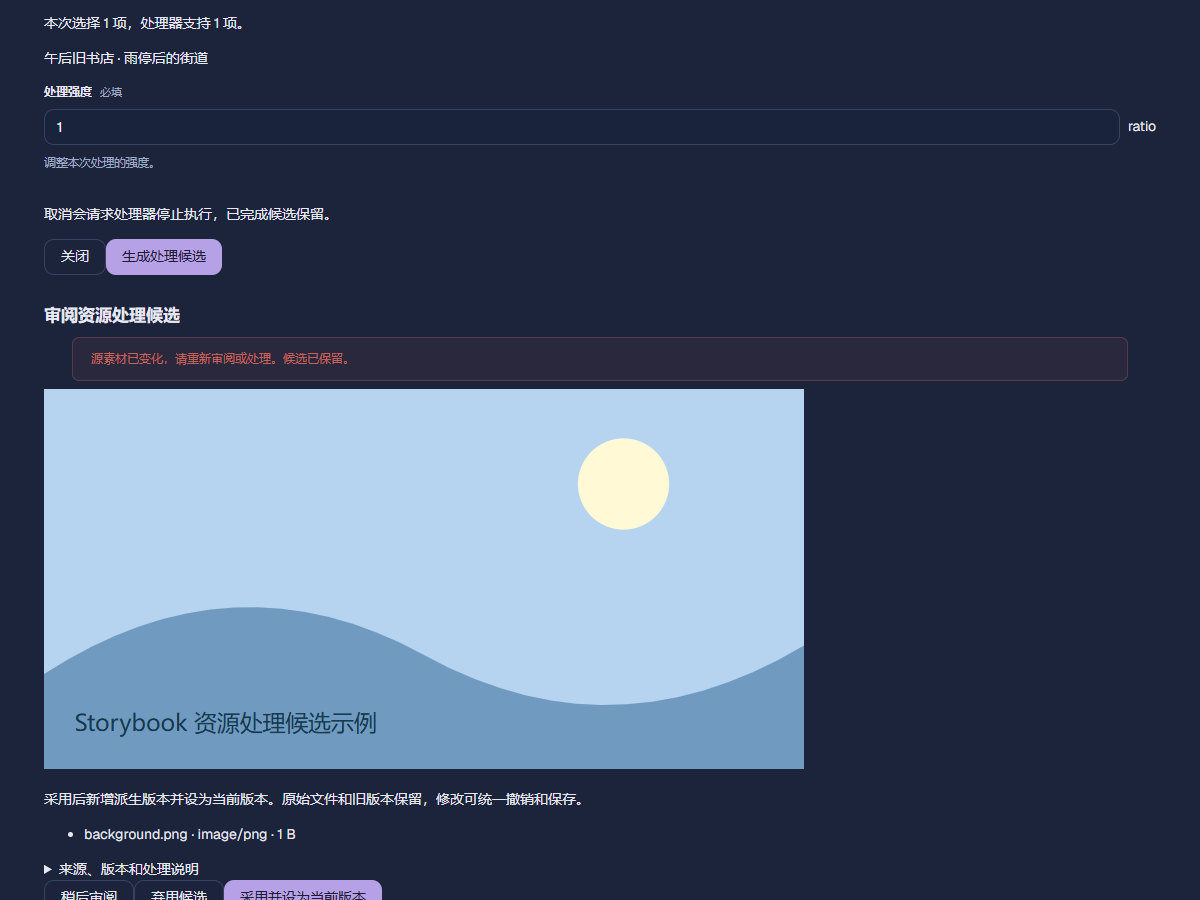
For a processing provider, select assets, choose Process selected assets, select a compatible processor and enter its fields. Inspector owns parameters and execution freezes selection. Unsupported mixed types block the batch with reasons. Review candidates centrally, including actual files. Navigation pauses media; close releases preview. Adoption creates a derived current version, retaining original/older versions with normal undo/save. Defer or discard candidates if needed. Source conflicts retain the candidate/error; process the current source again. Local cancellation and processor interruption follow declared capabilities.
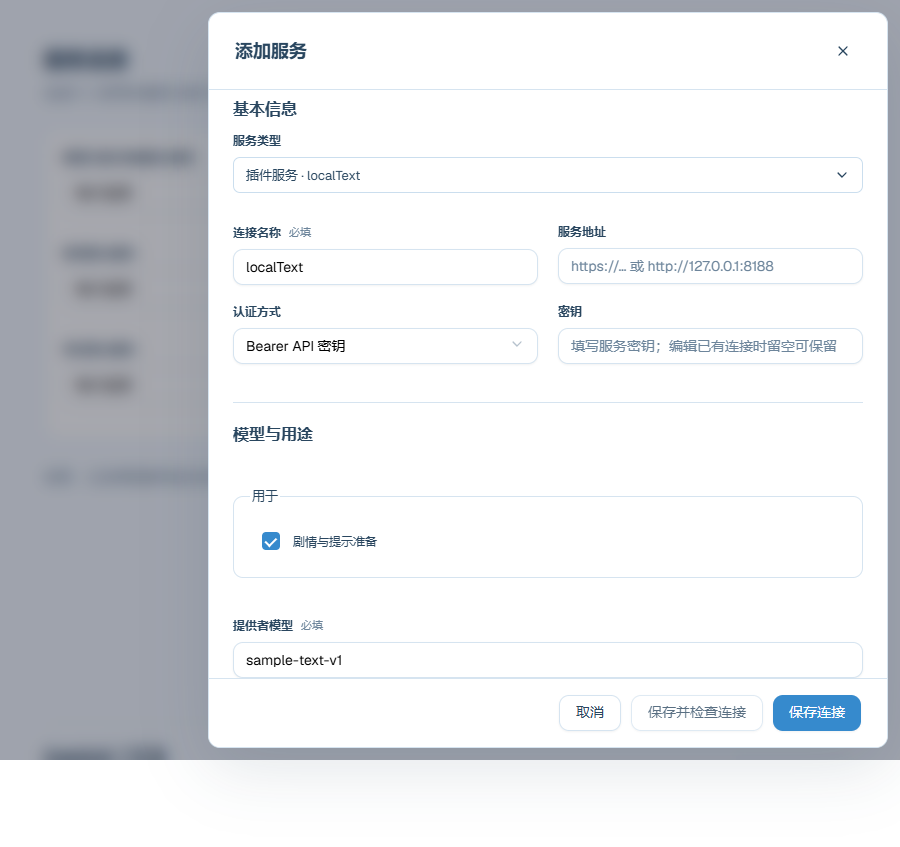
Generation providers add connection types under Production. Save their declared fields in personal configuration and inspect remote query/refetch/cancel/reconnect capabilities. Normal send-plan/candidate review applies. Historical tasks retain exact provider/configuration; changing connections does not rewrite active requests.
Page designer's Plugin components catalogue contains available project components. Select a page/container, add one, edit public fields and apply. Configuration belongs to the page document and shares undo/save. Missing providers retain existing configuration with explanations.
See Plugin SDK and Publishing and Player.
Pages and templates, with asset management
Pages and templates, with asset management — GalCraft Studio product manual.
Publishing and Player
Check exact dependencies and saved content in GalCraft Studio, choose a publishing target, build a standalone Player, and verify playback, saves and player-data compatibility.