

GalCraft Studio guide
Start with the Spring Lights tutorial copy in GalCraft Studio. Learn to edit dialogue, stage scenes, manage assets and player pages, save, playtest and publish a standalone visual novel.
Getting started
Installation · Your first project · Basic operations · Agents and MCP · Sample tutorial · Troubleshooting
GalCraft Studio 0.1.1. Play the tutorial online first. Once you have its separate backup, restore an independent copy, change a line, replace a background, adjust the interface and export a game that runs independently.
For your first exercise, change one narration line, save it, playtest it and run a Web export. You will finish with an editable project directory containing project.json and a separate release directory that runs in a browser. This is an optional learning path; existing work can enter directly at the relevant operation.
| Starting point | Direct goal |
|---|---|
| Existing script missing media | Retain the prose and add media/direction with Production |
| Existing pictures or recordings | Import assets and bind the character, line or page |
| Existing prompt and configured service | Produce directly; schemes and text preparation are optional |
| One avatar, voice or page | Edit that object and necessary associations while retaining other work |
| Existing Studio production | Continue its draft, task or candidate with original remote identity and send counts |
| Complete UI sharing or a release | Export a complete template, or build the selected saved snapshot |
The official galcraft-create Skill in a connected AI client uses the same operations and version checks. Existing authorization allows continuous preparation, submission, waiting and requested adoption/binding. Report candidate completion, adoption, binding and saving separately. The longer tutorial below includes exercises that explicitly practice those features.
| Your task | Detailed guide |
|---|---|
| Open, switch, duplicate, back up and save | Projects and files |
| Characters, dialogue, performance, portraits and playtest | Story and performance |
| Services, generation, continuing a story, context and presets | Production |
| Import, transparency, asset selection, reading panels and pages | Assets and pages |
| Plugins, export, engine history, save/load and Player | Publishing and Player |
| Build ordinary SDK packages | Plugin development |
| Identify a page, dialog or control visually | Screen atlas |
Help → Studio guide opens this versioned online manual in your default browser. Chinese Studio opens Chinese; English and Japanese Studio open English directly. Use grouped navigation and language-specific search. Keyboard operations, field guidance and recovery remain in the app. Screenshots retain their captured language and provenance.
Before you begin: start Studio
Use a desktop build you have received
If a maintainer has supplied a packaged Windows build, keep the complete win-unpacked directory and double-click GalCraft Studio.exe. You can also open PowerShell in that directory and run:
& '.\GalCraft Studio.exe'The project workbench should open. This build runs without Node.js or pnpm. Move the whole directory when relocating it, including its assets and runtime dependencies.
Start from source
Follow Source development to prepare Node.js, pnpm and dependencies, then build and start the desktop host. Stop the old service before rebuilding changed source.
Open the browser entry on the same local service
Follow Installation to prepare Node.js 22.12.0 or later (the latest Node.js 24 LTS patch is recommended) and install the maintainer's local npm archive, then run:
galcraft-studio
galcraft-studio status
galcraft-studio stop
The first command reuses or starts the local service and opens Studio. Desktop, browser and MCP share the current project and domain services; project switches reach the other interfaces. Closing a window or tab keeps the service and tasks running. The workbench's service entry shows its actual address and provides an explicit stop action. Use stop, or Ctrl+C in foreground serve, to stop it.
Actual unapplied field drafts are saved continuously and can be restored after reopening. Normal project Save still reviews and commits domain changes. Review a restored draft before applying it when its source version has changed. The browser file picker browses the computer running the local service.
After desktop:prepare, source users can run pnpm --filter @galcraft/studio web:start. If capture, layout measurement or media validation needs Chromium, run galcraft-studio prepare-browser, or node apps/studio/service/cli.mjs prepare-browser from source. Compatible existing runtimes are reused; tool caches stay separate from projects.
Create your first project
- Play online on the Examples page and download
galcraft-tutorial-0.1.1.galprojectand the bilingual readme.txt from GitHub Release. Authors can also follow Basic operations to create a practice project from the Standard template. - Open Projects, choose Restore backup, and select that file.
- Choose a destination such as My Spring Lantern Story and select Create independent copy for a new project identity.
- Prepare and check dependencies. Supply any listed exact engine or plugin version before continuing.
- Confirm restoration and open the copy. It contains one silent player protagonist and three route characters, 18 transparent figure variants, 39 finished Japanese voice lines, nine scenes, three routes and ordinary afterstories, plus backgrounds, CGs, music and four editable Motion Canvas films. Chinese story text is retained.
- Check the opening, personal routes and screening scene in Authoring. The asset library contains the adopted backgrounds, characters, audio, films, animations and work icon.
The sample follows the last open-air screening of an old cinema through a player protagonist. Confirm a name before the OP on first play: the default is 玩家, with an eight-visible-character limit. Restarting an unfinished main story keeps its current name; starting again after any route's ending, ED and actual main-story termination asks again. Each route character retains 13 finished Japanese voice lines; player dialogue and first-person narration remain silent. Complete a route to open its ordinary afterstory from the title-page character directory. A new afterstory inherits the current main-story name. Story Flow contains seven nodes, including three independent recollections using the current name and author-defined initial values; returning restores the source story.
Five BGM tracks run about 89–92 seconds and retain editable author sources from the exact 0.1.0 composition plugin. All four videos are H.264, 1920×1080, 30fps and 18.5 seconds. See media sources and terms.
For an original work, choose New project and set its name, parent directory, canvas and installed engine. Lightweight/standard/rich/blank templates choose Player interface composition; rich relationships and HUD use core variables. The separate tutorial has complete story content and its own rich template instance. To open another work, use Open project folder and choose the directory containing project.json, retaining its linked assets.
Make a first edit
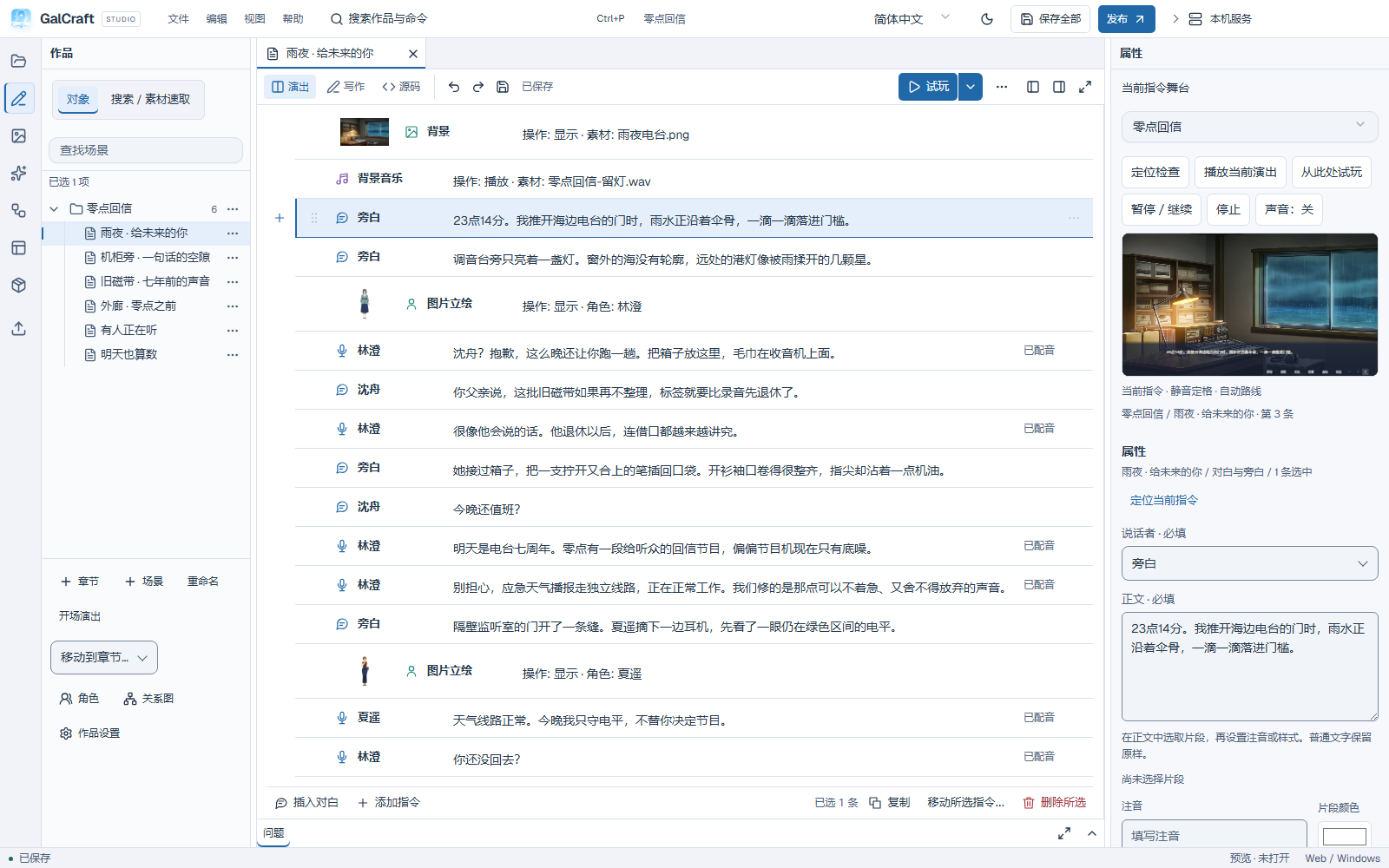
The activity bar contains Projects, Authoring, Assets, Production, Pages, Plugins and Publishing. Top menus handle saving, editing, layout and help; language and light/dusk theme are workbench preferences. The Explorer organizes objects, the centre hosts documents and Inspector edits the current object. Problems, output and debugging stay below the central document.
Click an object for a preview tab; double click or Enter pins it, as does editing. F2 renames; Escape cancels naming. Tabs scroll horizontally, can be dragged/reordered and support arrow/Home/End navigation. Context actions close other/right-side documents with draft handling. Focus editing temporarily collapses auxiliary regions and restores the layout afterwards. Regions scroll independently. Drag separators or reset the layout from View.
Ctrl+P searches objects; Ctrl+Shift+P searches commands. Escape returns to the original input; clicking the usable background dismisses search and continues that action. Project selection inspects with one click and opens with two; asset selection inspects, with F2/name double click for renaming.
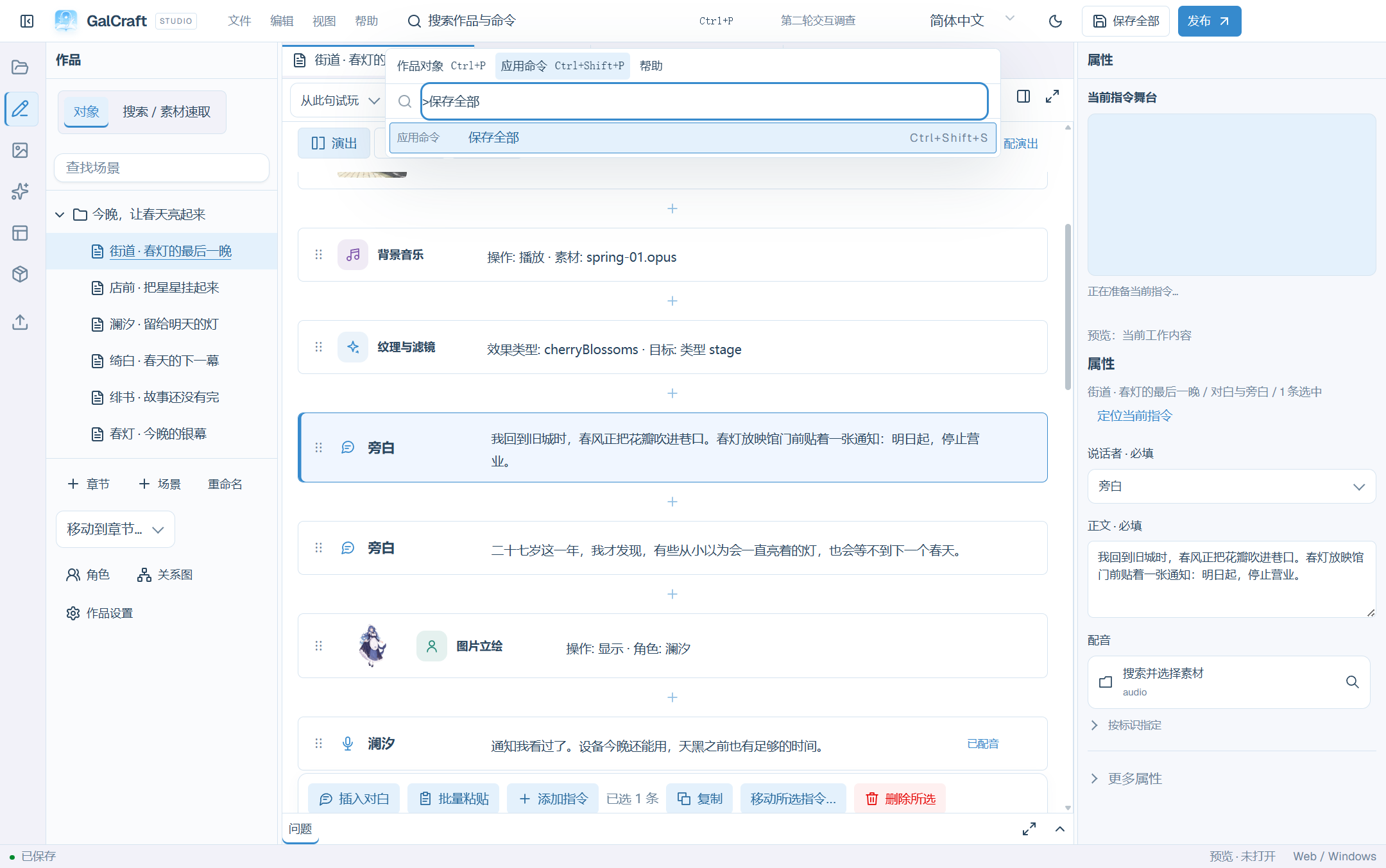
- Select the first street scene.
- Select a narration card in execution order.
- Change Text in Inspector to “The lights are still on. Our story has just begun.”
- Leave the input and observe the updated card and unsaved status.
- Check the current-instruction stage. It is a silent frozen preview, not automatic story playback.
- Save all or Ctrl+Shift+S and confirm the saved indicator.
Check your result: the card and stage should display the new narration. Use the playtest steps below to start from this line and confirm the Player shows it too. At the end of the exercise, close and reopen the project and check the line again to confirm it was saved.
Project settings owns work-level behavior such as autosave and player naming. Startup and home from Authoring or Pages edits the same configuration. Workbench preferences owns your editor fonts, wrapping, language, theme and region sizes. Classify a player-viewpoint character, then choose its name variable, default name and naming mode. Fixed names use the author default. Custom names require at least one nonblank character and an integer maximum from 1 to 100. Choose Every new game or First play and after main-story completion; existing works default to Every new game. When needed, confirmation prefills the author default before the first story instruction. Blank or overlong input shows a correction message; cancelling returns to the title. Continuing or loading a main-story save restores its name and completion state as the current main story. New afterstories and independent recollections inherit the current name; old afterstory saves restore their own names. Leaving them preserves the outer main-story context. Regular text-input commands remain separate.
Three editing views
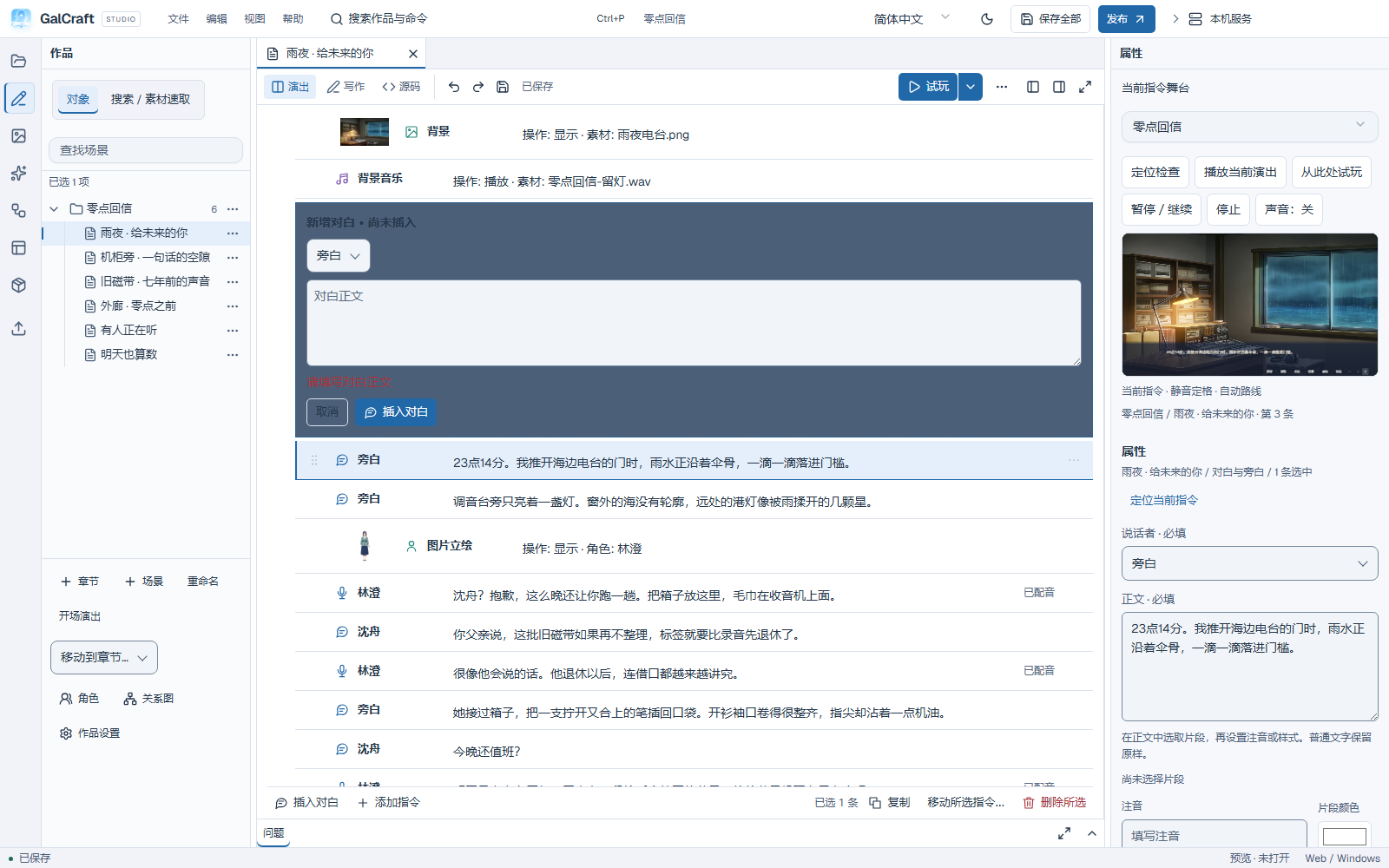
Performance cards arrange dialogue and commands. Insert dialogue enters text inline; Ctrl+Enter confirms. Add instruction opens a searchable catalogue, then complete required fields in Inspector and apply. Missing fields remain next to the input and prevent partial insertion. Drag the handle/body/thumbnail to reorder, Alt+Up/Down from a focused handle, or hold the handle on touch. Ctrl toggles multiple selections; verify the scope before copy/move/delete.
New figure presets offer upper-body, distant, medium, close and full-body framing; fine-tune scale/offset in additional properties. Thumbnails contain the full source; stage framing controls actual composition. Writing presents compact speaker/text rows with short performance markers. Ctrl+Enter adds a line. Bulk paste reviews original text, speaker mapping, splits and merges in one persistent document, applying characters/dialogue together.
Source edits .gal. Stable @… IDs locate instructions and are not filenames. Preserve them when changing text. Click located Problems to repair parsing; invalid source limits card editing rather than overwriting it. The stage is labelled Last valid content. Locate the current error in Problems, correct it and preview again. Start by generating commands through forms, then inspect their source.
Visual parameters and identities
Edit visual effects on a background or figure. The stage previews a draft; Apply makes one undoable edit, Cancel restores the original. Optional fields retain previous values unless reset explicitly.
| Parameter | Meaning |
|---|---|
| X / Y | Logical pixels; positive right/down; try X +100 |
| Scale X / Y | 1 unchanged; equal 0.8 values preserve proportions at 80% |
| Rotation | Degrees; 0 unchanged |
| Opacity | 0 invisible, 1 opaque; try 0.5 |
| Blur | 0 clear; larger values blur without editing the asset |
| Colour | Enable tint and use swatches, HEX or RGB 0–255; white retains source colour |
| Brightness/contrast/saturation/gamma | 1 neutral; saturation 0 greyscale |
| Bloom | Positive strength plus threshold controlling highlights |
| Bevel | Positive opacity and thickness with edge colour |
| Filters | Enable one at a time to compare film/dots/reflection/glitch/RGB/light |
| Layer order | Higher values are nearer within the stage's layering rules |
| Transition/entry/exit time | Milliseconds; 1000 ms is one second, 0 immediate |
| Framing ratio | 0 left/top, 0.5 centre, 1 right/bottom; distinct from pixel movement |
Showing an asset sets its initial effects; use an effect/animation command on an existing object for later changes. Verify motion, looping audio and cross-line behavior through playtest.
Names identify content for people. Stable IDs identify objects, version names distinguish asset results, release versions label exported batches and revisions detect edit conflicts. Renaming retains references; duplication creates new identities. Select named targets instead of manually writing IDs.
Preview and branches
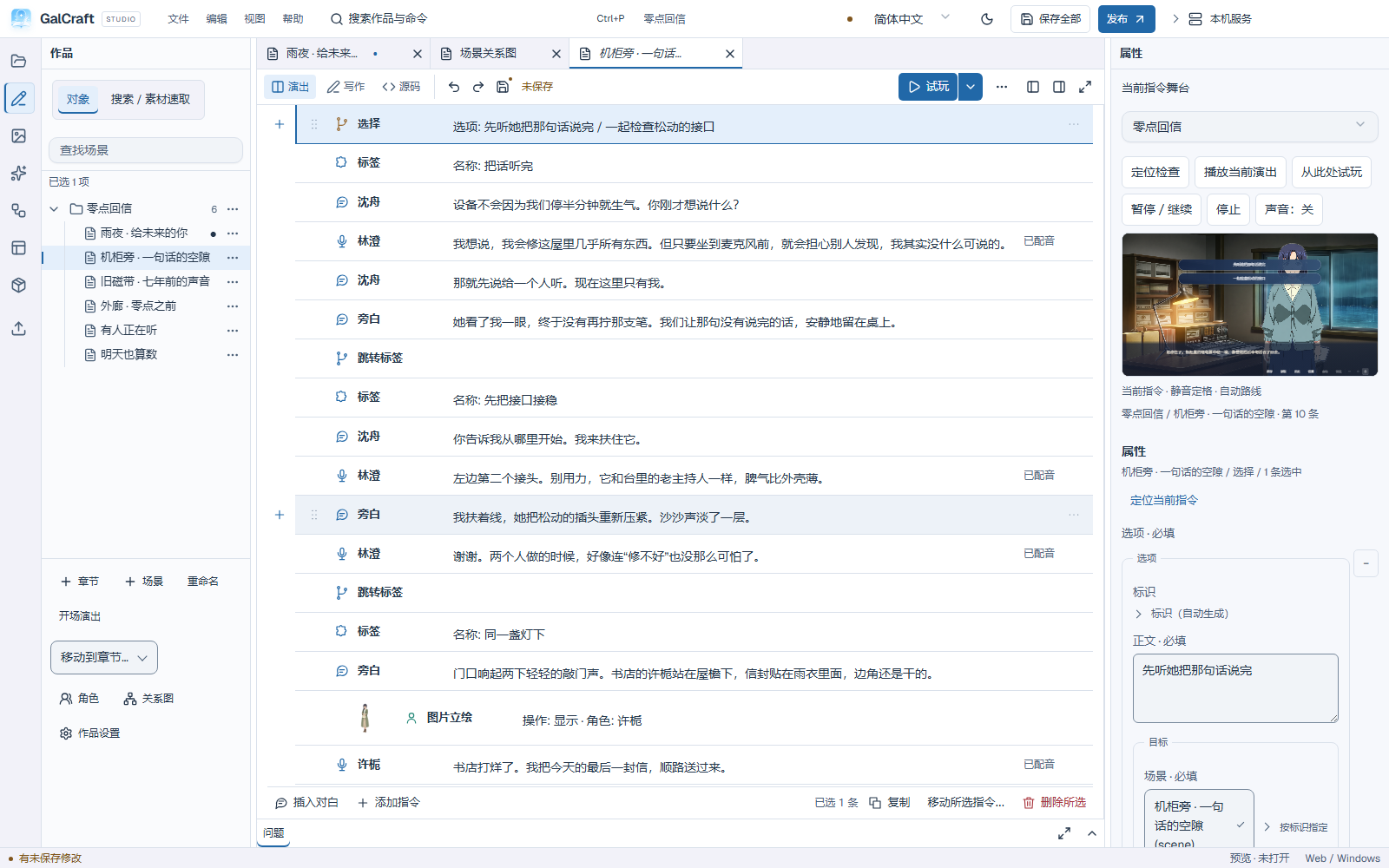
Selecting an instruction prepares a real reachable route. A unique route is automatic; multiple reachable branches ask only the necessary choices, and player-input points request values. Stage and playtest share debug choices. Select another route when the target is unreachable. The frozen stage checks composition; use playtest for media and complete motion.
Start from the beginning, scene or current instruction. Practise changing a final line and playing all three routes, then move a figure from centre to left, compare and undo. Return to editing origin restores the selected scene/instruction. Debug pause/resume/step and record export are optional. Choose Start for ordinary play, or Import playtest record to replay an exported route and its inputs. Debug variable changes affect only that session.
Assets and pages
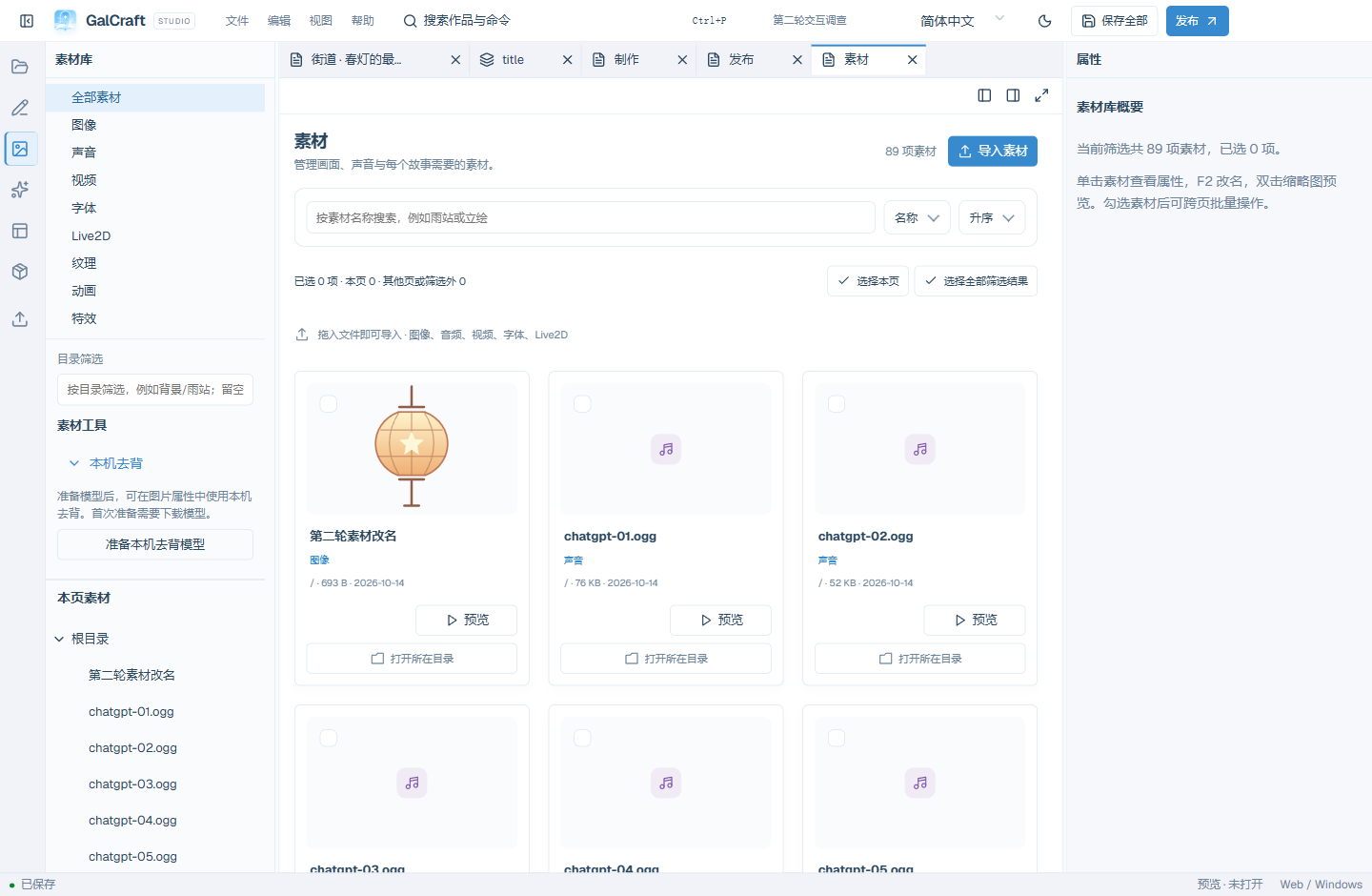
Search/filter/sort assets, inspect versions and preview images/audio/video. Closing media preview stops playback. Import files or drag them from the file manager, review persistent success/failure results, retry only failed files and save. Names remain readable and renaming preserves references. Batch rename previews before/after. View selection verifies items outside the current page. Check references before removal.
For local background removal, first prepare its model, then choose an image and process it. Compare edges/transparency before adopting and saving. Prepare the model, then select an image and run background removal. Fix the reported network or disk problem and retry.
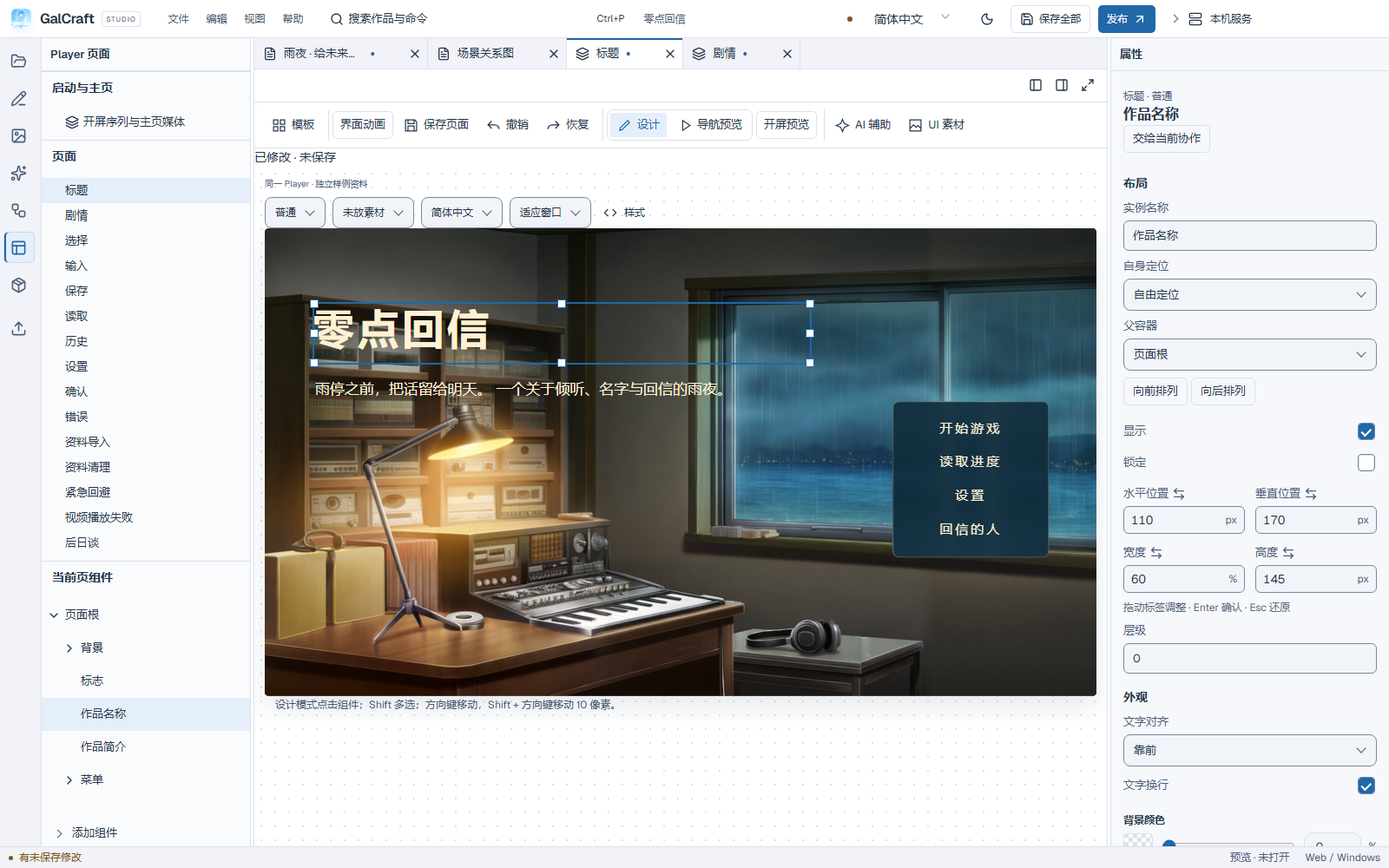
Pages edits actual Player composition. Select the title page and title component, drag/release to commit one position change or enter exact public properties. Unlock before moving; arrows move 1 pixel, Shift+Arrow 10, Shift-click multi-selects. Undo/redo and save page/all changes. Preview routes input to Player; return to Design to drag components. The designer uses independent samples for interaction states, long multilingual text and empty/full/locked content.
Image slots support contain/cover/native/nine-slice. Scoped CSS/SCSS compiles and applies with retained drafts/last-valid preview on failure. Read-only JSON can be expanded/paginated/copied completely; editable code has formatting and diagnostics. Page AI assistance retains source page/component/style drafts on return and requires candidate review/adoption. Template changes need reviewing preserved/overwritten/hidden components and dependencies first.
Production exercise
Production separates personal drafts, external requests, candidates, adopted project changes and disk saving. Story writing can change dialogue/branches; performance preserves them and adds staging; discussion produces planning text. Completed story/discussion tasks support continuation and branches from older versions.
- Save an actual compatible service endpoint, model and credentials, then check its purpose/capability.
- Create a draft for story, background, figure, voice or music and enter required inputs.
- Explicitly select reference material. Hidden selected context remains included; unchecked rows are excluded.
- Review actual destination/text/attachments/request counts and freeze the plan. Saving a draft/scheme makes no generation request.
- Confirm sending, inspect state and cancel or retry failed steps as needed while retaining successful steps.
- Compare candidates and names; choose library-only or an explicit source target, inspect the adoption plan and apply.
- Inspect the changed project and save all. Choose a candidate, review and apply its adoption plan, then save the project.
A useful writing request is three additional lines in the same scene, using only existing characters. Narrow reference context to known facts. Direct voice needs selected spoken text/language/voice; optional text preparation adds an explicit text request. Variants require a base image and change/preservation instructions. Music needs description/duration, with lyrics empty for instrumental output. Parameters are effective only if supported by the frozen service capability.
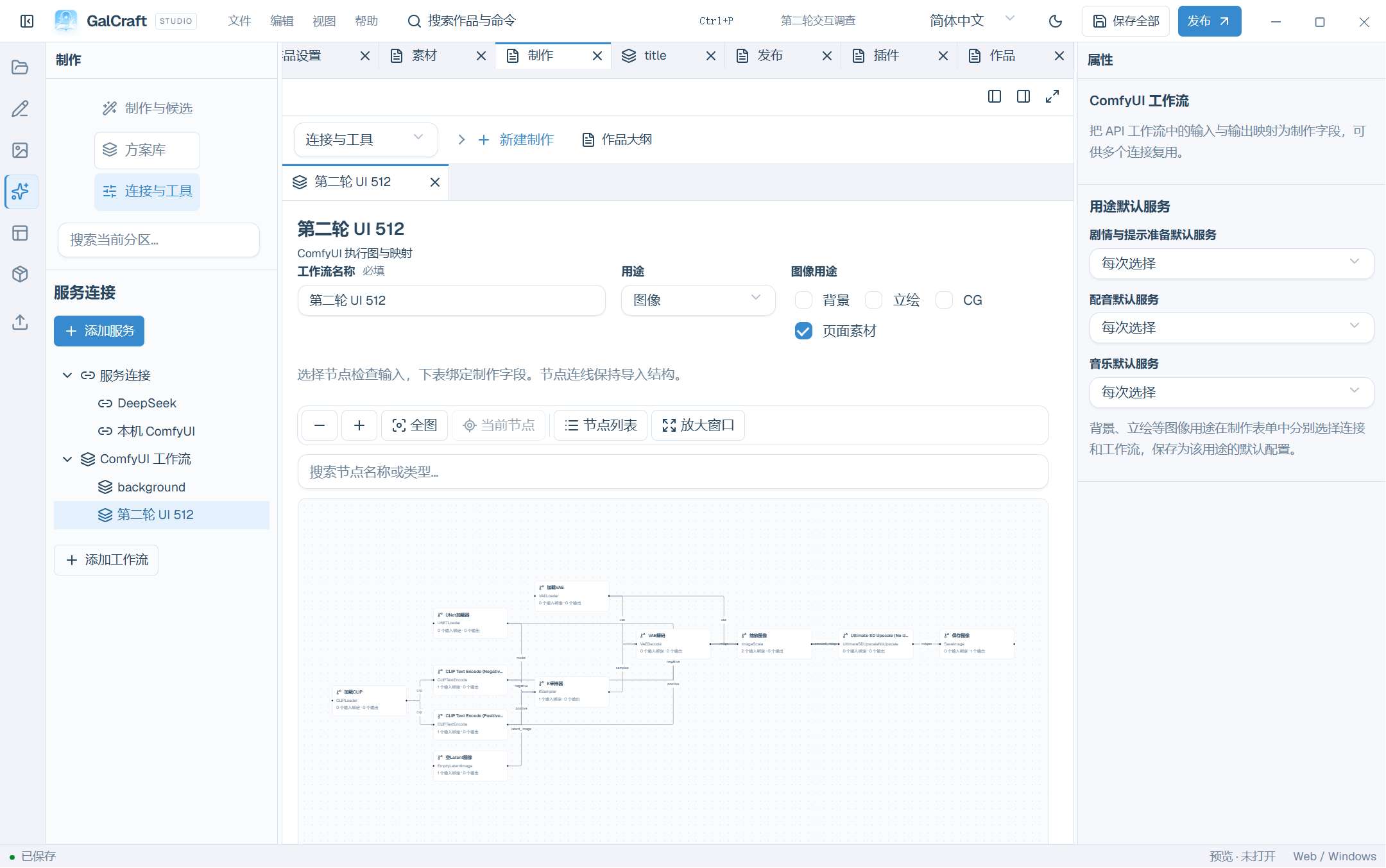
For ComfyUI export API-format JSON, import it into a named purpose, map real node inputs, choose image upload/shared directories and actual file-output keys, then validate/save. The server must have required nodes/models. Export the workflow in API format from ComfyUI. Return to the production draft to review the plan and start generation.
Import/export schemes through the scheme library as recipes.galrecipe.json with schemaVersion 1 and a recipes array. See file types and opening entries. Review import plans. Official schemes are read-only/copyable; saving or Save and use does not itself send a request. See the complete Production guide for context editing, continuing rounds, exact provider recovery, adoption conflicts and usage.
Publish, save and recover
Install plugins locally, then enable the precise version in the project through impact review and save. The Spring Lights tutorial backup requires engine 0.1.1, org.galcraft.music-composition@0.1.0 and the Rich template at 0.1.0. Before exporting save all and fix blocking Problems.
- Select Web or Windows and a dedicated output directory.
- Apply/save a release version such as 0.1.0.
- Check the saved snapshot's engine/dependencies, capabilities, assets and fonts.
- Choose a representative older save only when actually checking compatibility; otherwise it remains unverified.
- Confirm build after a successful check; changed build settings need rechecking.
- Read the receipt and run instructions, then launch the complete output through HTTP for Web or its complete Windows directory.
Build the local output, then upload it through your hosting or community publishing entry. See Publishing for fonts, platform/Live2D, engine copies/history and restore.
Ctrl+S saves the document; Ctrl+Shift+S saves all required related edits. Ctrl+Z/Ctrl+Y use focused text history first, then project history when focus leaves the input. A dialog does not undo the background project. Duplicate/back up before major changes. Restore a .galproject through Restore project backup; choose Create independent copy for tutorial practice and review exact dependencies before confirming. On exit choose save/discard/cancel; after abnormal exit inspect recovery prompts instead of deleting internal work files.
Finish an end-to-end exercise
Create sample → edit narration → save → audition music → replace a background reference → move the title → undo/redo → play two routes → check publishing → build and run the Web output. You should now distinguish commands, assets, Player pages and production candidates.
Player clicks first complete typing, then advance. Settings/history pause reading and voice. Choices skip disabled items in keyboard navigation. Toolbar save/load/history/settings/auto/skip and pin follow the work's template; pinning does not advance. Long-term endings/unlocks, ordinary save progress and display preferences have separate persistence. See the detailed Player chapter for gallery/media navigation and data import/export/cleanup.
Common questions
| Symptom | Check |
|---|---|
| Cannot find a recipe | Use scheme import for a valid recipe JSON, not asset import |
| Prepared model did not remove a background | Process a selected image and adopt its candidate |
| Component will not move | Return to Design, select it and check lock state |
| Stage asks for a route | Choose a reachable branch/input path |
| Stage shows older content | Repair Problems, then select/recompile again |
| Export shows older edits | Save all and create a fresh publish plan |
| JSON is read-only | Inspect/copy there; edit through its form/source |
| Undo affects text only | Move focus out of the text input for project undo |
| Controls unavailable | Open a project and check validity, active operations and service readiness |
Saving selected objects
Ctrl+S initially selects the current document; Ctrl+Shift+S initially selects all changes. Review object rows and required links before saving. Unselected work remains unsaved. Per-object discard applies immediately and can be undone; canceling save review keeps an already applied discard. Switching or exiting after a partial save still requires handling the remaining work. See Projects and files.
For external assistants, read External creative collaboration.