

Publishing and Player
Check exact dependencies and saved content in GalCraft Studio, choose a publishing target, build a standalone Player, and verify playback, saves and player-data compatibility.
GalCraft Studio 0.2.0. Return to the Studio guide.
Choose a release target
| Target | Output and tutorial |
|---|---|
| Web | Complete static directory, local preview and HTTP(S) hosting |
| Windows | Standalone directory, executable identity and signing |
| Android | Android Studio project, APK and AAB |
| iOS | Xcode project and macOS archive |
Install and enable plugins
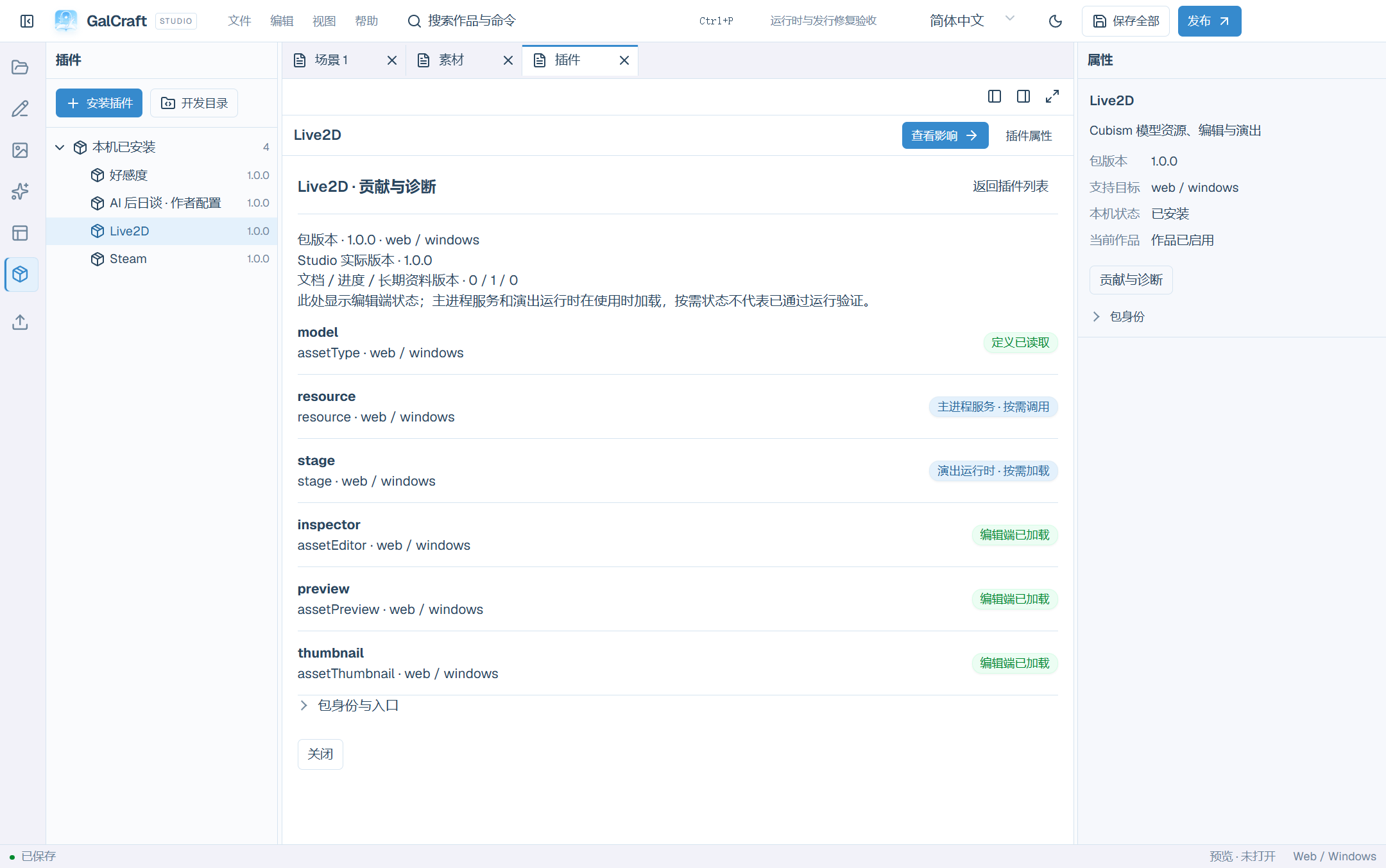
Open Plugins. Explorer lists installed packages and missing dependencies; selecting one shows its version, project status and actions in Inspector. The centre leads with purpose, version, project status and capabilities, followed by contribution diagnostics and change reviews. Installation makes a package available locally; enabling writes an exact dependency into the current project.
Explorer places Provided by Studio alongside Installed locally. Common generation services, ComfyUI and NovelAI belong to Provided by Studio: Studio supplies them and loads them on demand. Their list rows, details and Inspector show this identity. Configure actual connections in Connections. Their details retain contribution diagnostics; project enable, disable and version-switch actions belong to ordinary project plugins.
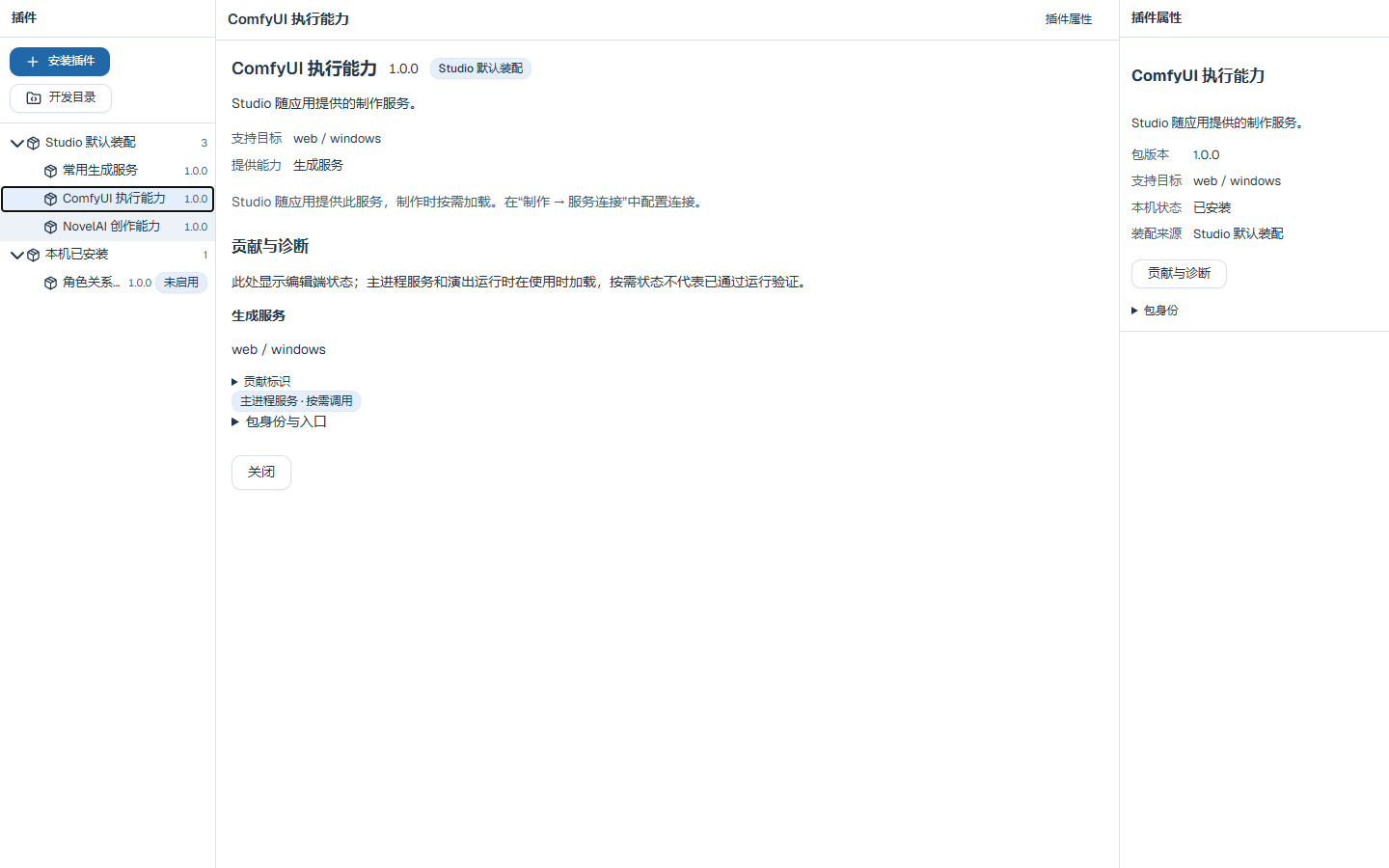
Install and enable ordinary project plugins as follows:
Plugin names and descriptions follow the Studio interface language. Bundled plugins provide Chinese, English and Japanese text. Third-party packages supply their own translations; Studio shows the author's source text when a translation is unavailable. Switching language retains the current selection and project activation state.
- Install plugin and select a valid ZIP/
.galpluginor its local path. Renaming an unrelated archive does not make it valid. - Check name, version, identity, targets, installed versions and problems.
- Confirm installation and verify the version appears.
- Select Enable in project…, Disable this version… or Switch to this version…, according to the current state, to open Plugin change impact.
- Review old/new versions, affected documents, saves/persistent data and target dependencies, then confirm.
- Check project Problems and save all to persist the exact dependency.
Check/development/diagnostic/review documents remain beside the list. Returning to the list neither confirms future changes nor undoes an installation. Review usages before disabling a referenced plugin. After local installation, enable the required exact version for the current project.
Studio 0.2.0 bundles engine 0.2.0 and official plugins at 0.1.1. The public SDK is 0.2.0. After installing a package, enable the exact version required by the project.
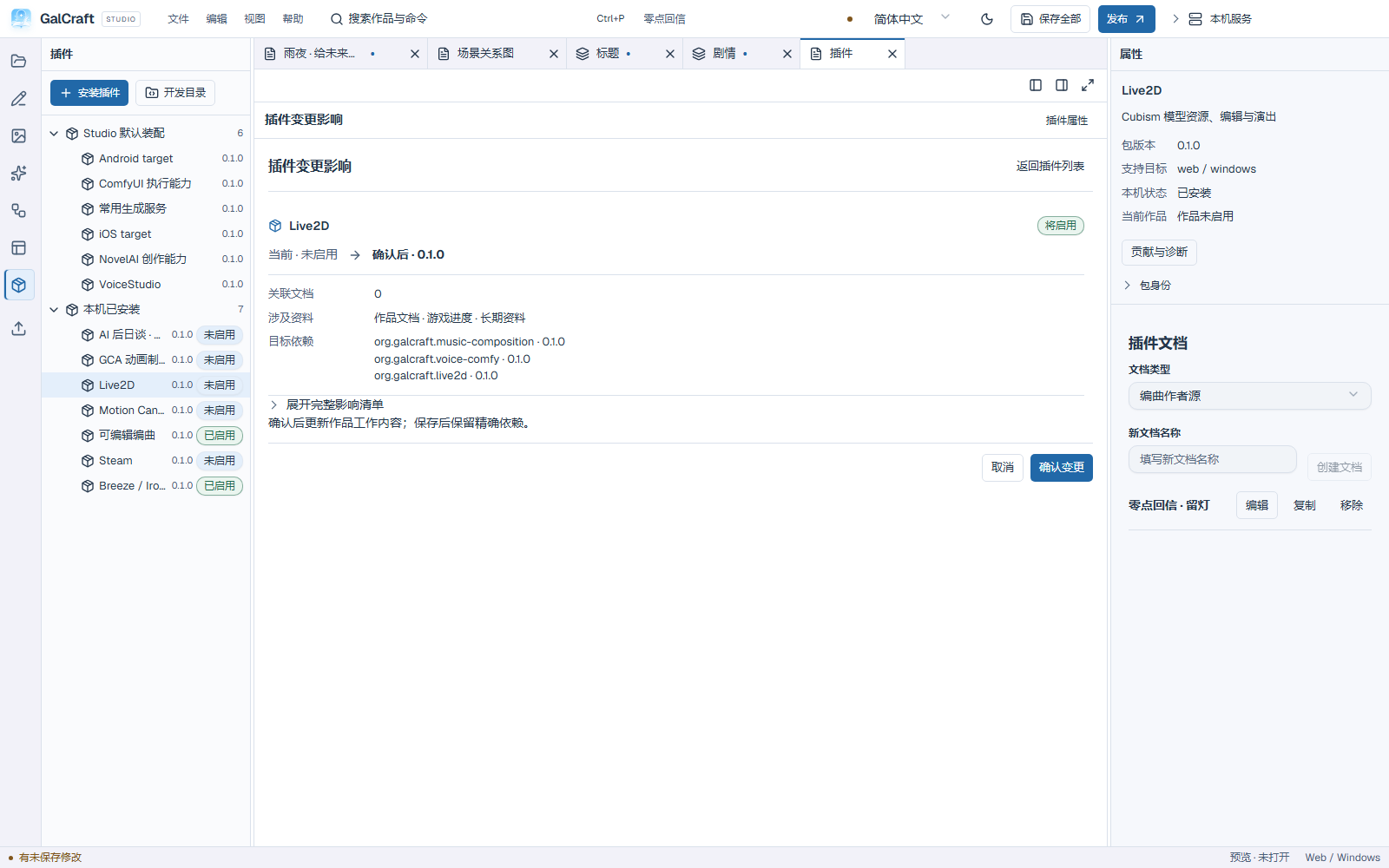
Development directories and extensions
Developers can inspect/load a development directory. Recheck after moving it. Ordinary authors use packaged installation. Follow the plugin's own help for extension pages/fields. Official AI epilogue author settings live under Extensions after enabling its provider. Choose a route main character, permissions, available endings and an asset allowlist; apply and save. Context preview shows permitted scope without making an AI request. Replace/remove invalid ending/asset references.
To use a development copy, open Development directory, choose the directory and click Load development directory. Studio then loads the development entry declared by the plugin. Use Install plugin to inspect and install a packaged plugin.
Plugin documents
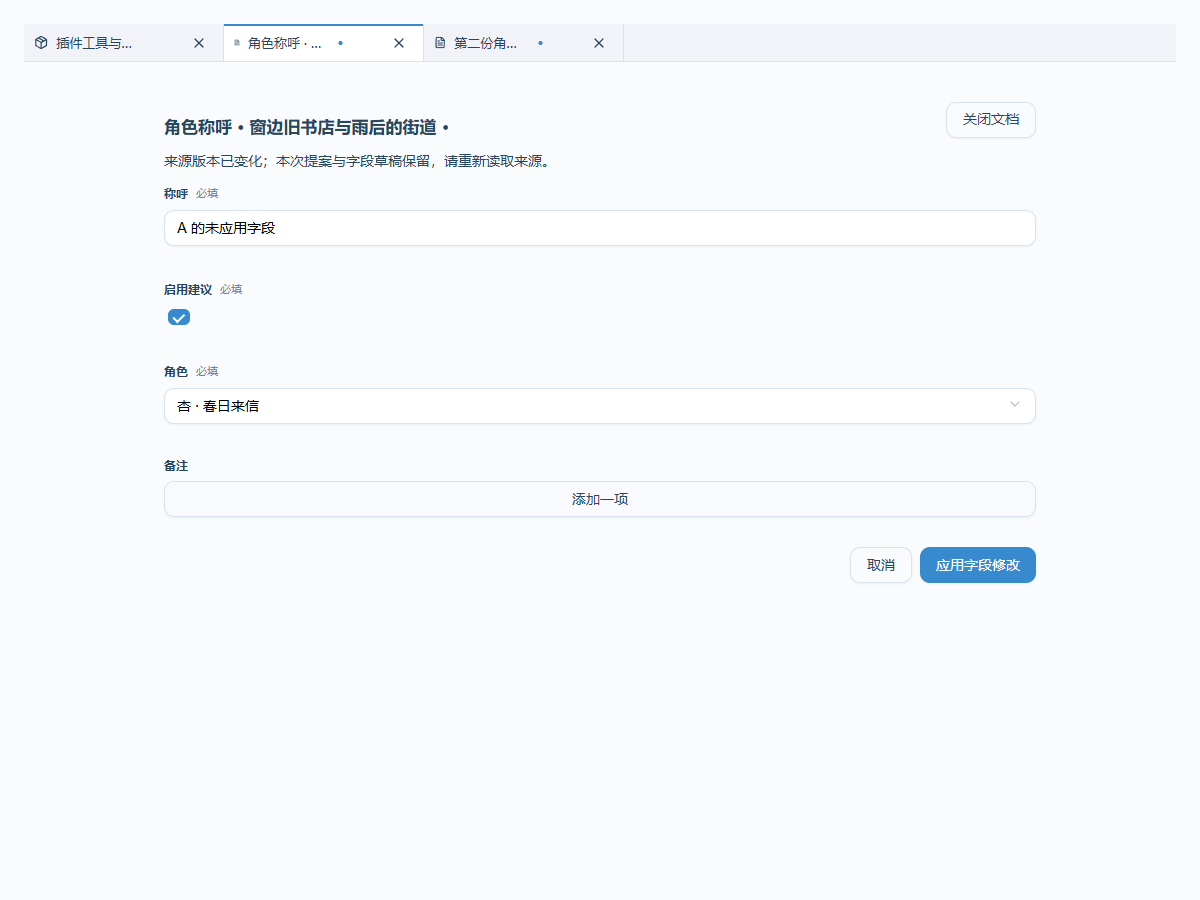
Choose a contributed document type, name it and create it. Multi-instance types support creating/copying/removing multiple documents; fixed-config types keep one. Each persistent editor retains its own fields and selection. Apply field changes updates the workspace; unified saving writes disk. Forms expose required values, ranges, units and reference names. Objects/arrays are editable and pickers follow declared types. Optional dedicated editors handle a plugin's own public fields. Close unapplied edits by continuing or explicitly discarding. Conflicts retain errors and drafts. Applied documents share normal undo/redo/save.
Selection tools and proposals
Contributed tools appear in plugin lists, authoring extensions, commands and object contexts according to applicability. Plugin tools or Ctrl+Shift+P opens the command palette; right-click cards/assets for contextual tools. Unavailable tools explain their required scope.
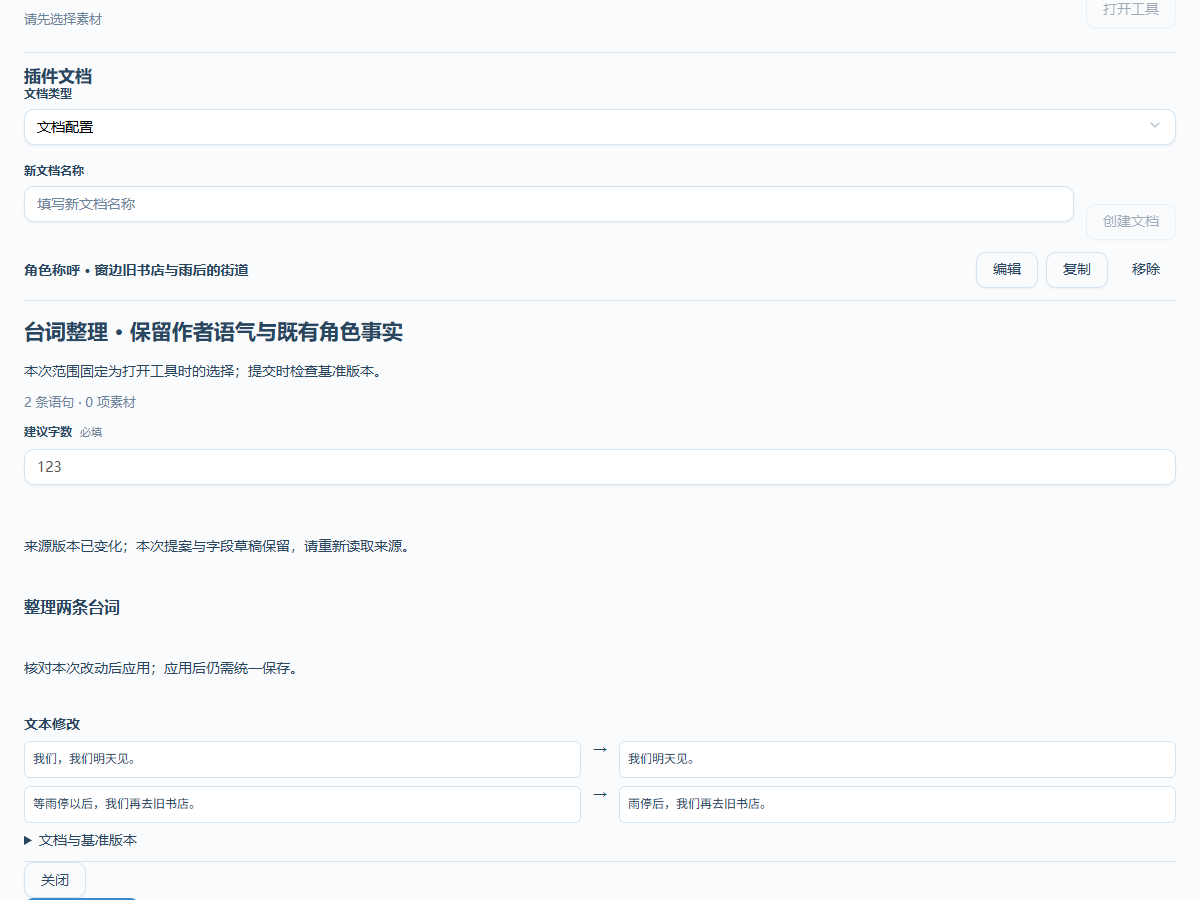
Opening fixes the selection and document baseline. Enter parameters and run. Pin to workspace before running for longer editing; navigation retains parameters and scope. Reports locate source; proposals show before/after and require Apply this proposal. Tasks/candidates open in Production. Save applied edits. Changed sources can block execution/submission while retaining the proposal; reopen for the current scope. Cancel stops receiving this execution's result while retaining completed results.
Project switching, disable/reload and view unmount release active UI/listeners. A failed reload retains the previous valid implementation with visible errors. Diagnostics distinguish definitions read, editor loaded, Node services and runtime loading on demand. Disabled exact versions and missing editor entries are reported separately.
Processing, generation and page components
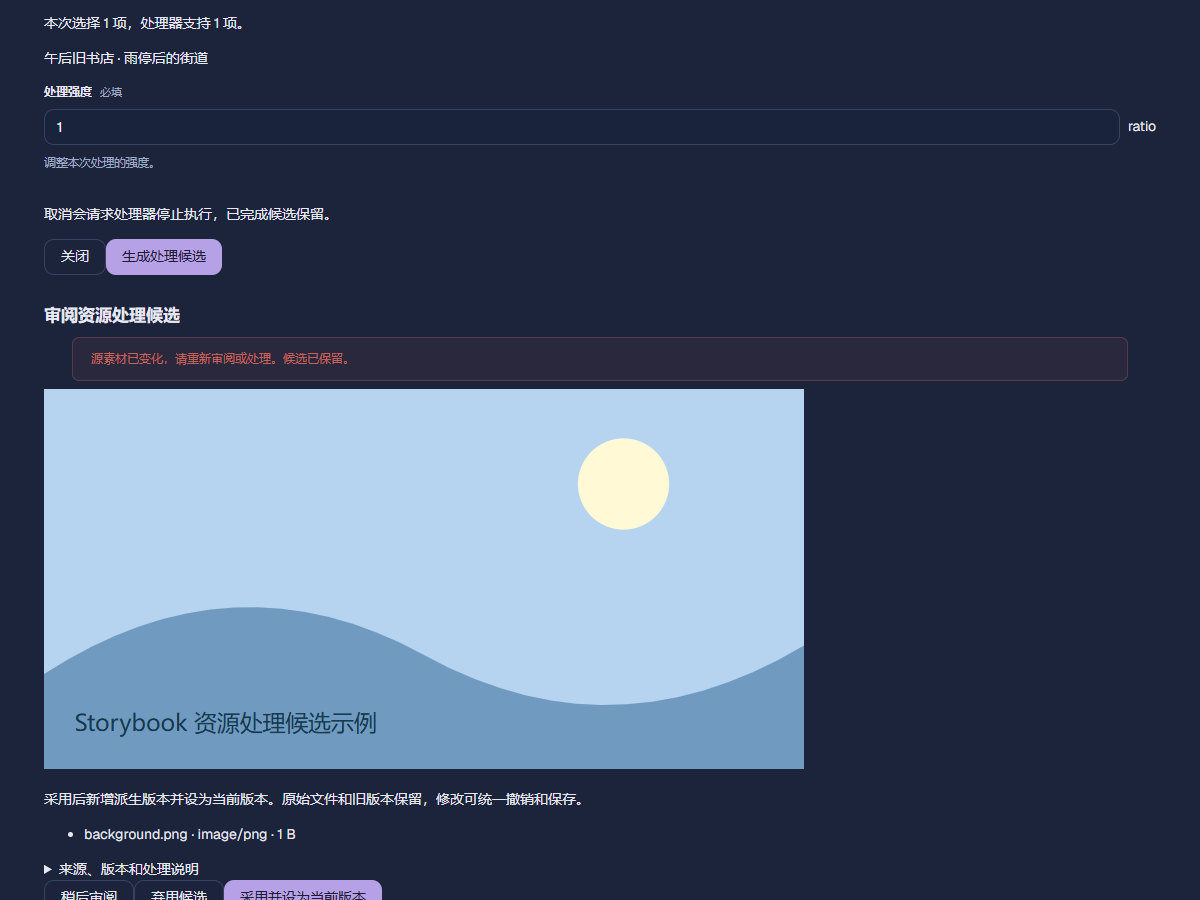
For a processing provider, select assets, choose Process selected assets, select a compatible processor and enter its fields. Inspector owns parameters and execution freezes selection. Unsupported mixed types block the batch with reasons. Review candidates centrally, including actual files. Navigation pauses media; close releases preview. Adoption creates a derived current version, retaining original/older versions with normal undo/save. Defer or discard candidates if needed. Source conflicts retain the candidate/error; process the current source again. Local cancellation and processor interruption follow declared capabilities.
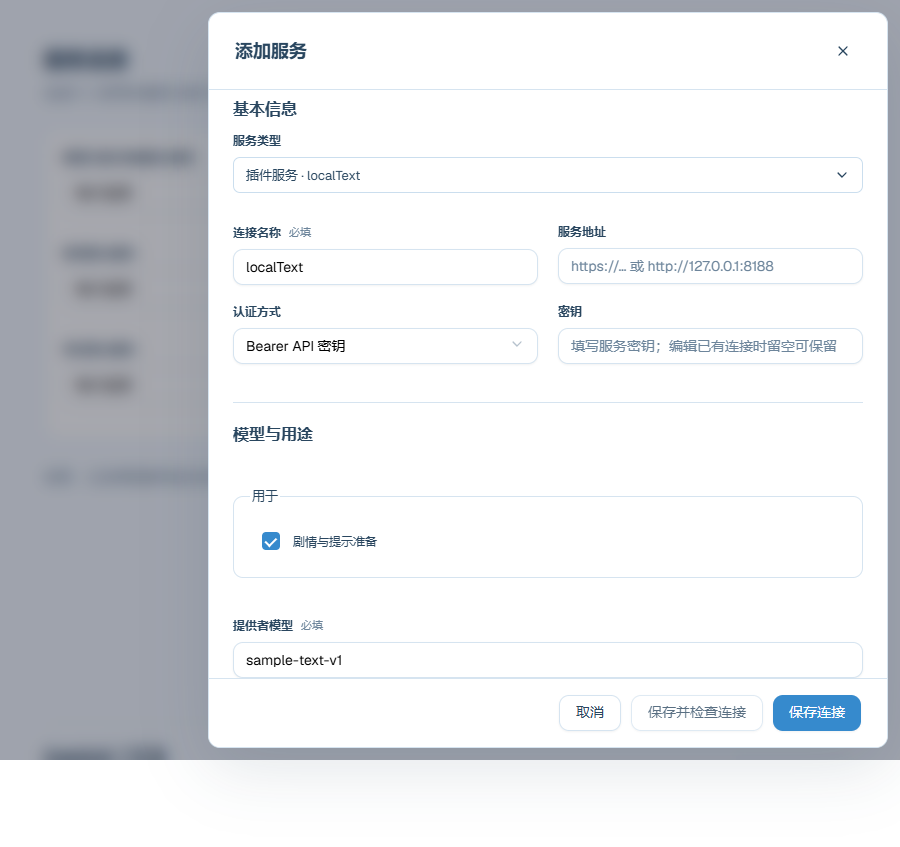
Generation providers add connection types under Production. Save their declared fields in personal configuration and inspect remote query/refetch/cancel/reconnect capabilities. Normal send-plan/candidate review applies. Historical tasks retain exact provider/configuration; changing connections does not rewrite active requests.
Page designer's Plugin components catalogue contains available project components. Select a page/container, add one, edit public fields and apply. Configuration belongs to the page document and shares undo/save. Missing providers retain existing configuration with explanations.
Prepare publishing
Open Publish and use Check & build to choose the target and output directory and review the release version. After applying release settings, review and save your changes, or choose Use last saved release to keep current changes in the workspace and build from the last saved content. Target-asset validation can update the asset index. If those updates need saving, choose Review, save and recheck. Explorer opens the check and build, assets and fonts, compatibility and platform settings.
Show publishing properties when Inspector is hidden; Locate publishing configuration focuses it when visible. Pending assets use an independently scrolling list with name/ID search. Expand Asset identity to inspect and copy the exact ID. Check/build actions stay at the bottom of the document; save notifications clear those controls. Diagnostic filters report hidden blockers.
| Field | Choice |
|---|---|
| Target | Web, Windows, Android or iOS for the recipient's platform |
| Output | A dedicated empty directory or an existing valid release directory for this project/target; never the editable project or general Downloads directory |
| Release version | For example 0.1.0; apply and save all |
| Use last saved release | Build from the last saved content and release version while keeping current changes in the workspace |
| Engine | The project's locked engine, distinct from the work's release version |
Choose Check and build to check the selected saved release and start a local build if it passes. Choose Check only to review dependencies, capabilities, assets, fonts and older-save compatibility first. Open the relevant settings or source from the check results. Choose Return to release check after inspecting a source. Save fixes and recheck, or start a checked plan with a target action such as Build Web. Changing the target, output directory or build options requires a new check. Studio verifies directory ownership again before building. If the path points to a file or a nonempty directory without a valid release manifest for this project and target, Studio blocks the build and preserves the existing contents.
Steam AppID and achievements
Enter the work's own Steam AppID in platform settings, apply it, save and check again. The ID travels in the release Snapshot. The current native production package supports Windows x64; M11 reports actual native availability and required/optional policy. Playtests simulate platform actions and Web uses the declared fallback. Run the release in the Steam client with its configured AppID, trigger an achievement and inspect the account record.
Advanced settings
Choose assets/fonts, save compatibility or platform settings from Explorer. Keep defaults for a first exercise; recheck after build-affecting changes.
| Setting | Purpose |
|---|---|
| Full fonts | Retain all glyphs |
| Static subsetting and fallback | Reduce font size while keeping dynamic player names covered |
| Extra retained assets | Explicit resources beyond ordinary reference closure |
| Representative older save | Verify actual compatibility; no selected save means unverified |
| Entry mappings | Map changed story entrypoints |
| Platform capabilities | Explicit dependencies used by this project |
| Live2D purpose/confirmation | Applicable testing/distribution intent |
| Validate target assets | Check suitability for the chosen target |
Choose an older save that represents the work’s story position, entry and dependencies. For a same-version Live2D adapter refresh, reimport R4 or R4+R2 SDK. Studio prepares/verifies complete files before replacing the previous runtime and retains it on failure. Importing only R4 can retain a compatible previously installed shared R2 Core; the project still locks this import's selected runtime.
Build and run the output
When building into an existing release directory for this project and target, review the directory in Replace the existing release? and confirm. Studio replaces the previous valid release after the new build commits. A failure or Cancel build preserves it. In Build result, review the receipt, path, compatibility report and run instructions. The bottom Output tool shows the last successful build's target, version and entry path, with actions to return to Publish or open handoff instructions. A previous build remains visible after configuration changes. Build again before handing it off if the current configuration has yet to be built. Not executed in the local play status means you have yet to launch the release from that action.
Follow Web release for HTTP(S), preview.mjs and preview.cmd. See Windows release for its EXE and complete-directory handoff.
Read through the independent output
Start these checks from the actual release. Use a disposable exercise save slot.
| Action | Expected result |
|---|---|
| Open the release and start a new game | Title, startup and story entry follow project settings |
| Advance to your edited narration | The new text appears, confirming the build includes your saved edit |
| Follow a choice | The selected route runs with its backgrounds, figures and voice |
| Save, advance a few lines, then load that slot | The saved position, player name and branch state return |
| Reach an ending and return to title | The expected page opens and configured unlocks remain |
Playtesting checks work during editing; running the release confirms the contents players will receive. Building creates a local release directory. Upload that output to hosting or the community publishing entry. Community uploads have metadata, version packages, screenshots and moderation; upload the completed release through the publishing entry.
| Preview symptom | Next action |
|---|---|
node is not recognized | Prepare Node.js and reopen the terminal; see source prerequisites for the development version |
preview.mjs is missing | Select the complete Web release directory and extract a received archive first; open source projects in Studio |
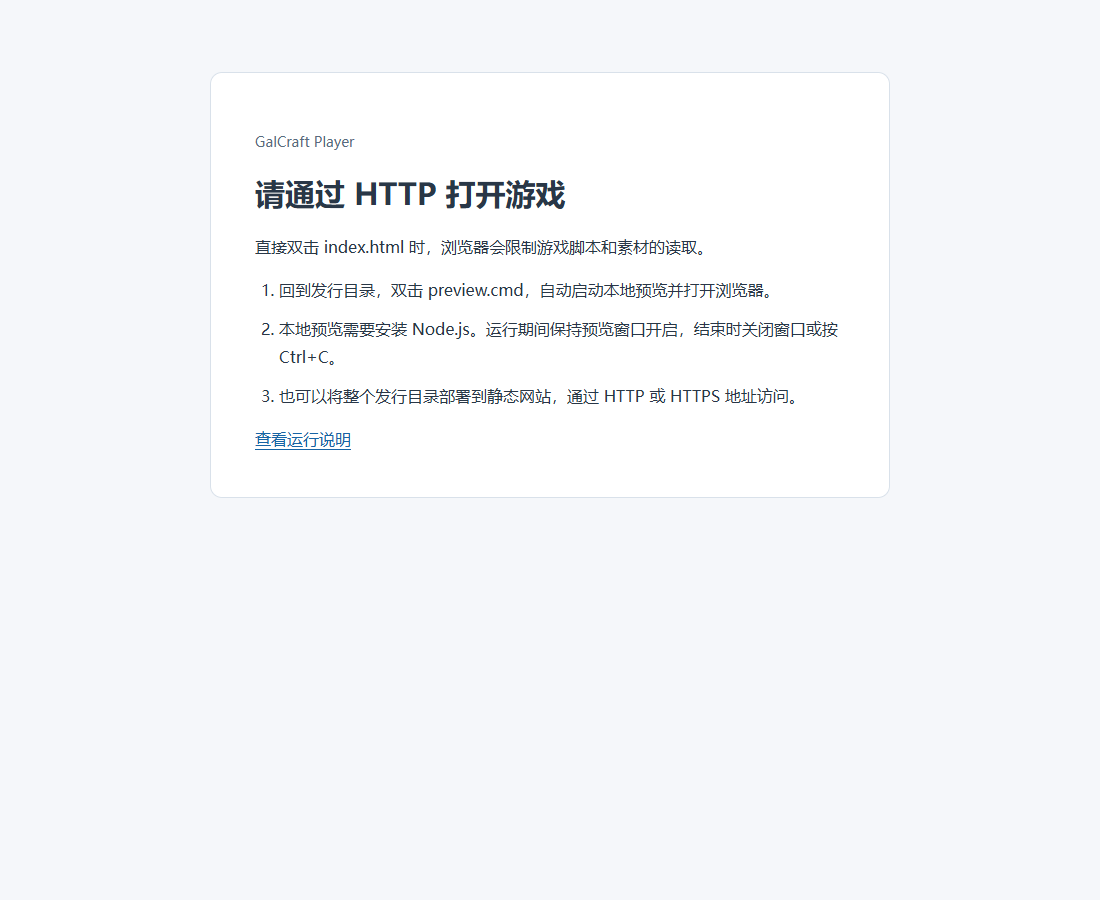
| Browser shows file-open guidance | Start preview and open its printed http://127.0.0.1:…/ address |
| Old text still appears | Save all in Studio, check/build again and refresh the release address |
| Saves disappear after changing ports | Return to the original address, or transfer progress through Player data export/import |
Engine versions and history
Open Project center → Project maintenance to see the project's exact locked engine version. If that version or its Web runtime is unavailable, Studio opens the project read-only. Under Project engine check, choose Import required engine version and select a local engine folder that matches the lock and includes Web runtime support. After verification succeeds, you can resume editing. If you already supplied the version locally, choose Recheck engine.
To migrate to another version, apply and save project changes, then choose an installed engine with a compatible migration path. Select representative old saves and save a debug route in the project. Choose Prepare and validate migration and review the original and migrated copies, affected files, dependency changes and validation results. You can cancel during preparation. Once validation passes, choose Confirm migration and confirm the replacement of the current project directory.
Under Maintenance history and rollback, choose Roll back to this original copy on a committed migration whose target matches the current version. Studio backs up the current saved version before rolling back.
Reading and Player pages
While text is appearing, advance to reveal it up to the next click wait or the end of the line. The following advance releases that wait or continues the story. A timed wait resumes when its duration ends. Voice can continue when text finishes. Settings and history pause reading and voice until you return. Choices appear on the stage, and keyboard focus skips disabled choices.
Save/load opens slots and confirmations. History revisits displayed text. Settings changes audio/text/reading preferences. Auto advances according to preferences; Skip follows allowed scope. Pin toolbar changes visibility without advancing. Return follows navigation; review current progress before returning to title. New-game naming follows author configuration and saves restore it. Character classification alone does not create epilogue actions.
Save slots include their progress summary. Read a load/overwrite confirmation before accepting. History replay and flow navigation require available/unlocked destinations and confirmation; locked nodes remain locked. Rich templates provide Flow in the title menu and story toolbar. An independent initial entry uses the author's configured starting state; a first-unlock entry uses the actual captured position. Returning from a Flow visit restores the source story. Gallery and other auxiliary pages retain their entering home/stage background-audio source. CG viewers navigate unlocked variants only and close back to the catalogue.
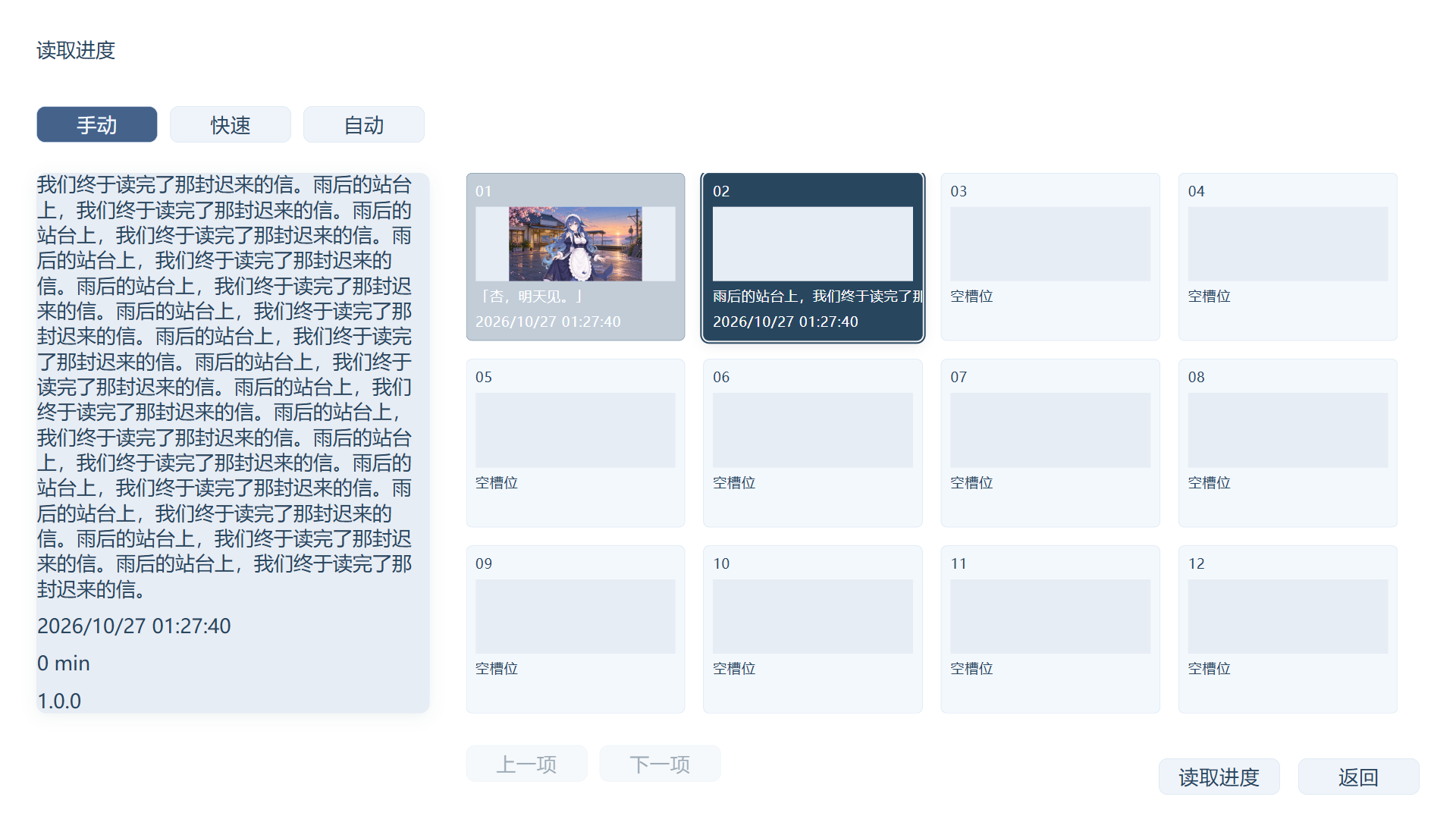
In Manual, Quick and Auto save categories, one click selects a slot and arrow keys move selection. The detail panel shows the selected summary, time and screenshot. Use the primary action or double-click to save/load; empty load slots remain selectable with Load disabled. A successful save retains the current page, slot and receipt. Quick saving starts from the story toolbar; automatic saving follows the work's configuration.
Long summaries scroll inside the detail panel while the bottom actions remain visible.
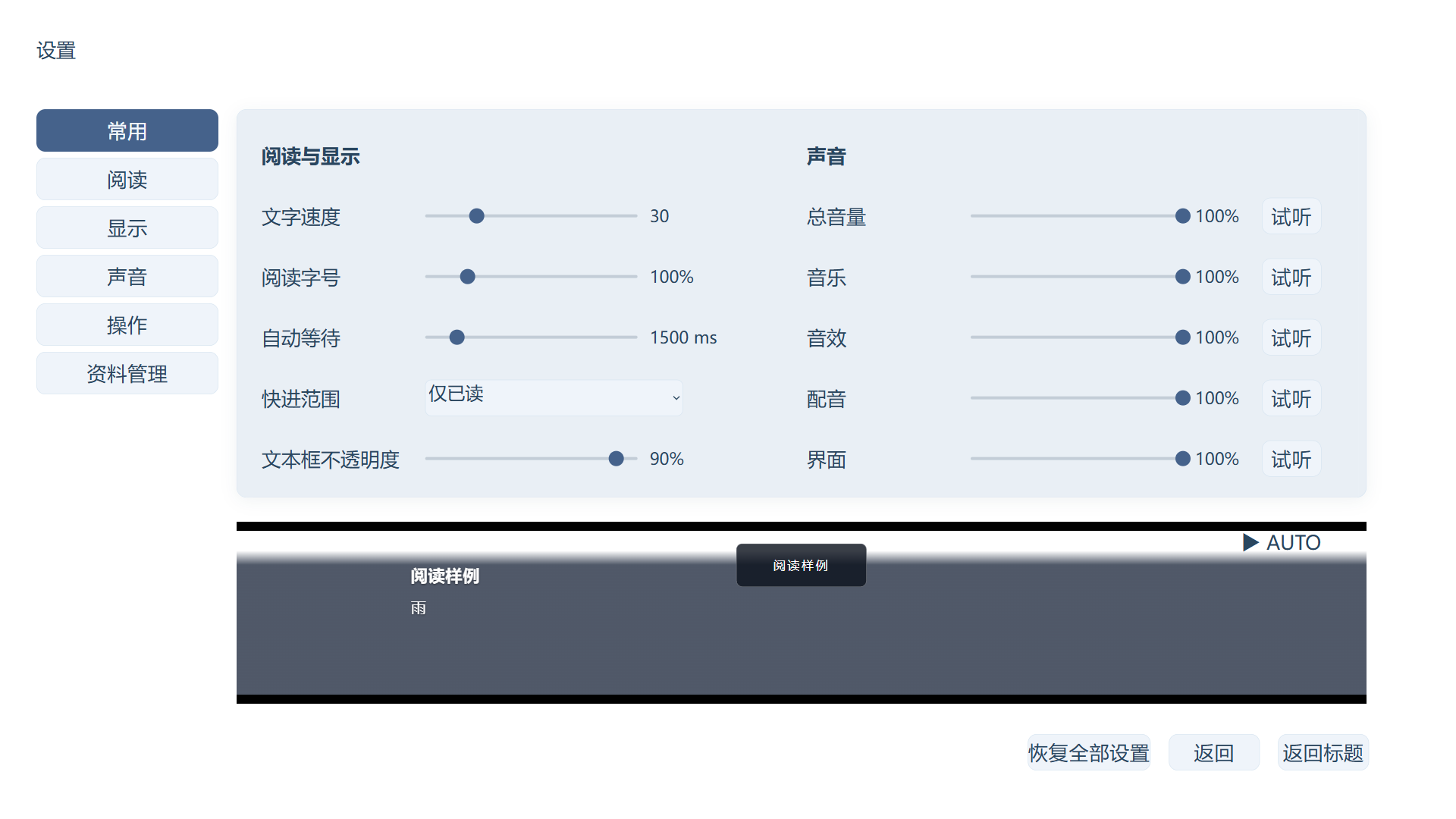
Settings groups Overview, Reading, Display, Audio, Controls and Data. Reading size scales dialogue, history text and the reading sample; other controls follow the work canvas. Sliders preview immediately and save on release or keyboard completion. Reset all settings explains its scope before confirmation and retains saves, read history and unlocks. A failed save keeps visible values available for Retry.
Music selection alone does not play. While not playing, paused, stopped or naturally ended, home music occupies the background. Explicit play/resume starts audition; pause retains its cursor and stop resets it. Exit restores the entering audio source. Settings pauses an audition for manual resume. System pause from focus loss/emergency cover resumes the prior source. Question-mark entries can be intentionally locked rather than failed assets.
Startup runs once per Player launch. Returning from story/settings to home does not replay it. Enable sound recovers current-page sound when browsers block autoplay. Configure author media in Startup and home.
Player data import, export and cleanup
Open Settings → Data. The exported Player data ZIP transfers progress and preferences. See file types for opening entries.
- Export and retain the ZIP; import it into another runnable compatible version of the same work.
- Review source/target release, each save summary and compatibility.
- Choose keep local, overwrite or import into an empty slot for each item, then assign destination slots.
- Review entry mappings, persistent variables, preference policy and overwritten records.
- Apply only when the plan permits. Returning discards an unapplied plan and retains original data.
For incompatibility, use the right release or author-provided compatible build. Select the ZIP, read identification and compatibility review, then apply the permitted import plan. Cleanup requires explicitly selecting saves, preferences and/or persistent progress/unlocks, then confirming. Export first if needed. No selection performs no cleanup; returning changes nothing.
Input, confirmations and errors
| Page | Action |
|---|---|
| Text input | Read prompt/default, enter and confirm; cancellation follows the work's rules |
| Confirmation | Review overwrite/load/new-game/title/exit action, confirm or return |
| Error | Read located loading/resource/runtime failure and return to an available page |
| Emergency cover | Restore or Escape returns to the source page |
| Video failure | Retry the same video after correcting conditions, or return to title |
Completion, galleries and display preferences
Gallery access opens after an ending with a non-empty ID is successfully saved. End can target title, a formal page or a new top-level scene. A failed completion save offers retry and keeps access closed. Publishing warns when gallery-enabled works have no valid endings.
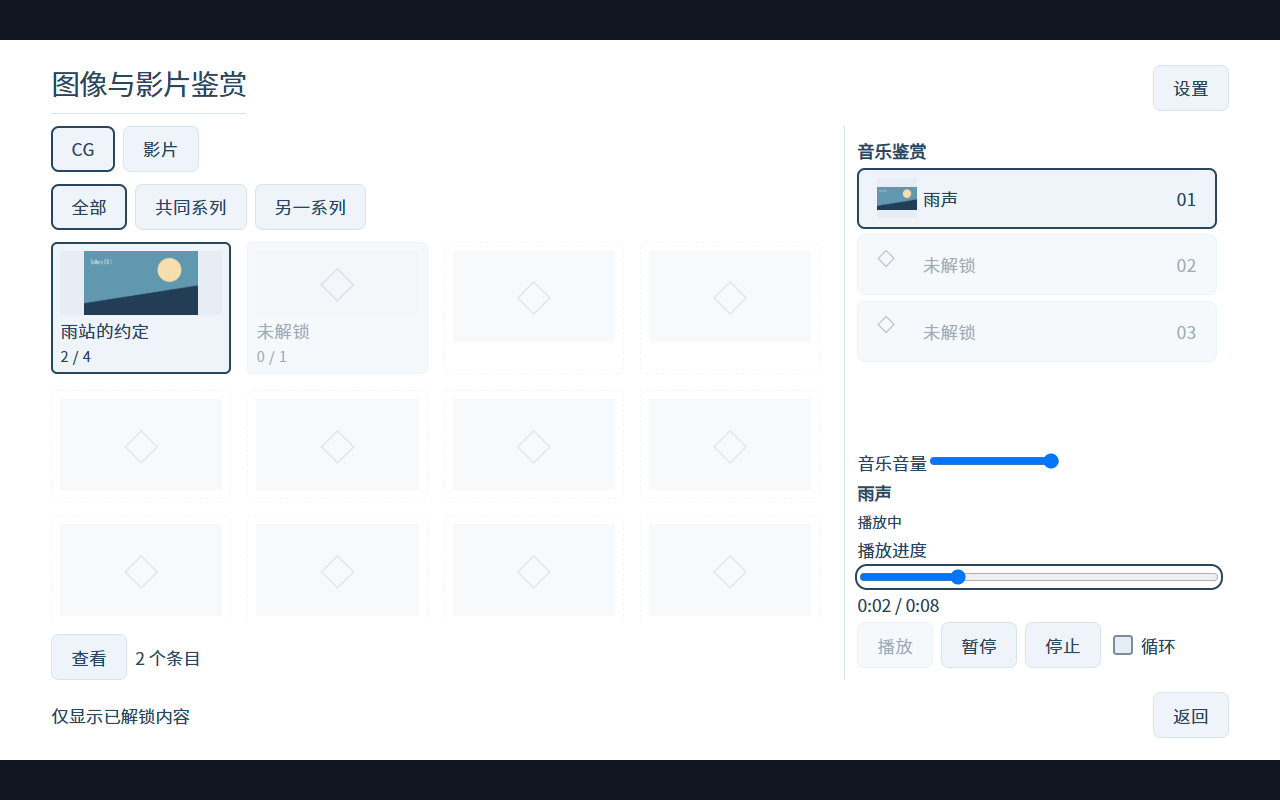
CG/movie tabs retain series, selection and scroll independently while music can retain its progress. Select an entry before viewing/playing. Viewers traverse unlocked variants. Entries with one variant hide the sidebar; entries with multiple variants group names with complete thumbnails. Returning restores selected-item focus. Locked content uses anonymous placeholders without reading its real name/cover.
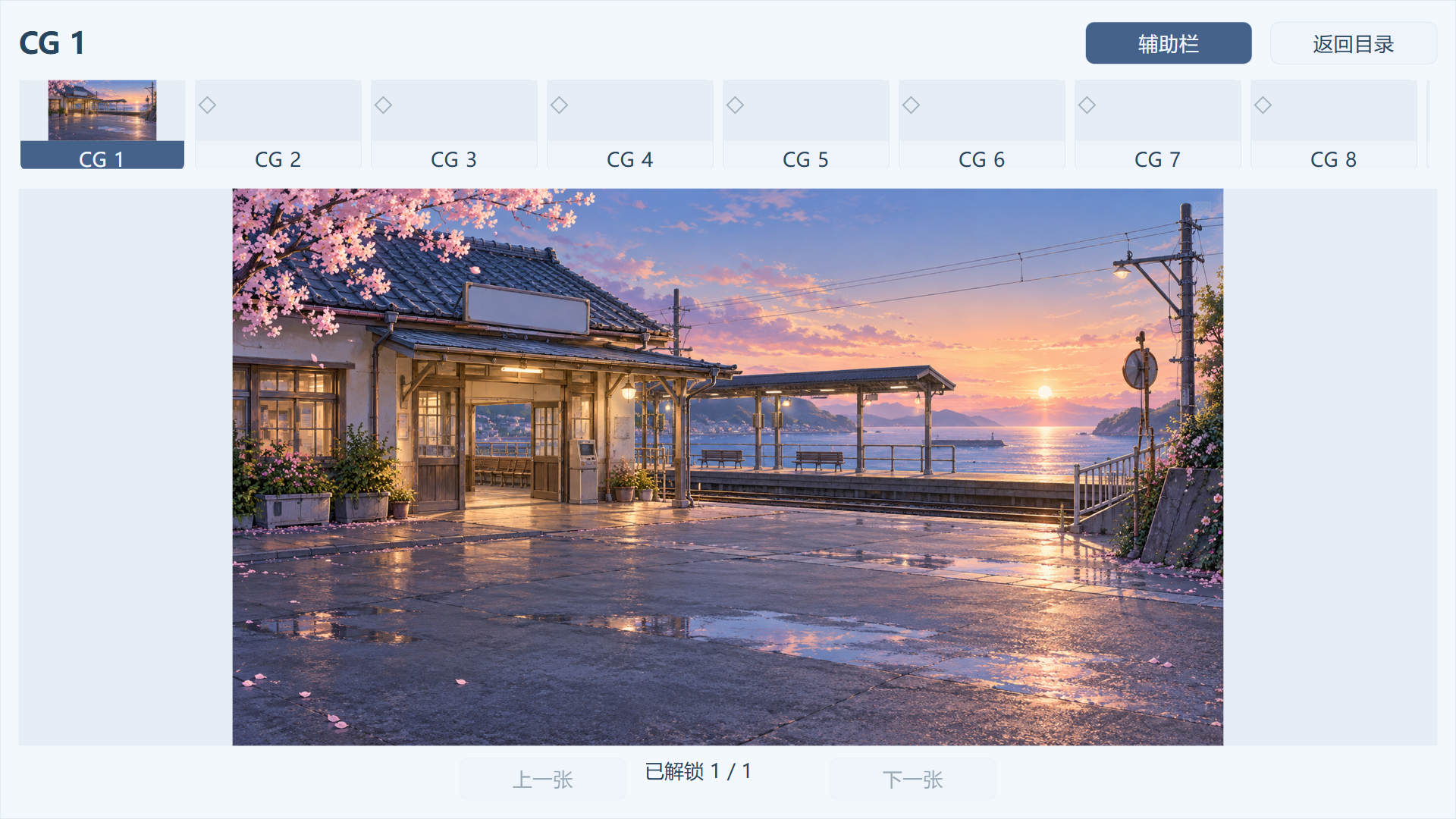
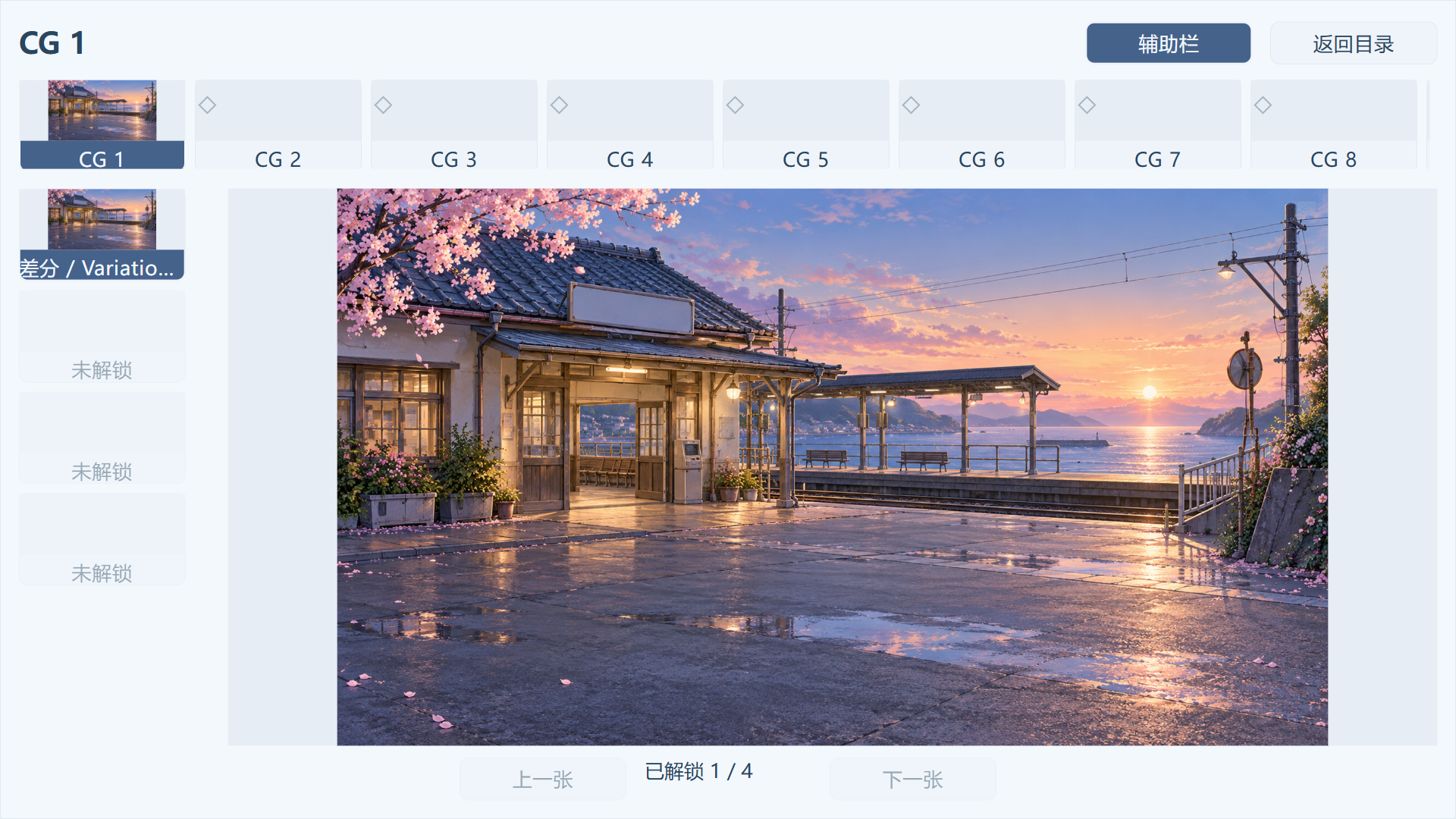
Music explicitly supports play/pause/resume/stop/seek/volume/loop. Movies support play/replay/pause/stop/seek/volume/fullscreen/retry. Movie playback pauses music audition and restores its prior playing/paused state on close/end. Leave fullscreen before returning. Gallery playback does not advance story or create new endings.
The Settings reading sample loops automatically, previewing text, portrait, chapter, status and cinema letterbox. Changing text speed restarts the sample. Performance/reduced-motion settings control non-essential visuals; disabling cinema shows ordinary reading and re-enabling restores author state. Fullscreen uses actual browser/Windows capability and synchronizes when the host exits it. Samples stay silent; saved preferences apply immediately.
Back returns to the page that opened Settings. Return to title always opens the title, including from an independent Flow recall. Reset all settings and Exit on supported platforms remain available. Save/load cards distinguish hover from selection, retaining the selected appearance while hovered. Click once to select a slot; double-click or use the main action to execute once. Each timestamp has its own line.
Playtime accumulates real foreground story/choice/input/story-video time, excluding system pages, galleries, samples and pauses. Saves retain it; loading continues and new game resets it. Persistent endings/gallery unlocks survive restart, new game, older saves and resetting settings. Explicit persistent-data cleanup resets them.
Publishing problems
Repair incomplete host/engine installation when the build service is unavailable. Apply/save version changes or reuse the saved version. After edits, save and recheck. For blank/missing-asset output use HTTP and a complete directory, then inspect the receipt and target validation. Unverified older-save compatibility means no representative save was tested. Unavailable upgrade actions require saved work, an installed engine and any necessary declared conversion path. Missing plugin behavior usually calls for checking project enablement of the exact installed version and saving dependencies.
Work identity, icon and Windows signing
After changing the work name, version or Windows signing policy, the publish page lists the pending fields with Apply release settings. Apply them, then review Save all; saving clears the tab's change marker. The output directory and certificate selection remain local options. Checks confirm that the displayed settings have been applied and saved before building their saved snapshot.
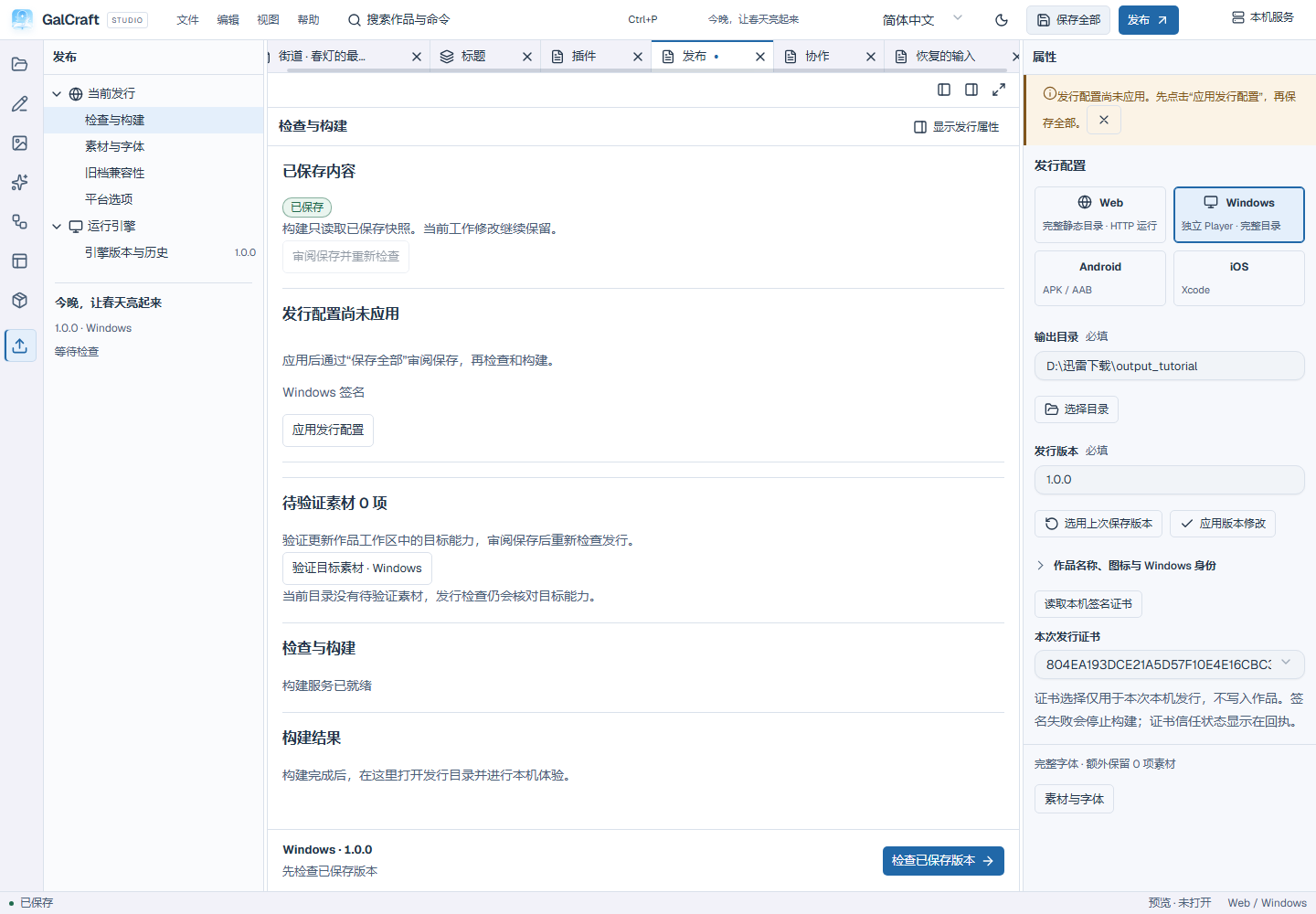
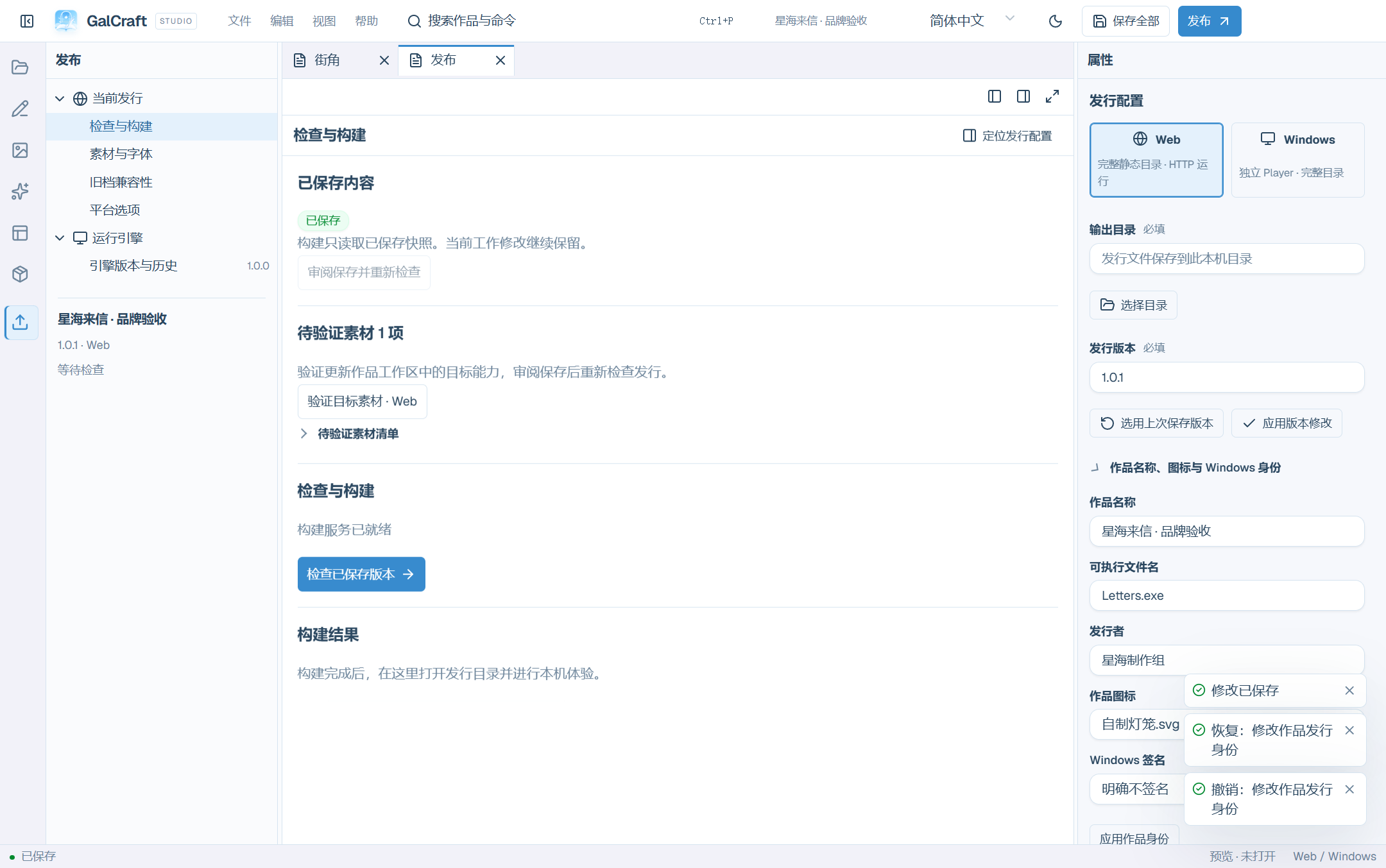
Expand Work name, icon & Windows identity in release properties. Enter the work name, release version, executable filename and publisher, then select an imported image icon. Chinese filenames are allowed; the entry must be a valid .exe filename without a directory or reserved device name. Choose Apply work identity, review and save, then choose Check only or Check and build. Renaming or changing the icon retains the project's save identity.
Web uses the saved title and icon. Windows also writes the entry filename, icon and PE product information before signing. Leave unsigned produces an unsigned receipt.
For Sign with a local certificate, choose Load local signing certificates, then check the subject, expiry and fingerprint suffix under Certificate for this release. The list contains valid code-signing certificates with private keys in the current Windows user's certificate store. Selection belongs only to this local build and is not saved in the project; the source package contains no certificate or private key. Recheck before confirming the build.
Author releases use an author identity or a platform-permitted unsigned mode. GalCraft vendor keys stay in the vendor's release environment. Identified vendor test identities are blocked both during discovery and actual author builds. Connected clients discover targets, the selected target contract and signingOptions for public certificate identifiers, subjects, validity and availability reasons. They choose under authorization without reading private keys/passwords. Read the receipt for signature status, certificate identity and scope. Open Digital Signatures in the Windows EXE properties to inspect the signature.
Signing failure stops the build and preserves the previous release. A successful receipt separately reports signature, certificate identity and trusted/untrusted status. A valid signature from a self-signed certificate can remain untrusted by the system. Check the actual receipt and run the entire standalone directory. Changed certificate/build options require rechecking.
Viewport and startup input
Title, story and auxiliary pages share the work's design canvas. Player scales the complete page uniformly and centres it with black space in wide or tall viewports. Backgrounds, text, controls and hit regions use the same scale. Windows Player starts with the work's client-area ratio and no default application menu.
The native clip sequence reveals home after its last clip. When the author allows skipping, right click or the physical Escape key skips startup; left click and Enter do not. Returning home does not replay startup. Enable sound resumes current media after autoplay blocking.
Story OP/ED movies use their own playback rules. During a movie, Windows Player still shows the confirmation dialog when you close the system window. Cancel to return to the movie or confirm to save its resumable entry and exit. Continue on the next launch plays that movie from the beginning while retaining completed dialogue and history.
Reading portraits can use independent images or stage crops and follow the current speaker. Player preferences and explicit author hiding can suppress them. NVL accumulates paragraphs across the design canvas with background and mask by default. First click completes current-page text; the next opens a continuation or the next line. Long lines finish their pages first. Clearing retains history, mid-page saves retain progress and resizing/font changes reflow the page. See Authoring.
15. Target settings and real asset verification
Web exposes work name and icon. Windows also exposes executable filename, publisher and signing. Switching targets retains each target's input and checks the current target's required fields. Run checks again after changing the target or build configuration.
Both verification entrypoints share actual progress. Preparation is indeterminate; once the version list is known, Studio shows checked/total versions and issue count. It checks active, compatible and referenced pinned versions, counting failed versions as checked. Applying results remains busy; completion follows a successful receipt. Review and save the workspace result before checking the release again.
16. Ordinary afterstories and scene entry reading
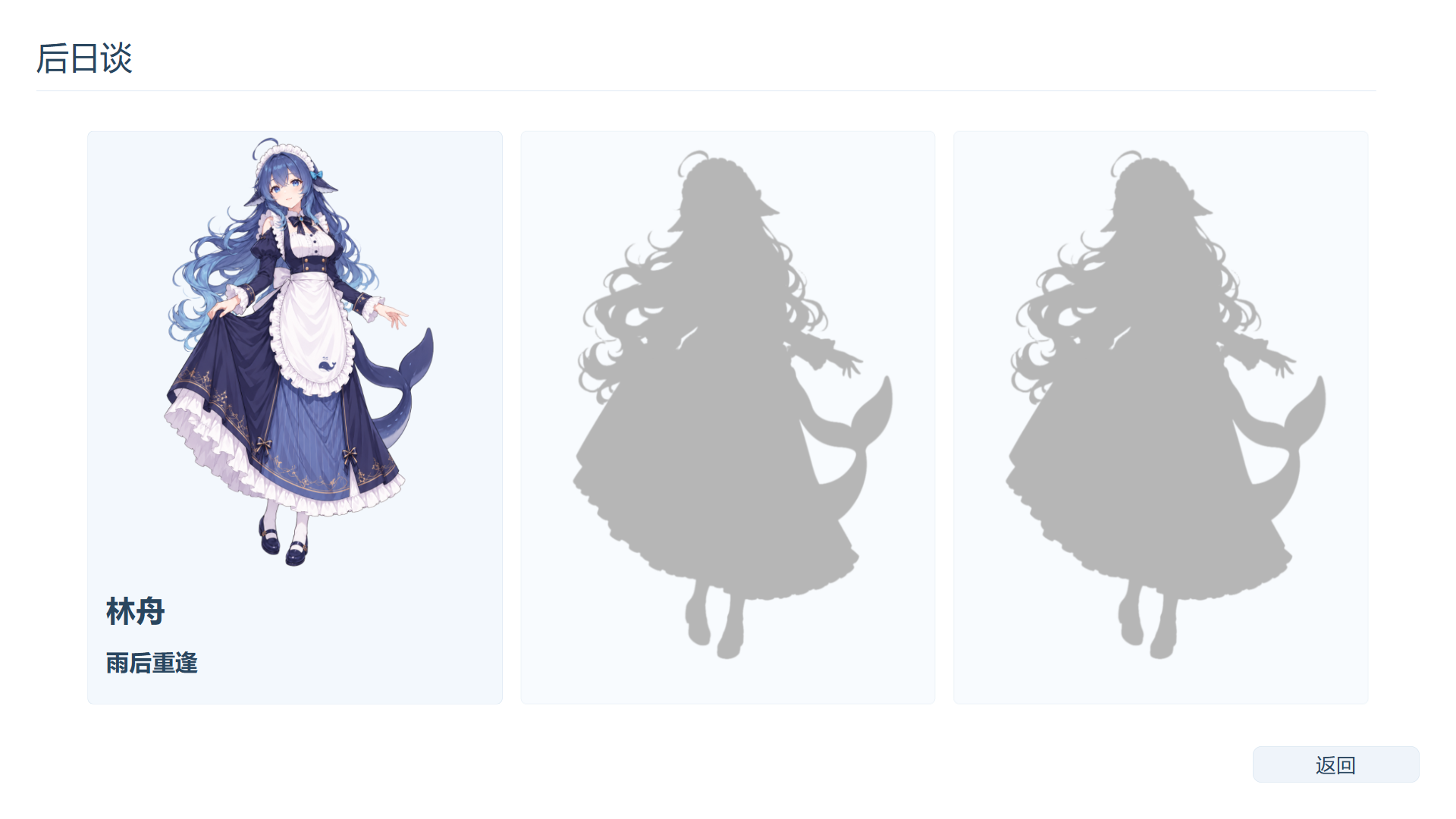
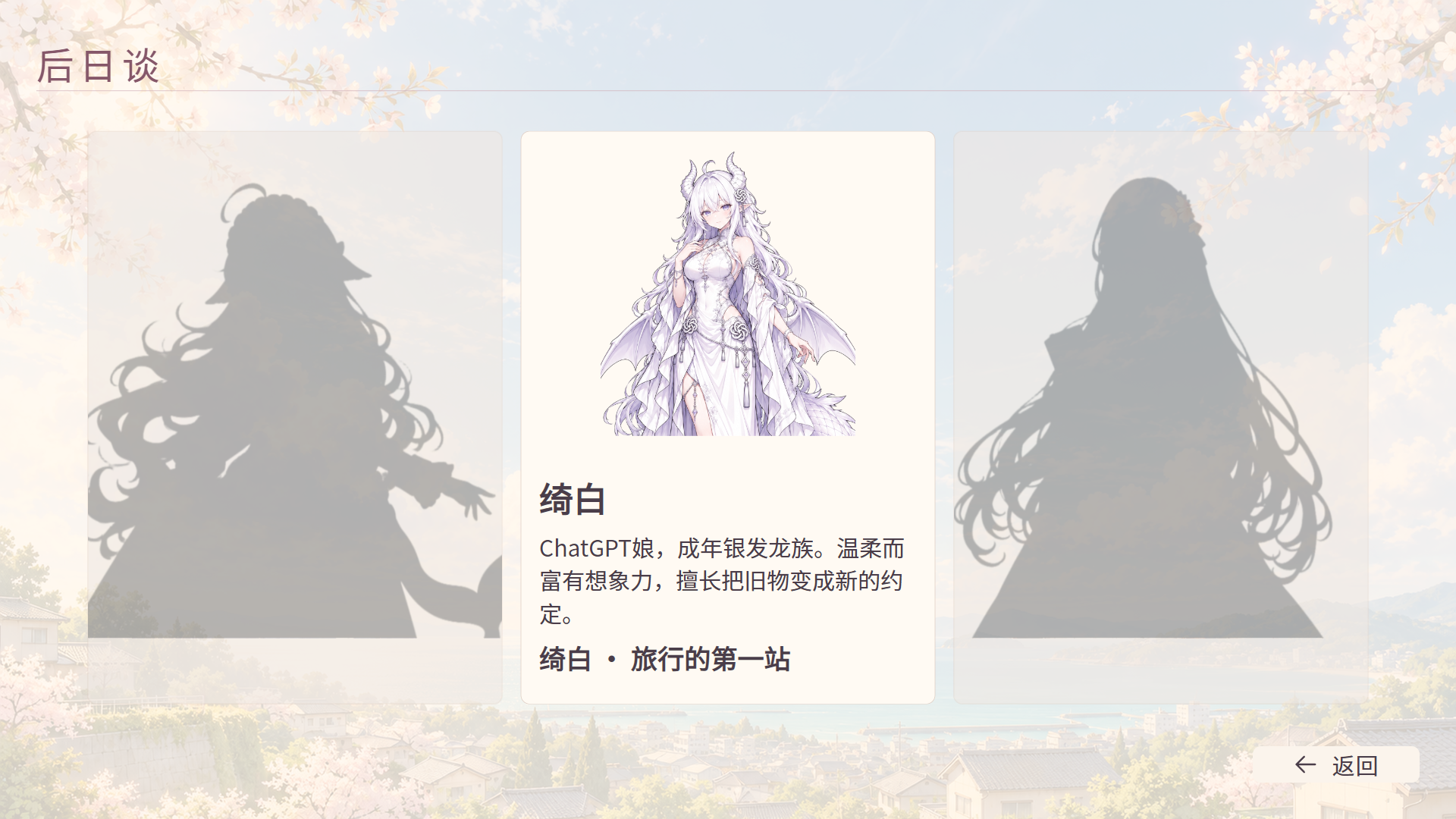
The main-menu Afterstories entry becomes available after completing any main-character route. Before that it is disabled without a hint. Character entries stay in a horizontal row with horizontal browsing when needed. Each unlocks through its own route endings; locked entries show only a uniform gray figure silhouette without names, titles, covers or hints. Click an unlocked card anywhere to start from the beginning every time. Hover shows availability; the pressed appearance lasts only until entry. Locked cards show no hover response and cannot be activated. To resume midway, explicitly load that afterstory's save. Its data and saves remain separate from the main story. Completion returns to the menu while the main-story Continue position remains intact. Authors may hide unavailable entries. Clearing only long-term completion data retains saves but blocks afterstory loading until the corresponding route is completed again.
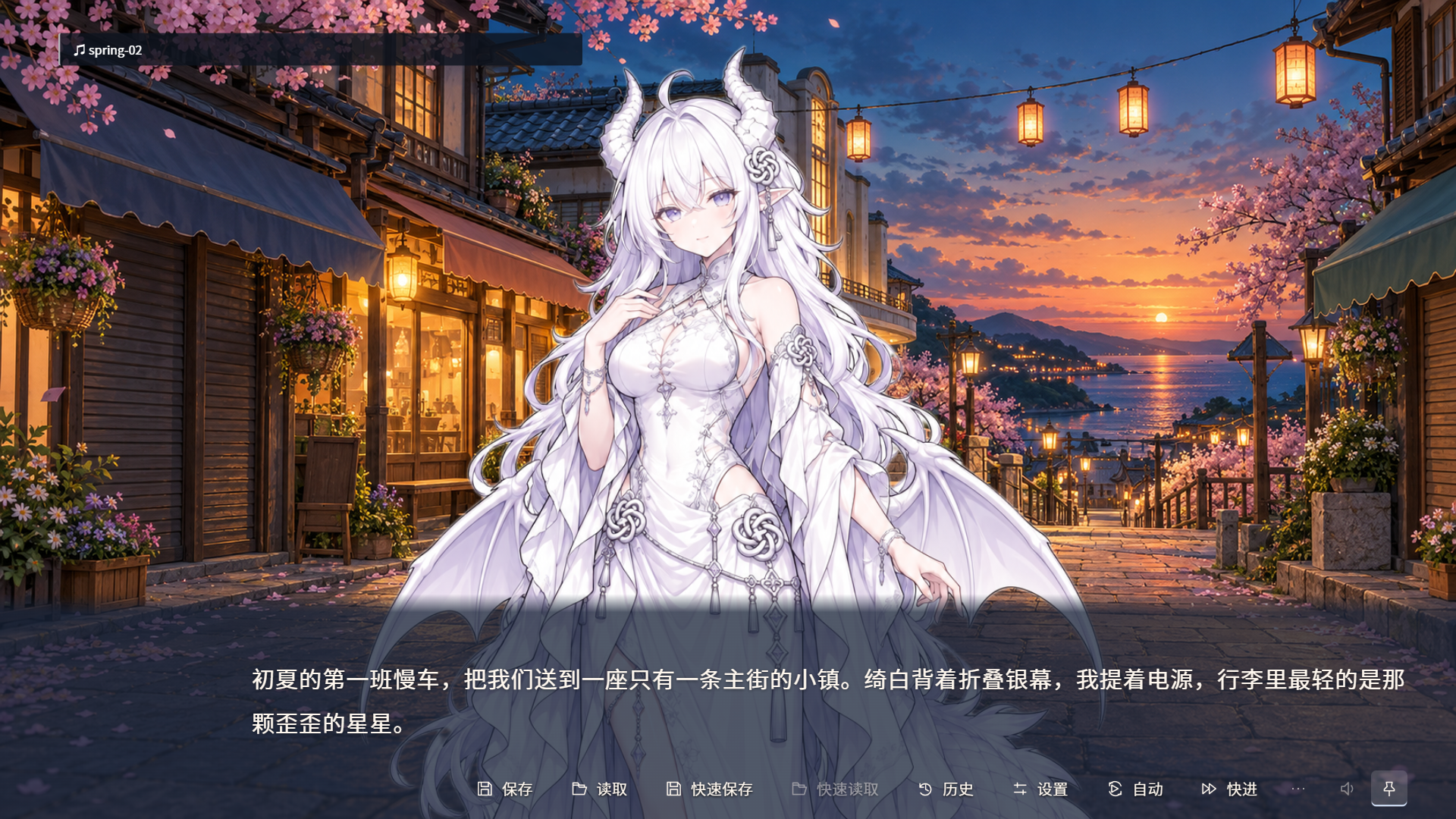
Player shows the configured title and interlude before the body and reading tools. When skipping is allowed, right-click/Esc completes the current entry once. Menus and focus loss pause the same player clock; loading restores the saved position. The music title bar follows the latest track that actually started playing. Verify its name and audio in a playtest.
The following Windows captures use the teaching work and an isolated profile with prepared route-completion data to demonstrate the directory, entry and reentry.
Project languages and Player preferences
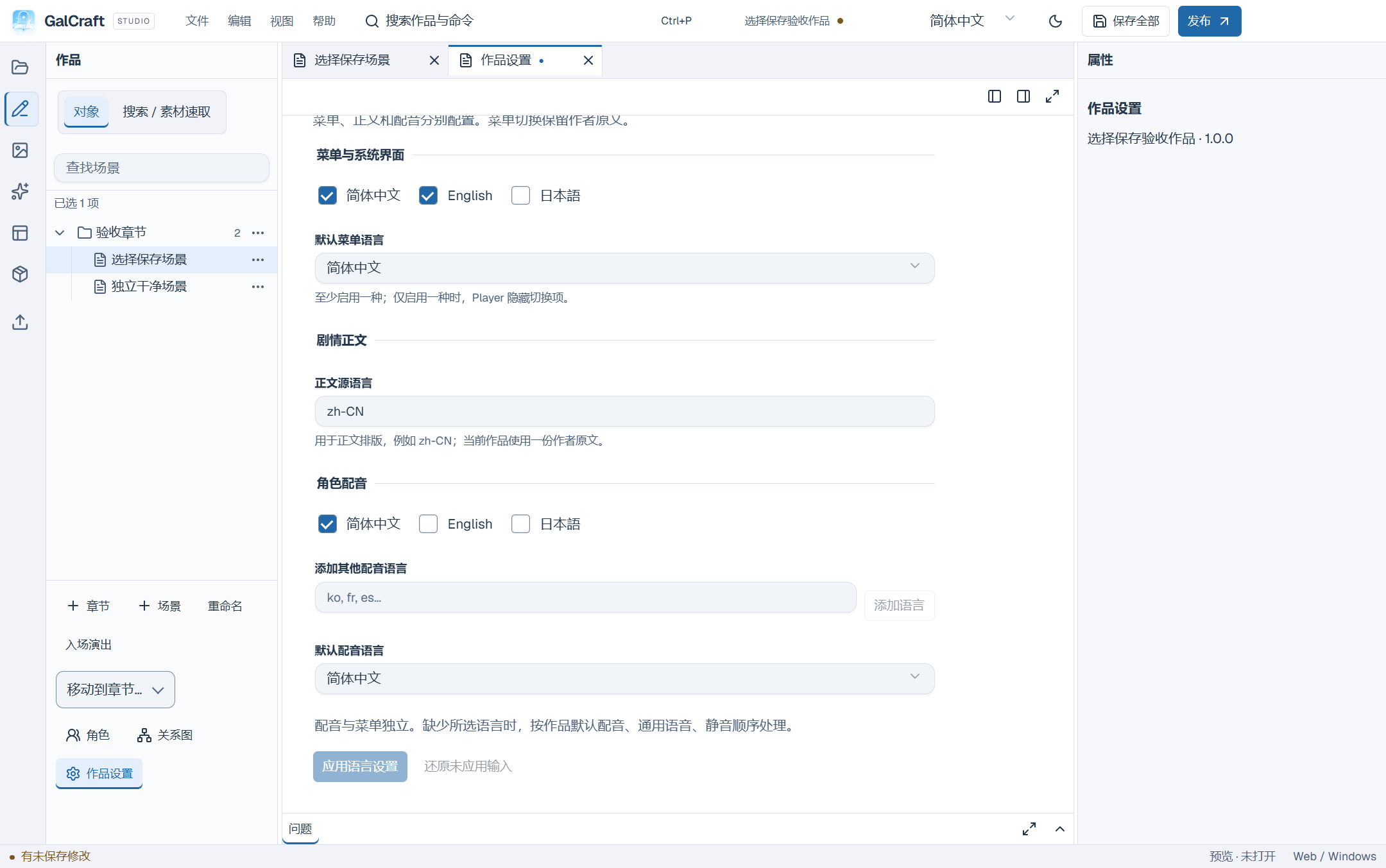
In Authoring → Project settings → Project languages, configure Menus and system UI, Story source text and Character voices separately. Enable at least one menu language and choose its default from that list. Source language controls the single author's text layout. Voices may be empty; otherwise choose an enabled default. Importing or generating foreign-language audio does not change the list. Apply language settings and save the project.
Player exposes only enabled, available choices: one language hides that selector, and no voices hides voice language. Menu and voice preferences save separately; reset uses project defaults. Menu changes redraw UI immediately while preserving story text, names, choices and author copy. Voice changes affect the next line, explicit replay and loading; current speech continues. Each line falls back from selected voice locale to project default, generic voice and silence.
The sample supports Chinese, English and Japanese menus with Chinese story text and all 39 character lines voiced in Japanese; narration stays silent. English menus retain the original story and voice languages. Playtest, Web and Windows exports use the same rules.
Continuous reading, history and the window
Hold Ctrl for temporary all-scope skipping. Release, lose focus or open an auxiliary page to stop immediately. A choice or input requires a fresh explicit action; the first ordinary advance stops Auto/Skip. Repeated clicks or wheel input do not queue advances for later lines.
History opens at the newest entry. Scroll internally to browse; a new downward wheel action at the bottom closes history and consumes that action. Escape and a right button mapped to Return also close it. An explicit history jump asks for confirmation.
Windows ordinary resizing retains the work's client-area ratio; maximize and fullscreen contain the complete canvas. Physical Escape or a mapped right click skips an allowed story movie and consumes the input. Display text does not create browser selection; input fields and plugin editors retain native selection, copying and IME behavior. Leaving for the title or closing Windows first saves resumable progress. If saving fails, read the reason and choose Retry, Cancel, or explicitly Return directly to title / Exit directly. Cancelling retains the scene; existing saved records remain.