

Projects, saving and files
Projects, saving and files — GalCraft Studio product manual.
Edit with a connected client
Generate the current project's connection materials and official galcraft-create Skill through Collaboration activity → Connect assistant. Native discovery directories are .agents/skills/galcraft-create/ for Codex, .claude/skills/galcraft-create/ for Claude Code and .dsh/skills/galcraft-create/ for DSH. The main file links operation-specific references. Updates retain author-edited files and put the official revision in the adjacent .galcraft-update file for an explicit merge choice.
Clients discover and explicitly open the target project, read its current project/write binding, then explicitly create or connect to collaboration. Calls carry the real project/session identities; read-only discovery never starts or changes collaboration. Reconnect after reopening or switching projects. Original task identities remain queryable, preserving pause and send counts. Existing authorization for a goal, scope and adoption supports continued execution without repeating each confirmation.
Both clients use applied working content, while unapplied form input stays in its source workspace. An author's description edit and a client's voice edit both survive; same-field conflicts retain the input and original basis. For “the selected button”, explicitly hand off its object/version; selecting something else later does not change that target. Save plans list requested objects and necessary associations; unrelated unselected work remains unsaved.
File pickers remember successful locations by purpose: assets, workflows/schemes, plugins/SDK/voice libraries and backup/data imports. This local preference is reused across projects. Cancelling or a client operation with an explicit path does not change the remembered manual location.
Return to the Studio guide.
Identify the files you have
| What you have | Purpose | Open it with |
|---|---|---|
Complete project folder containing project.json | Continue writing, managing assets and editing Player pages | Studio → Project center → Open project folder |
.galproject file | Restore an editable project from a complete backup | Studio → Project center → Restore backup |
| Web or Windows release directory | Run the work and deliver it to players | Follow Build and run the output |
| Player data ZIP | Move saves, preferences and persistent progress | The matching work's Player → Settings → Data |
For example, a project named My Spring Lantern Story created under D:\GalCraftProjects opens from D:\GalCraftProjects\My Spring Lantern Story. Select the project directory itself. Use restoration for a backup package and Player for a release.
Project content and personal service connections have separate storage. On another computer, follow the missing-dependency report to prepare the exact engine and plugins, then configure that computer's own service connections. Confirm that opening, saving and playtesting work before continuing your edits.
Project center
Open Project center from the Workfaces menu or search for it in the command palette. The Explorer groups registered projects into Recent, All and Pinned. Search by part of a name or directory. All lists registered projects; it does not scan your drives. Switch between cards and a list without changing project contents.
Select a project to inspect its status, engine and management actions. Double click its name, or choose Open project in Inspector. The current badge identifies the open session. Returning to the library keeps that session; Continue authoring returns to your editing position. The current project card also offers Project settings and Project maintenance.
| Action | Result |
|---|---|
| Pin | Add or remove the project from Pinned |
| Folder | Open its directory in the operating system |
| Duplicate | Open the project, handle unsaved work, then create an editable copy |
| Backup | Open the project and save a complete backup |
| Remove from list | Remove its registration; retain its directory and files |
| Relocate | Select the new location of the same project after moving it |
Hover over an icon for its action name. A missing directory is marked unavailable. Relocate it to the same project; use Open project folder to register a different project. If the list is empty, create or open a project. If a search is empty, clear the query and select All. For a read failure, retry and check the drive and file permissions.
The library uses the Studio document tabs. Use the contextual return and draft actions inside the page to switch between the library and an unfinished creation form. Template and local engine preparation shows its current status; retry a failed read to continue the same draft.
Create and open
New project opens a persistent form in the central workspace. Switching documents retains its input. Closing a modified form asks whether to keep editing or discard the draft. Enter a name, choose a template, review the canvas and installed engine, then select a parent directory. Studio creates a child directory named after the project. Cancelling directory selection creates nothing.
| Field | What to choose |
|---|---|
| Name | A folder-safe title; avoid \ / : * ? " < > | |
| Empty project | A small starting point for your own story |
| Lightweight / Standard / Rich | The Player page and gallery feature set |
| Canvas | Keep the default initially; assets and positions use this logical canvas |
| Engine | An installed version; repair the installation if the list cannot load |
The complete tutorial is a separate .galproject backup. Choose Restore backup, select the file and destination, then Create independent copy. Review the exact dependencies before confirming. New project retains the basic authoring templates.
Use Open project folder in Projects or File to select the directory containing project.json. Studio edits the original project in that directory and adds it to recent projects. The Explorer folder icon only reveals the location.
| File type | Purpose and entry |
|---|---|
| Project directory with project.json | Open project folder in Studio to edit |
| .galproject | Restore backup in Projects |
| Story script | Edit or import in the work’s source view |
| Media files or directory | Import into the asset library and bind |
| Web release directory | Run through HTTP(S) or preview.mjs |
| Player data ZIP | Import progress and preferences in Player Settings → Data |
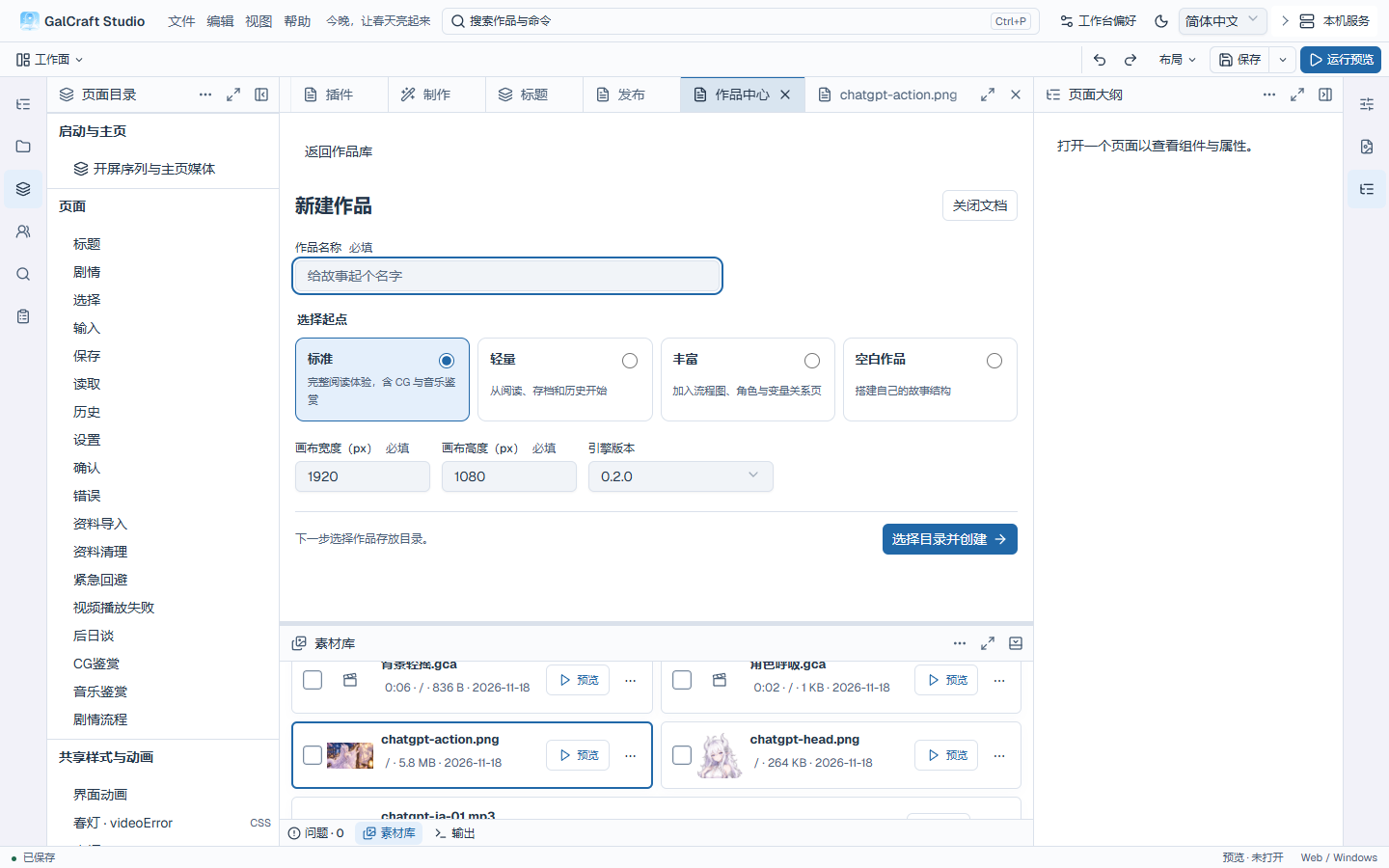
If creation fails, Studio shows the reason next to the create button and keeps your input. Correct the affected field or directory and try again.
Switch projects
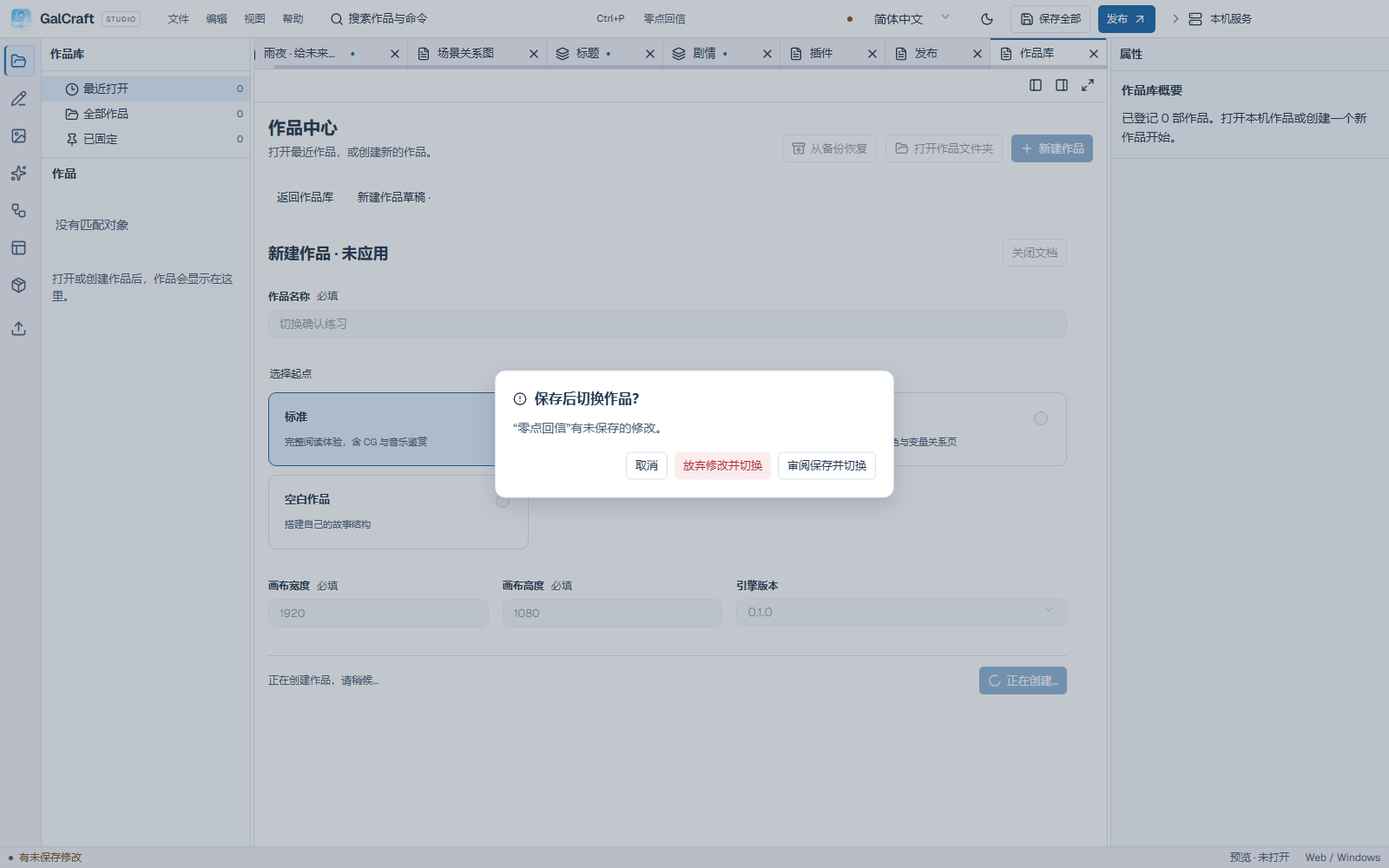
Studio edits one project at a time. Before opening another, choose Review save and switch, Discard and switch, or Cancel. Cancel retains the current project and edits. If the target directory is invalid, Studio retains the current session and unsaved work; fix the target instead of deleting current files.
Apply and save
Apply updates the editable workspace for preview and undo. Save document or Save all writes the selected changes to disk after review. Continue saving after applying character changes, dragging page components or adopting generated content.
| Data | Owner and persistence |
|---|---|
| Story, characters, outline, pages, asset index, plugin dependencies | Current project; save the document or all changes |
| Service connections and credentials | Personal workbench; the connection dialog saves them directly |
| Production drafts, tasks and candidates | Personal production records; project saving does not submit or adopt them |
| Font size, theme, language, layout, recent and pinned projects | Local workbench preferences |
| Player saves, reading preferences and unlocks | Player profile, separate from authoring data |
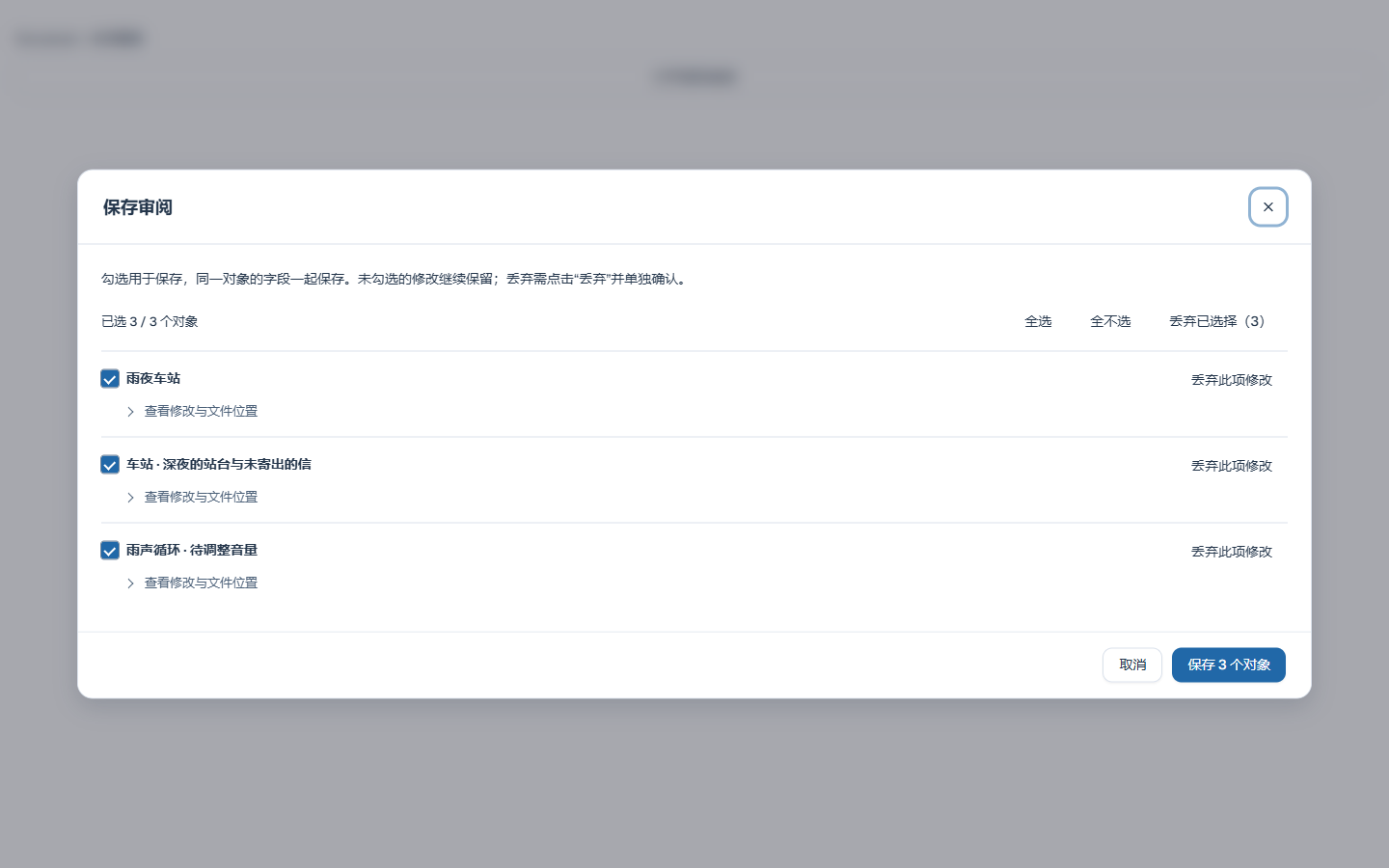
File → Save document or Ctrl+S initially selects the current document; Ctrl+Shift+S initially selects all changes. Save review lists scenes, characters and project settings as objects, with one row per asset in the asset index. All fields of an object save together. Expand Changes and file locations, select the objects and choose Save N objects.
For a character, Save current character, Ctrl+S, the menu and saving when closing its document first identify that character, check and apply its valid input, then open save review. Unapplied input for another character, unsent production and unrelated release settings stay available while this character saves. Production still starts through its explicit send action. Invalid input, unfinished text composition or a same-field conflict in the target character retains the input and asks you to resolve it. Save all continues to check and review the full scope. Pinned Object properties saves its own source; saving while closing a document targets that document.
When you use Ctrl+S in Project settings, Studio checks and applies the current player name and project language input before opening save review. In Startup & home, it first checks and applies ordinary fields and clip numbers. Switching between Splash and Home preserves unfinished input. If a number is invalid, current save returns to the relevant tab and focuses its field. The two entries share project configuration. Saving while closing first processes the entry being closed. Confirm colors and audio loops in their own controls. A failed deletion keeps the clip’s input. A successful deletion clears only that clip’s input.
Apply to workspace only creates an undoable working change. After the main save action applies input, canceling save review leaves those changes unsaved. Continue saving, or leave the text input and undo the character edit. Canceling review retains the previously saved disk content.
Browsing an import batch, returning, focusing/restoring the library and previewing versions change only the browsing view, retaining the checked set and save scope. Retrying an import requires its explicit action. Character reference images and shared differences are appended, created or changed only after applying in the same picker; cancellation retains the character input, and pinned or active-version references keep their chosen behavior. After importing and applying fields, save the changed asset or character objects. See Asset management.
Required objects show a reference-integrity or associated-edit reason. Deselecting a required dependency also deselects objects that need it. An empty selection cannot save. Unselected edits remain in the workspace with their unsaved indicators and recovery draft. Pin a long review to the workspace to continue reviewing.
Checkboxes select objects to save. Unchecked changes stay in the workspace. Discard these changes or Discard selected opens a separate confirmation. After discarding, Save N objects saves only the remaining checked objects; Close review retains the completed actions. When all changes have been handled, the review offers Close review and Undo discard.
Discard these changes opens the actual impact preview. Confirming immediately restores the saved content for that scope; Undo discard restores the discarded work. Canceling or closing save review retains an already completed discard. Refresh a stale plan and review it again; a failed save retains working content with the affected object/path error.
A failed save also remains in Problems, associated with the documents or objects you tried to save. After dismissing the notification, open Problems and choose Open save source to return to the original document, correct the cause and retry. A successful save clears failures for the completed scope. If retry finds no changes, Studio rechecks that scope against saved content and clears its failure when they match. Failures for other documents or objects remain; switching documents preserves the original save source.
Ignore this attempt moves only that failure summary to Ignored, retaining the save state, working content and source. The choice survives reopening the same project; Bring back returns it to pending problems. A new failed save attempt appears again. Recompiling or choosing Recheck in Problems retains the save failure; return to its source and save when you need to write to disk. See Make a first edit for problem sources and other recovery actions.
After a partial save, switching, closing or exiting still asks you to handle remaining unsaved work. Continue saving, explicitly discard it or cancel leaving.
Undo, duplicate and back up
Ctrl+Z undoes; Ctrl+Y or Ctrl+Shift+Z redoes. A focused text field handles its own text history first. Move focus out of it to undo project edits. A dialog's Cancel discards its unapplied draft; undo reverses changes already applied to the workspace.
Before major changes, save all and duplicate or back up from Project center. Duplication creates an editable sibling project and opens it. Backup saves a .galproject file through the system save dialog. Check the reported path and confirm the output exists.
Choose Restore backup in Project center.
- Select a
.galprojectbackup, its destination parent and a new folder name. Restoration creates a new folder and preserves existing directories. - The default, Create independent copy, gives the restored work a new identity and separate player data. Choose Keep original identity to continue using the original project's player data. The backup restores project content; player saves are managed separately.
- Select Prepare and check dependencies and review the destination, identity and exact dependency report. For each missing package, match the name and exact version in the report, choose Import local folder, then check again. Service connections remain personal configuration; configure them after restoration as needed.
- Once checks pass, select Restore and open. Studio restores and opens an editable work. If opening has not completed, use Open restored project to continue.
Preparation and cancellation preserve the original project; failure retains the report and actionable problems. Check playtesting and publishing separately on the restored work. Use Open project folder for an existing editable directory. Use Roll back to this original copy in Project maintenance to undo an engine migration. See Engine versions and history.
File conflicts and retries
When another editor changes a file on disk, saving opens Resolve file conflicts. Expand each file to compare the last saved, working and current disk content. Keep working content continues saving your work. Use disk version replaces conflicting working files while retaining other unsaved changes. Save a copy writes working content to a new directory; the original work may remain unsaved. Open the copy from Projects to continue there. If disk content changes again, review the updated comparison and confirm again. Cancel keeps working content.
If a read-only or occupied file prevents saving, the review and working content stay available. Restore write access or release the file, then retry with the same confirmation button.
Recover unsaved work
After reopening a project with a retained draft, choose Review retained draft in Project center. Expand a file to compare the currently saved version with the retained draft. If the saved content changed, you can also see the draft baseline. Choose Restore draft to recover the original documents, then review and save them. Choose Discard draft and use saved content to continue with the disk version. Cancelling keeps the draft. If a file conflicts, use the review to keep the working content, use the disk version, or save a separate copy.
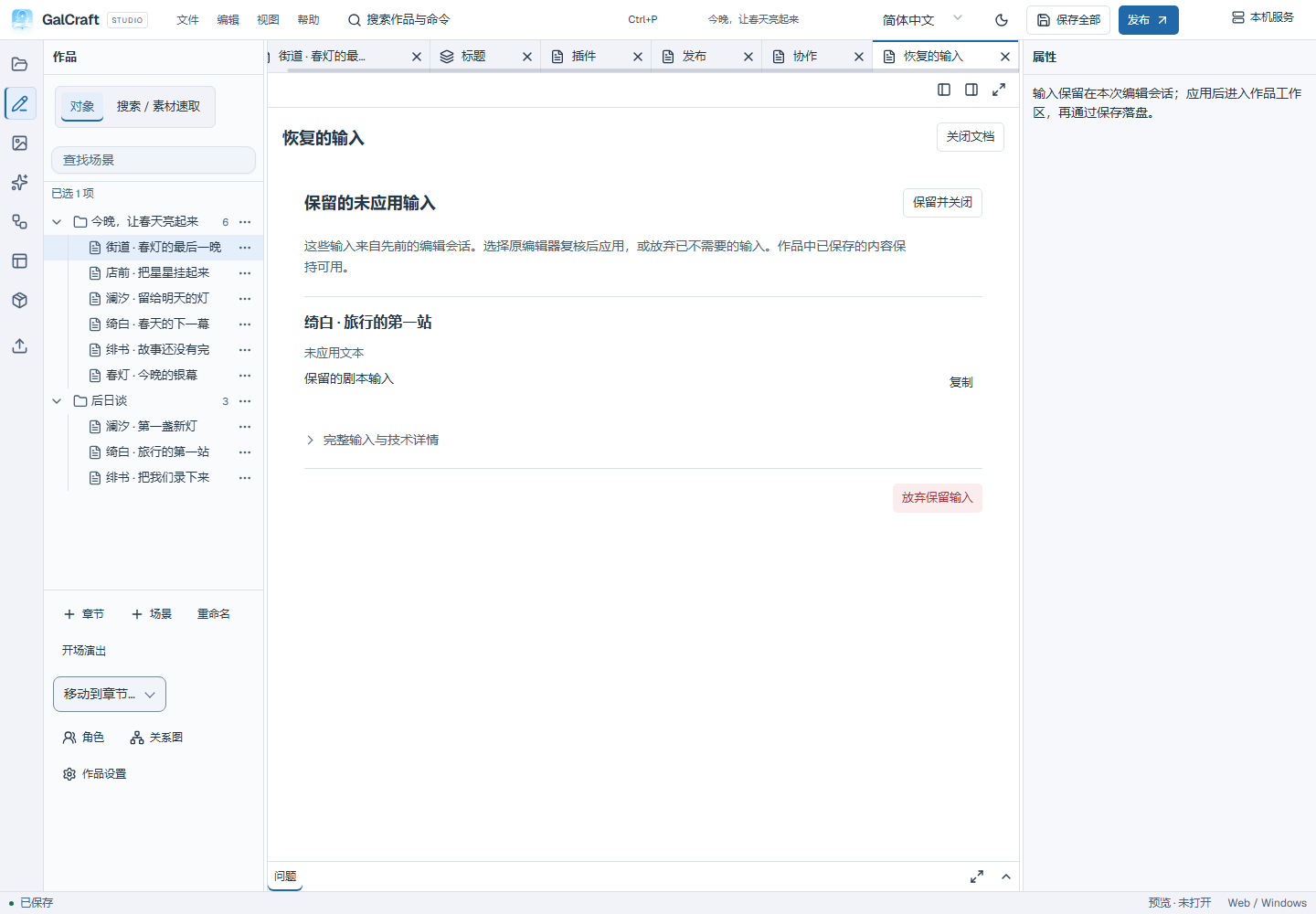
Recovered input separately retains fields that were not applied to the work and groups them by their original editor. Review them in that editor or choose Keep and close; search the command palette for Review retained input to return later. Explicit discard removes only these retained inputs. Complete input and JSON stay in collapsed technical details. Normal saves and unrelated asset revisions do not repeatedly open this document.
Retained drafts from the older multi-character editor open as separate tabs for their original characters. Switching or applying one retains the others' input. Review and apply or save a draft for an existing character. After another character saves and advances the project version, independent unapplied input stays editable in its original character form; other input with an invalid source remains in recovery review. A character that was never created first shows its retained input read-only; choose Continue recovering this character draft to edit it. Keeping and closing it lets you reopen it from the Character directory with the same identity and input. Applying creates the character with its original identity, and saving writes it to disk. If the original character was removed, Studio keeps the input and copyable details. Undo the removal or restore the original character before continuing with that identity. An empty older character entry opens the Character directory, where you can create or open a character.
Close a project or exit
File → Close project closes the current work and returns to the project workbench. The window close button exits Studio; opening another work switches projects. Save review identifies the intended action. Cancel retains the window, input and focus; save failure retains the work for correction and retry.
File problems
| Symptom | Next action |
|---|---|
| Folder name already exists | Choose another name or parent; retain the other project |
| Removed project disappeared | Open its original directory to register it again |
| Directory moved | Relocate the same project |
| Returning to Projects | The session remains open; switching or exiting handles unsaved work |
| Duplicate or backup requires saving | Save the complete project, then continue |
| Export contains old dialogue | Save all, check the saved revision and rebuild |
8. Close an object and review discard scope
Keep changes and close retains work for a later return. Discard and close first shows the current object and related changes that must travel with it. Review Before discard and After discard, then confirm. Studio applies one undoable workspace operation; disk files retain their last saved content.
Project settings and Startup/home share the Project document while each entry scopes history and discard to its own fields. Discarding startup settings retains independent project-setting edits. Cross-document edit groups and required references can expand the actual scope; the review lists these related objects. A stale plan or failed application retains the workspace for another review.
The full save review scrolls through every document and structured detail while its title, cancel and save actions remain reachable. Expand long source differences or structured values to copy their full content.
The publish document reviews its release configuration and related work-name/icon fields when closing. Independent story, startup and other document edits remain in their own workspace scopes.